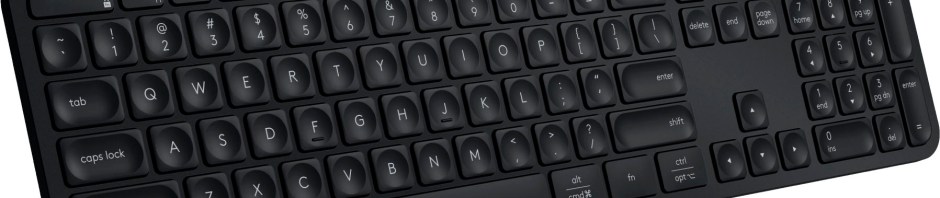

This is from day three of my switching from 40 years of using Windows at home to a Mac Mini. In my previous post, I shared my first day’s progress, in which I updated the Mac Mini’s macOS from Big Sur 11.2.2 to Sonoma 14.4.1. I then figured out the keyboard, learned how to snap windows to the sides of the screen, and discovered how to take screenshots.
Let the spending begin
Theoretically, switching to the Mac Mini would save me money by allowing me to avoid buying a new Windows 11 desktop computer once Windows 10 support ends in October 2025. I knew the reality was that I would be spending at least some money on hardware, software, and more to make the transition work for me.
The first spend was a mere $5 for the Magnet app, since the default way to snap windows was too cumbersome for my taste. Now I can just drag a window past the edge or a corner of the screen to snap it into half or one-quarter of the screen, etc.
The second spend was $11 for a dongle so I could read SD and microSD cards on my Mac, since despite my general reliance on my iPhone, I want the capability to directly load any photos onto my Mac that I take with my Canon EOS Rebel T6. I already had a few USB SD card reader dongles, but they were all USB-A. My Mac Mini has a couple of high-speed Thunderbolt 3/USB-C type 4 ports, and I wanted to be able to use those.
The third spend is the focus of this post: $120 for a Logitech MX Keys S keyboard. I bought an iClever IC-GK03 keyboard and mouse in 2021 for the Mac Mini, and that had only set me back $27. But I found that if I turned off the keyboard, I had to remember to hit fn+Q to put it back in Mac mode, and I didn’t like the half-size up and down arrow keys. I have also been annoyed at having shuffle between the wired keyboard on my Windows computer and the iClever one for the Mac on my cramped desktop.
I read several reviews, and settled on trying a fancy Logitech MX Keys S keyboard that I could connect to the Mac via Bluetooth and to my PC with a dongle.


A Grumpy Old Man and His Logitech MX Keys S Keyboard
Amazon could get me the dark version of the keyboard in a day, while the prettier graphite version would take a week. Impatience got the better of me, and I ordered the dark one.

It came today, and of course it didn’t come with a manual, because technology companies HATE their customers. There were just some cryptic and somewhat misleading illustrations inside the box lid. I knew I should charge the keyboard, but the cable that came with it was USB-C for the keyboard end and USB-A for the other.
Apple is notoriously skimpy with ports, and my Mac Mini only has two USB-A ports. One of mine has the dongle for the iClever mouse/keyboard and the other is connected to my Canon multifunction printer/scanner. That left two USB-C ports, or I could plug the SD card dongle in a USB-C port and try using the USB-A port on that dongle.
I don’t have a lot of USB-C cables, but I remembered that some months ago I bought a cable that was USB-C on both ends to try and be forward-thinking. I found it in a drawer and used it to charge the keyboard. I hoped that the keyboard might use that cable to identify the Mac Mini and configure itself, but it appears the USB-C port on the keyboard is only for charging. <sarcasm>Because who would ever want a wired keyboard?</sarcasm>
So I followed the graphics on the keyboard box to trigger Bluetooth pairing, accessed the Bluetooth controls for the Mac Mini via the Control Panel icon at the top right (which is also where you swipe down on an iPad to see its Control Panel), and I got the keyboard connected.
Since there was little guidance on using my new and rather expensive keyboard, I then downloaded the Logi+ Options software. That at least told me what level of charge the keyboard was at.
But when it came to figuring out how to adjust the backlighting on the keyboard, I found nothing on that in the box nor in the apparent options at the top right in the Logi+ Options software. There was a link about “Smart Actions” which is some kind of macro/scripting utility, but how could I figure out the keys on the new keyboard? Well, it turned out that Logitech was using what Vincent Flanders termed Mystery Meat Navigation.

If I hovered my cursor over the keyboard image, it jumped up a bit, indicating that clicking it would do something, but even after you stumble across how that is a link, what that link does is still mystery meat.
Why in the world didn’t the programmers think to put a text link like Keyboard Tour in their crummy program? And don’t get me started on how Logitech couldn’t be bothered to put even the most basic manual in the box with a $120 keyboard. Clicking the image of the keyboard got me a menu that included explanations of the keys. I could use F3 and F4 to adjust the backlight. I did like how there were dedicated keys for the calculator app and a configurable screen capture key; maybe this keyboard would be okay.
I then plugged the dongle that came with the keyboard into my Windows PC and managed to configure the keyboard so that I could press one key to type on my Mac and another to type on the PC.
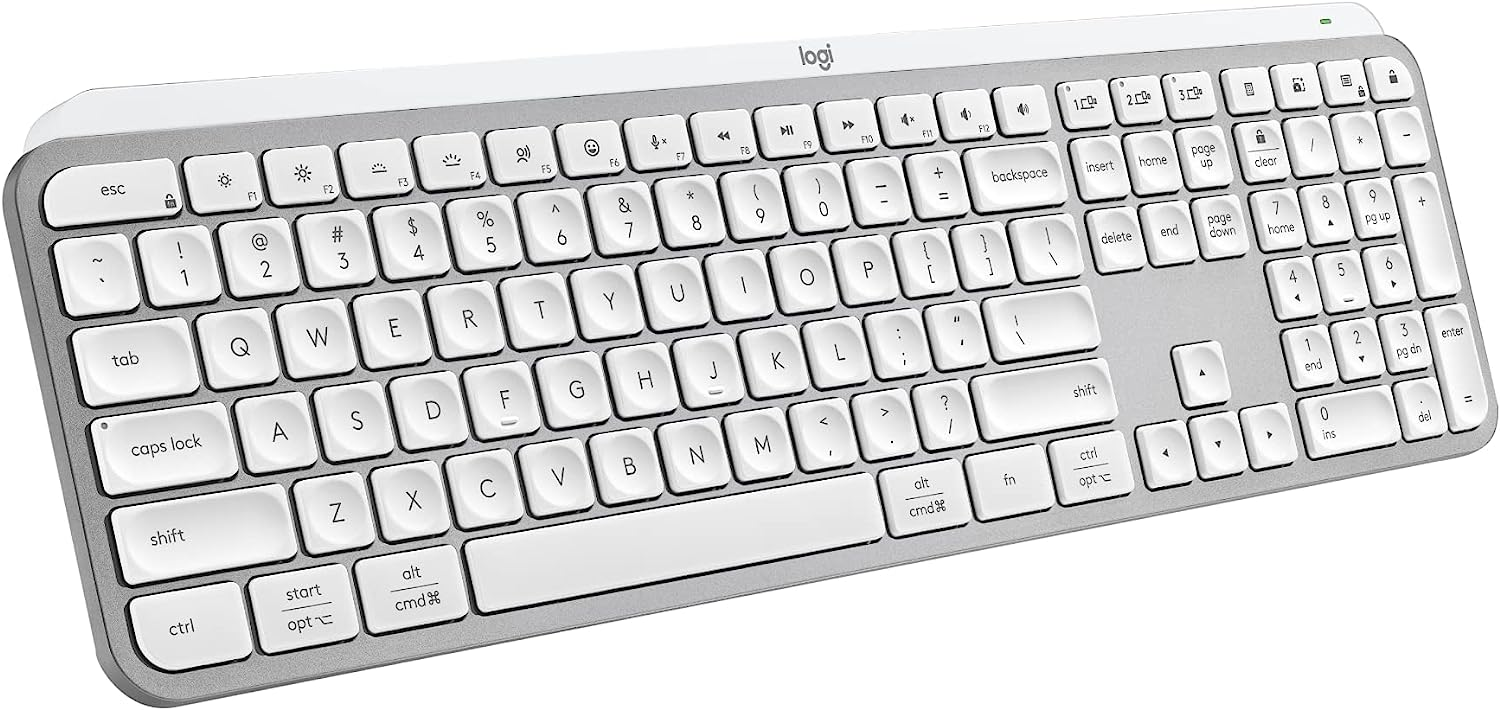
But it didn’t take long for me to figure out that I hated the backlighting on the keyboard. Turning it off was even worse, for then the symbols on the dark version I bought were far too hard to see.
I almost never return things, but I wasn’t at all happy with my $120 purchase. I decided to box it up and return it. The experience was crummy enough that I probably won’t buy the graphite version, either.
I may just use the refund on the returned Logitech keyboard to buy another dongle with USB-A and USB-C ports. I’m aware that the USB-C ports on the Mac Mini M1 are USB 4/Thunderbolt 3 ports that can reach 40 Gb/s, so I want to ensure that any dongle I plug into one of those includes high-speed ports. The two USB-A ports on my Mac Mini are limited to 5 Gb/s.
The Missing Manual

The fourth spend was for a manual on macOS Sonoma. I did putz around and discover that if you make the Finder active, then press Help in the menu bar, you’ll get a Tips for your Mac link. But the fumbling to find that help just increased my desire for a manual.
When I was a kid, I always read the owner’s manuals to devices our family acquired, including our automobiles, our first color television, our campers, etc.

When I got my first computer back in 1982, the mostly well-written and extensive manuals Radio Shack included with its Color Computers got me off to a good start, and then I turned to dedicated periodicals for more insights.
I’m almost entirely self-taught on computers, and I like manuals. I’m known for the technology manuals I’ve produced for several of the services we use in the school district, as I’m often disappointed in what even major companies provide for end users. Manuals fell out of favor in technology, which migrated to online help systems. Sometimes those are A-OK, and of course you can Google something for quick and usually-correct guidance, but there are times I really want a manual. I’ve built up a mastery of Windows over the past 40 years, but I’m still a noob on the Mac, even though I did own a Macbook Air over a decade ago.

That dilemma is why the reporter and musician David Pogue wrote dozens of Missing Manual books, and I’ve always admired his work. When I purchased the Mac Mini in January 2021, I had purchased Pogue’s Mac Unlocked, but that book was written for a machine running macOS Big Sur 11, and Pogue has retired from writing computer books. I didn’t want to be confused by references to version 11 of macOS when I am using version 14.
Despite their titles, I’ve always found Wiley’s … for Dummies series of books, of which there are over 300 these days, to be well-written references; Pogue wrote about eight of them. So I plunked down $18 for the Kindle version of macOS Sonoma for Dummies by Guy Hart-Davis, who has written over 100 computing books…assuming that isn’t a pen name for a syndicate of ghostwriters.
So here’s how deep I am into the Mac Mini at this point:
| Item | Date Ordered | Cost | Running Total | 2024 Running Total |
| Mac Mini M1 | 12/12/2020 | $1,156 | $1,156 | |
| iClever keyboard & mouse | 12/12/2020 | $27 | $1,183 | |
| Mac Unlocked book | 1/13/2021 | $25 | $1,208 | |
| Magnet app | 4/21/2024 | $5 | $1,213 | $5 |
| SD card dongle | 4/21/2024 | $11 | $1,224 | $16 |
| Logitech keyboard | 4/21/2024 | $120 | $1,344 | $136 |
| macOS Sonoma for Dummies book | 4/22/2024 | $18 | $1,362 | $154 |
| Return Logitech keyboard | 4/23/2024 | -$120 | $1,242 | $34 |
The dates show how I bought the Mac Mini at the end of 2020 and started using it in early January 2021, but then stopped using it in February 2021 as the COVID pandemic was still too overwhelming. So in my mind, the final column is the most relevant in seeing how much I’m spending in lieu of simply buying a new Windows 11 desktop computer. We’ll see if that increases with another dongle soon!
In future Mac updates, I’ll get into software, interacting with other components of my Apple ecosystem, and anything of particular interest I learn from reading the Sonoma manual.
Meanwhile, Grumpy Granger says, “Happy computing!”







 Meador Manor