

I used Windows at home for almost 40 years, but I’m now switching to an Apple Mac Mini. An earlier post explains why. This post is about my search for how to touch up photos on the Mac.
I have about 130,000 digital photos thus far, and that will not only grow as I snap more of them, but also as I slowly digitize my parents’ photo albums and eventually some of my own analog prints. I like to share photos on Facebook and include some in my blog posts, and I’ve learned how to do some basic touch-ups.
Back in 2010 I attended a one-day digital photography workshop with Jerry Poppenhouse, who traveled the world doing photography for Phillips Petroleum for 27 years and then taught at OSU Okmulgee. In addition to giving us pointers on composition, he showed us novices how to use the burn and dodge brushes in bitmap editors along with adjusting highlights and shadows and the like.
My Windows ways
The three programs I used to edit graphics in Windows were quite venerable and the versions of them which I was using dated back six years or more.
For 20 years I have relied on the Thumbsplus Pro program for Windows to view, organize, and edit most of my graphics. It is easy to use for rotating, cropping, resizing, converting, and making basic adjustments to contrast, saturation, and gamma. It also has a few useful filters for sharpening and the like.

But if I needed to burn or dodge a photo, adjust shadows or highlights or lights levels, or use a healing brush, those weren’t available in ThumbsPlus. I had tried Adobe Photoshop, but it was overwhelming for my basic needs, and its later conversion to monthly or annual subscriptions was a turnoff.
So back in 2009 I bought Adobe Photoshop Elements 8, then 10, and most recently Adobe Photoshop Elements 2018 (which was version 16). I used it mostly for adjusting highlights, shadows, and levels, correcting camera distortion, touch-ups with the healing brush, noise and dirt reduction, and the occasional burn or dodge.

When I wanted to do precise editing of bitmapped graphics or wanted to create vector graphics, I used Corel Presentations X7 software from 2014, which was the descendent of the 1990 MS-DOS application DrawPerfect by WordPerfect.

Bring out the Gimp
I looked for some recommendations online for powerful but inexpensive photo editing on a Mac. I knew Apple offered Aperture from 2005 to 2015, but the tight integration of Adobe Photoshop and Lightroom (Classic) prevailed. I don’t need the full-blown capabilities of Photoshop or Illustrator, and I have no interest in an Adobe subscription once I retire and no longer have access via a school account.
So I decided to first check out a free open-source graphics editor: Gimp. It has been available for many years and runs on Macs, Windows, and Linux. Its origins are given away by its full name: GNU Image Manipulation Program, named after the GNU version of Linux. (And GNU is itself a recursive acronym for GNU’s Not Unix. Soooo nerdy.)
Speaking of nerdy, take a look at the Gimp interface:

Oodles of tiny little icons, and a dozen different areas on the screen. That looks even worse than Adobe Photoshop:

Thankfully, you can hover over an icon or an area of the screen and get a brief explanation of what it is about. A bit of noodling around showed that Gimp was no wimp: it has many features this hobbyist associates with Adobe Photoshop, such as layers.
I had Gimp open in a window on the right half of the screen. After hovering over the different areas to see what they did, I thought, “Something is missing here.”
Being a four-decade Windows user, I had to remind myself to look at the top left of the screen, with the Gimp window selected, to see the application’s menu bar. There were the additional controls for…oh, good grief…if I click in my Chrome window to type this blog post, the Mac’s menu bar changes from Gimp to Chrome, so I can’t see the Gimp menu options to type them. In Windows, that wouldn’t be an issue, since its application menus are within each window. I guess I’ll just provide a screenshot of the Gimp menu bar:

Fonts
In messing with Gimp, I used the text tool and that provided my first glimpse into the default fonts of a Mac Mini…or perhaps just Gimp? The Google search engine’s Search Generative Experience, its experimental AI overview in search, stated that the Mac has separate folders for system fonts and for application fonts. In Windows, I just worked with one folder of fonts.
FYI, I only see the Search Generative Experience when I’m logged into a personal Google account at home. At work I use Google Workspace for Education, and Search Generative Experience is not enabled for it yet.
Many of the fonts were familiar, but many were not. I was surprised to see Arial in the list; I kind of expected that Helvetica imitator to be omitted. That prompted me to find out that I could use the Mac’s Font Book app to add fonts, and I diverted to find out my Mac had 470 fonts installed. Marcellus SC, which I picked out long ago for the school district logos, wasn’t included, so I added that. The Bruins logo also uses Blaze Italic, so I popped that in as well.

I’d rather draw than paint

After playing around with a few tools in Gimp, I wondered how to draw simple shapes, since while I do some retouching of bitmapped images, I also often have cause to draw lines, circles, boxes, and the like. Gimp has ways to draw lines, rectangles, and circles, but they are somewhat counterintuitive kludges for a program that is clearly oriented towards bitmap editing.
I tried the healing brush in Gimp, and I wasn’t impressed. With some fine tuning, it could work for me, but I suspect it would exhaust my patience. So I gave up on Gimp, unwilling to navigate its interface on a regular basis for my relatively simple needs.
What to try next?
Those who live in mud houses…
I had already paid $80 back in 2017 for Adobe Photoshop Elements 2018. Could I use that license to get the Mac version for free?
I went to https://account.adobe.com/products and looked at my registered products. I once had a personal Creative Cloud subscription, but this was showing me standalones I purchased and registered over the years:
- Acrobat 6 for Windows in 2005
- Acrobat Professional 7 for Windows in 2005
- Acrobat Professional 8 for Windows in 2008
- Photoshop Elements 10 for multiple platforms in 2012
- Dreamweaver 12 for Windows in 2012
- Photoshop Elements 16 for Windows in 2017
Hmmm…no mention of my purchase of Photoshop Elements 8 back in 2009; I guess I never registered that purchase with Adobe. Anyway, I could download the Windows version of Photoshop Elements 16, but not the Mac version.
I’ve spent $1,463 on the Mac Mini since December 2020. To put a different lens on costs, since I made the decision to switch from my Windows desktop to the Mac Mini as my primary machine, I’ve spent $232 on these items: a new keyboard and wrist rest, an SD card dongle, a book, and an external SSD; a future blog post will be about the SSD. Was I willing to pay $70 for Adobe Photoshop Elements 2024 for the Mac? Sure, given how often I edit photos, but first I wanted to see if a free bundled tool might suffice.
By default by design

By default by design
Time after time
Maybe you’ve earned it
Maybe you’ve spurned it
But you’ve got it
Yes, you’ve got it
-ABC, from Beauty Stab
I recalled that renaissance man and volunteer extraordinaire Michael Wray had sent me a tip that he organizes his photos with the Mac Photos app with different libraries for different events and clients. His focus was on the organization issue, but could the editing capabilities in Photos satisfy my hobbyist needs?
I’m familiar with the Photos app in iOS, having used its various functions for years, and while it can alter shadows and highlights and the like, it lacks a healing brush. To get that capability on iOS, I once used Adobe Photoshop Express, but I now use Snapseed.
I was pleased to find in the Photos User Guide that there is a Retouch brush in the Photos app on a Mac and along with more sophisticated Levels adjustments and the like. I decided to load the same image I had in Gimp, that of a vintage Fisher Price Chatter Phone, and try “healing” parts of it.
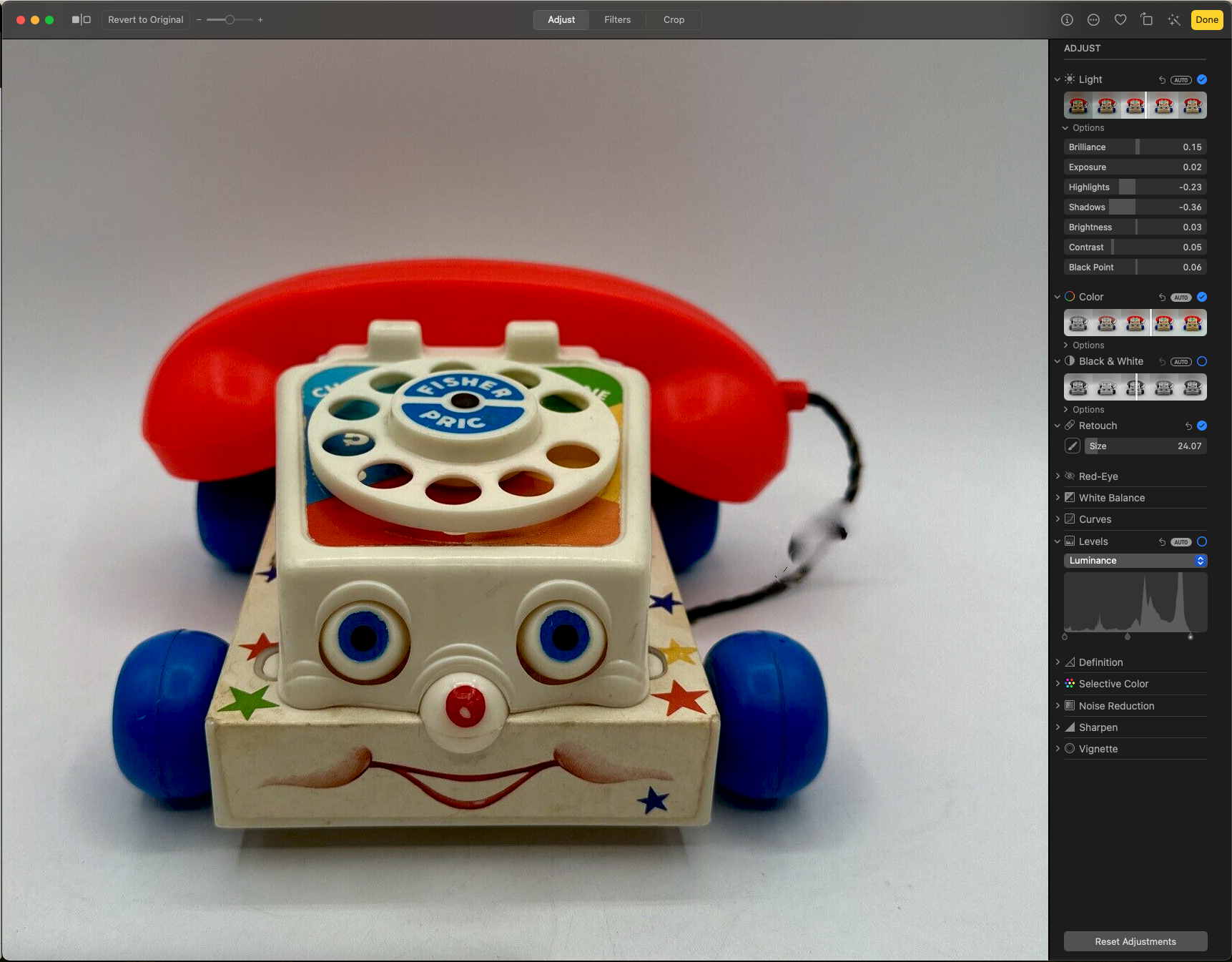
I also loaded a 1990s scan of a black-and-white film negative to see if the Retouch tool could deal with large specks and the like. Its handling of that was not awful, but it was noticeably inferior to the results I was used to getting in Adobe Photoshop Elements 16 for Windows.
I rechecked some online recommendations at Macworld and PCMag (I know, I know), and I decided to download the free trial version of Adobe Photoshop Elements 2024 for the Mac.
In my element
There was a warning that Adobe Photoshop Elements 2024 for the Mac only supported macOS 12 and 13, but the internet gave some indication it would work on Sonoma, which is version 14. I was a bit worried to see that there were known issues between Elements 2023 and Sonoma; I presume Elements sales for the Mac might be low enough that Adobe doesn’t put much programming resources into updates.
Elements 2024 on the Mac worked pretty much like Photoshop Elements 2018 on Windows after I switched the Mac version to dark mode; the default mode was too bright for my taste. I felt very comfortable in using it, and I appreciated the greater separation and clarity of its sidebar tools compared to the mess in Photoshop and Gimp.
I then edited the same images in Photos and Photoshop Elements 2024 side-by-side. I verified that Retouch in Photos was inferior to the Spot Healing Brush in Elements in retouching old negatives, and Retouch sometimes “hung” for awhile, leaving a dot on the screen where the brush had been applied. I’m guessing it might be using the cloud and experiencing server delays.

However, I didn’t see much difference between Retouch in Photos and the Healing Brush in Elements when editing the color photo of the Fisher Price Chatter Phone.
I’m holding off on purchasing Elements for now. My free trial lasts a month, and I’ve yet to work through my organizational scheme for photos on the Mac. Since it is likely that I’ll follow Mr. Wray’s lead and use Photos, I’d love to just use it for adjustments and avoid depending on Elements. But if Photos doesn’t meet my expectations, I can always plunk down $70 for Elements.
4/27/2024 UPDATE: When I tried to restart my Mac a few days later, it couldn’t restart, saying Adobe Photoshop Elements 2024 wouldn’t shut down. I tried various pointers on shutting down the program, but in the end I had to hold down the power button on the Mac for 10 seconds to restart. So Elements 2024 is no longer an option. I’ll either use the default Photos app or, in a pinch, I’ll Bring Out the Gimp!
Before I tackle organizing my photos, however, I think my next step will be to look at vector drawing tools on the Mac. That might be the topic for my next Mac post.
Happy computing!







 Meador Manor