
For 28 years, I taught students about vectors as representations of physical quantities with magnitude and direction, and how adding, subtracting, and multiplying them differed from the “scalar” mathematics they were used to. We covered the vector cousins of common scalar quantities, such as displacement adding direction to distance, velocity adding direction to speed, and so forth.

Vectors are also used in computer graphics, with images created using a sequence of commands or mathematical statements that place lines and shapes in a two-dimensional or three-dimensional space. That contrasts with bitmapped or rasterized graphics of a grid of colored pixels. Photographs are represented with bitmaps, while scalable diagrams are best handled with vectors.
The most famous early use of vector graphics in popular culture was the original Asteroids arcade game released by Atari in 1979, made possible by directly manipulating the electron beam in a cathode ray tube to draw shapes. In a typical television, the beam instead would scan across and down the screen repeatedly in a set pattern to create a raster, rather than a vector, image.
In my previous post, I explored editing bitmapped photographs on my Mac, and I decided to wait and see if the default free Photos app will suffice. If not, I’m prepared to spend $70 on Adobe Photoshop Elements 2024. But what about vector graphics?
Thankfully, the free online Google Draw, which is part of Google Docs, has vector tools which are sufficient for most of my needs.
Should I want something more sophisticated, my go-to in Windows has long been Corel Presentations, which descended from 1990’s DrawPerfect. Professionals might use Adobe Illustrator, but that is too complex for my needs, and I have no interest in paying for a monthly or annual subscription for Adobe Creative Cloud after I retire.
Inkscape is a free open source vector editor that runs on Windows, Mac, and Linux. I was a bit skeptical of it, given that its free open source counterpart in advanced bitmap editing is Gimp, and I wasn’t impressed with Gimp’s interface.
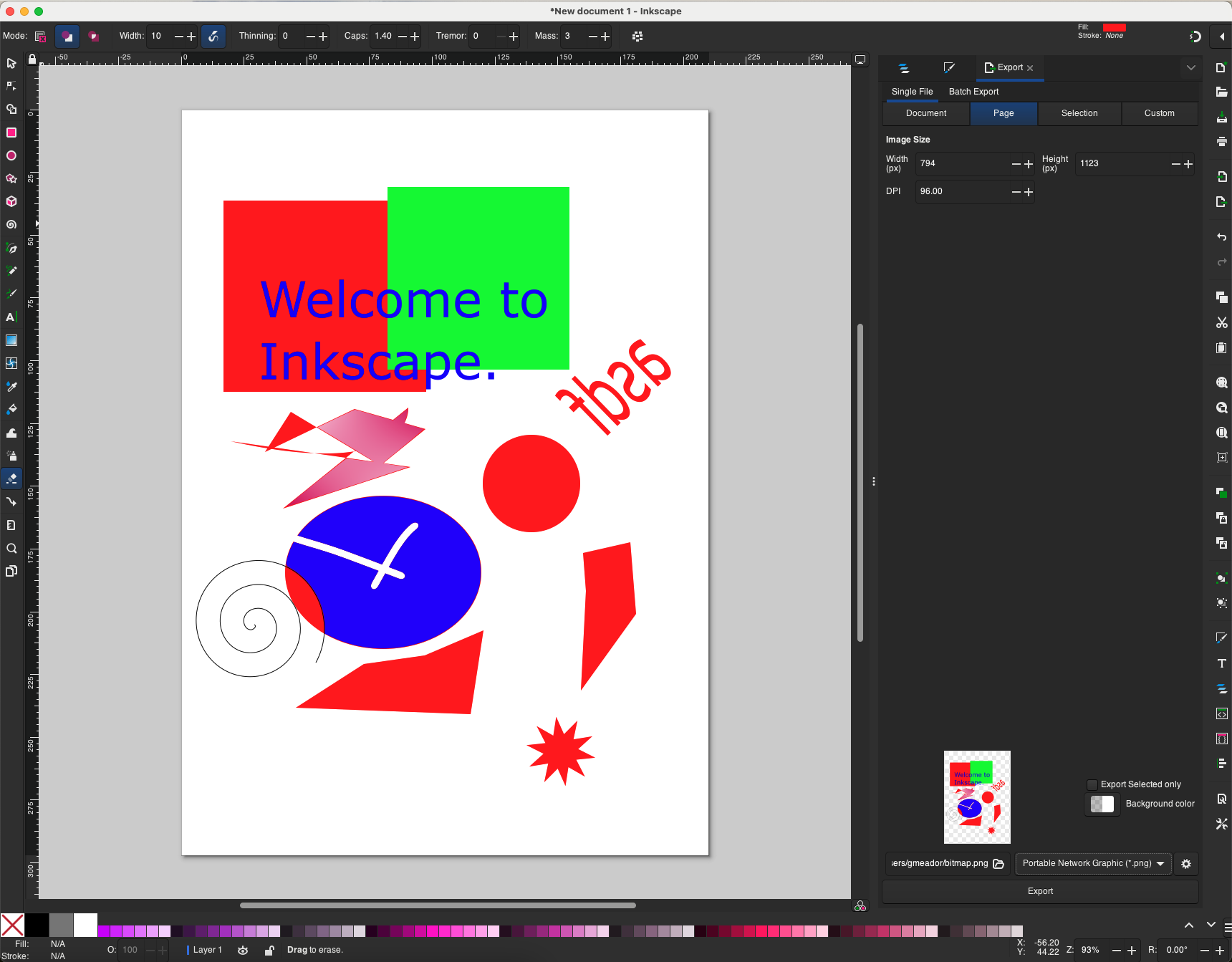
I found Inkscape a mix of familiar and strange. I am used to right-clicking an object and selecting a menu option for a rotation, but in Inkscape you click an object once while in cursor mode to get resizing handles and again to get rotation and skew handles. Once you know the trick, it’s a fine approach.
Inkscape has a more limited set of shapes than some programs, but it can manipulate them in sophisticated ways. If I ever needed to go beyond Google Drawings and used Inkscape, I’d definitely need to use Help > Tutorials to figure out some of the basics. I’m not a fan of surrounding all four sides of the editing area in tiny icons, but I feel pretty confident that between Google Drawings and Inkscape my vector drawing needs will be met.
I have dabbled in Cartesian coordinates, but vector geometry is where I draw the line.







 Meador Manor