

Once I had transferred the 130,000 digital photographs on my Windows computer to my Mac, I was ready to contemplate my storage and sharing of photographs online. My workflows and uses of online services have shifted over the years, but they eventually stabilized into four main online repositories for my photos:
- Flickr for public vacation photos, which were linked in blog posts
- Google Photos for the occasional shared album shared with friends and family, and mirroring my iPhone and iPad photo libraries
- OneDrive backup of my photo collections on my Windows computer, including the unedited and edited vacation albums
- iCloud for shots taken with my iPhone, including Shared Albums with Wendy
I decided to take stock of the various subscriptions I have that include photo storage:
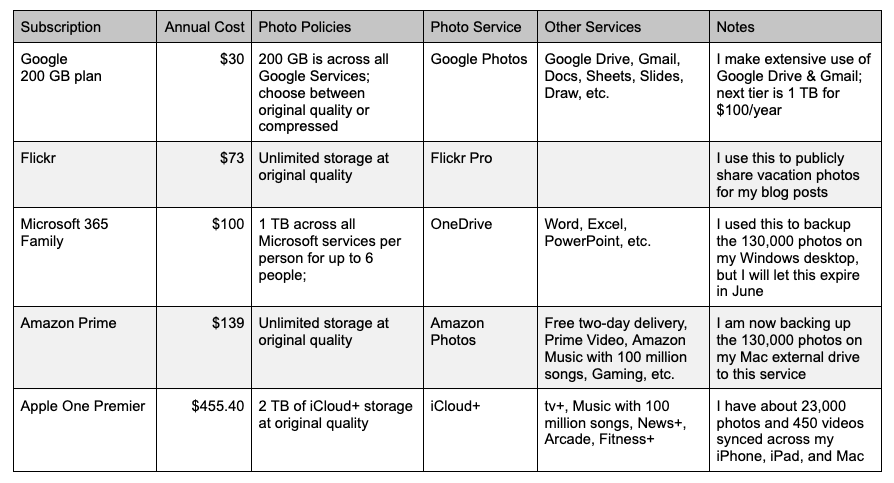
I decided to cut costs by not renewing Microsoft 365 Family and to contain costs by ensuring that I would not need to upgrade my Google plan. I delve into each service below.
Flickr

I settled on using Flickr to publicly share my travel photos back in 2006, when it was the most popular dedicated photo-sharing site on the web. I paid $24/year for a Pro account in 2007, and in 2024 that cost me $73. After adjusting for inflation, the cost of the service has doubled in 17 years.
I have 12,784 photos and 157 videos consuming 53 GB on Flickr, and they’ve collectively garnered over 2.3 million views. But Flickr faded over the years, with few interface updates and declining engagement. I used to get several solicitations each year from people either seeking permission to use one of my Flickr photos or offering payment for licensing. For awhile, unsolicited sales paid for the cost of my Pro account, but that hasn’t happened in years.
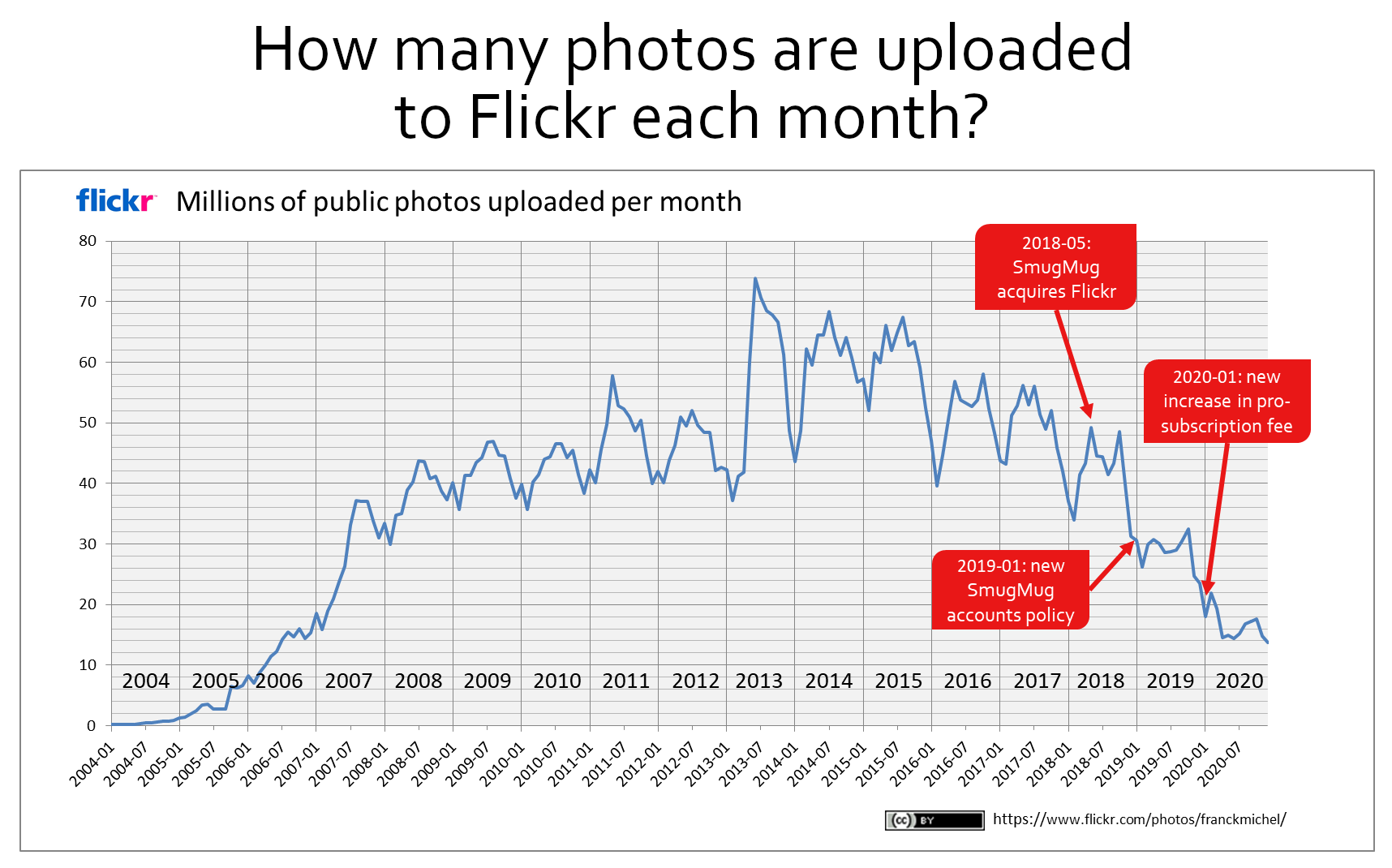
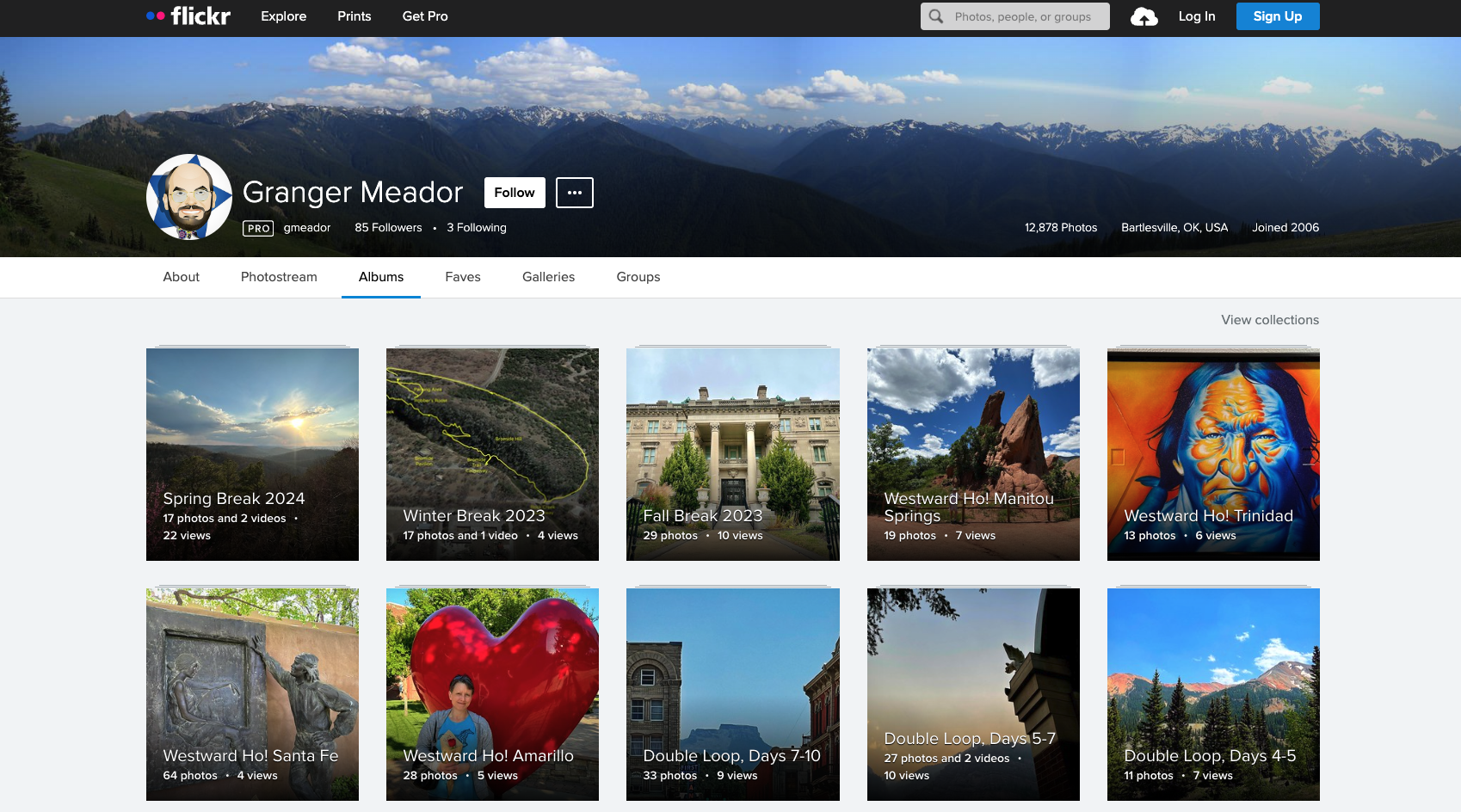
I still like how interested people can go to Flickr and browse my public photo albums, and many of my blog posts link to albums there, so I will keep that account and continue to use the service, mainly for vacation photos. I don’t want to post my vacation photos directly in WordPress. I pay $42/year for its Starter Plan, and that only provides me 6 GB of media storage, and I’ve already used 35% of that with graphics across my many posts.
Google Photos

I’ve used Google Photos for various projects over the years, but I’ve never really liked it. I created some albums to share with others, but the process is cumbersome, and I have discovered that any descriptions I type in for a photo on Google Photos, or a photo stored in Google Drive, are NOT retained in that photo’s metadata when it is downloaded. So that isn’t a productive use of time for a service I don’t really like very much.
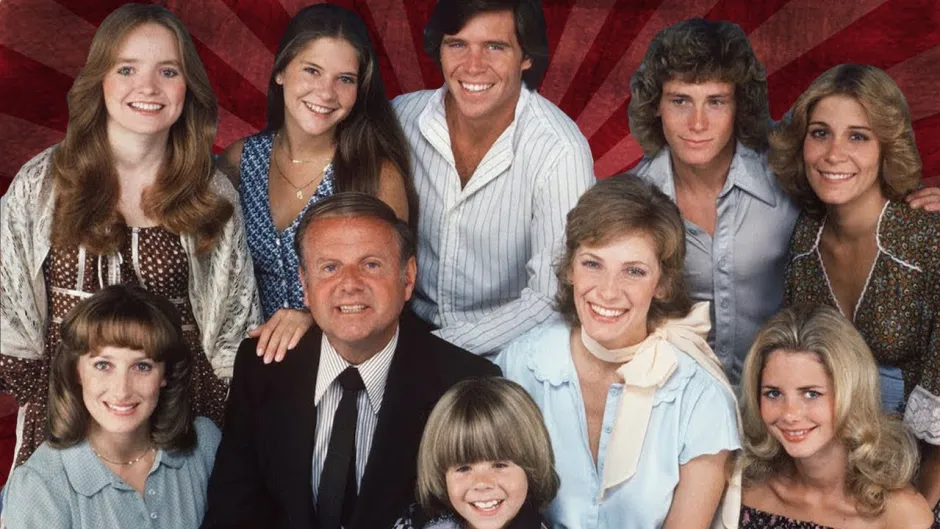
Google Photos albums can be shared, but the service is not set up to allow the public to browse a set of your albums. Here’s what a sample album looks like in Google Photos:
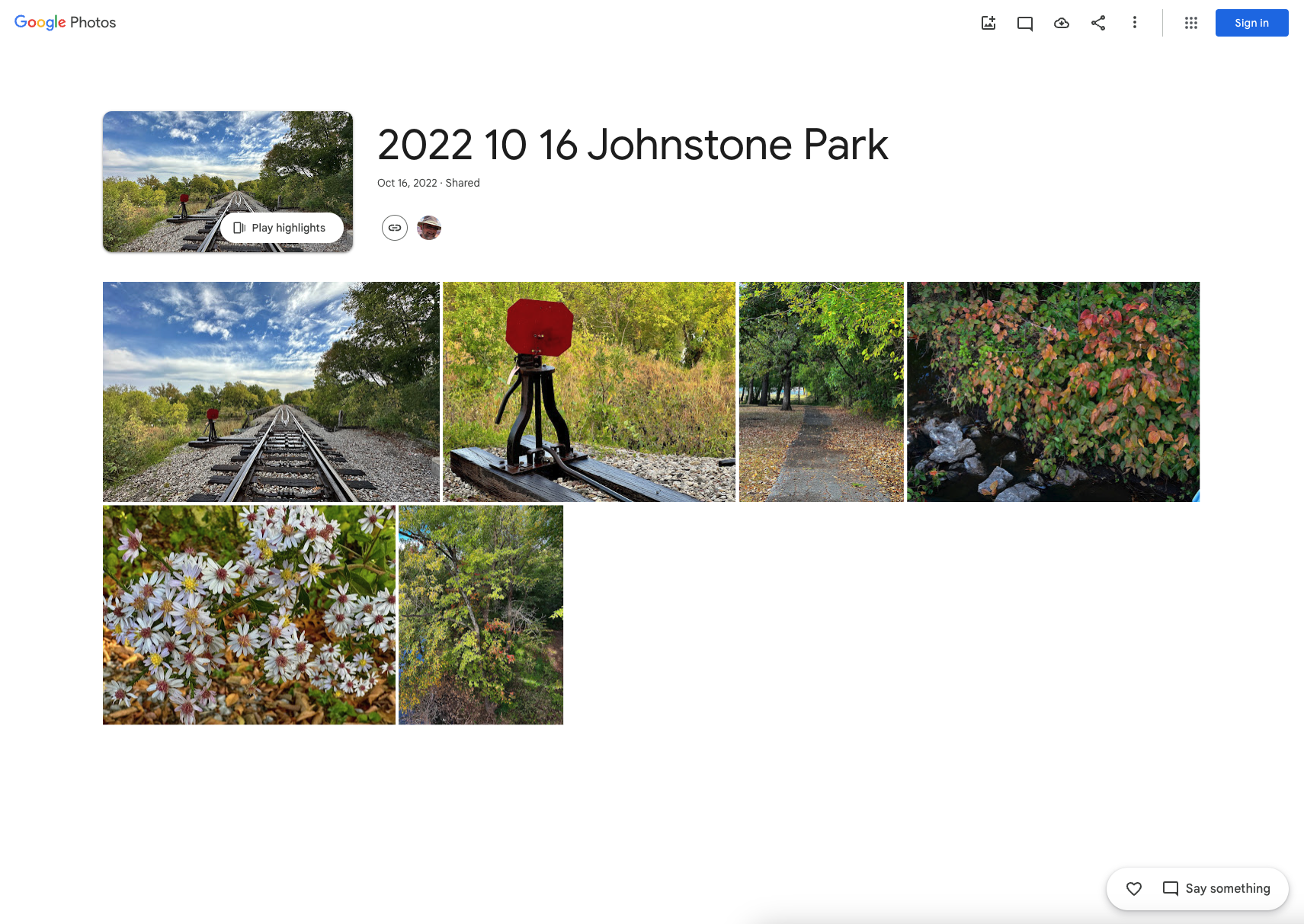
And here is what the same album looks like on Flickr:

While setting up my Mac, I installed Google Drive for Desktop to make it easy to access my personal and district Google files in the Finder. That prompted me to check my settings.
Google Photos once provided unlimited free storage of photos up to 16-megapixels, but it now limits you to 15 GB of free storage shared across Google’s Photos, Gmail, and Drive services. I’m currently paying $30 per year to expand that to 200 GB. I was using 73 GB for Google Photos and 77 GB for the other Google Services, and Google has been warning me that at my current fill rate I’ll be out of space in about a year. Their next tier is 1 TB of storage for $100/year.
I do not want to pay more for Google given how much I’m already paying for Flickr, Amazon Prime, and Apple One Premier. Google Photos was duplicating all of the photos on my iPhone and iPad, and I don’t need that since I have access to those on my Mac and in iCloud+. At one time I thought I might use the smart features in Google Photos to locate photos, etc., but I never found time for that.
I experimented by seeing what would happen by switching the Google account from uploading photos in Original quality to Storage saver and compressing everything with Storage saver. That only reduced my photo usage from 73 GB to 67 GB.
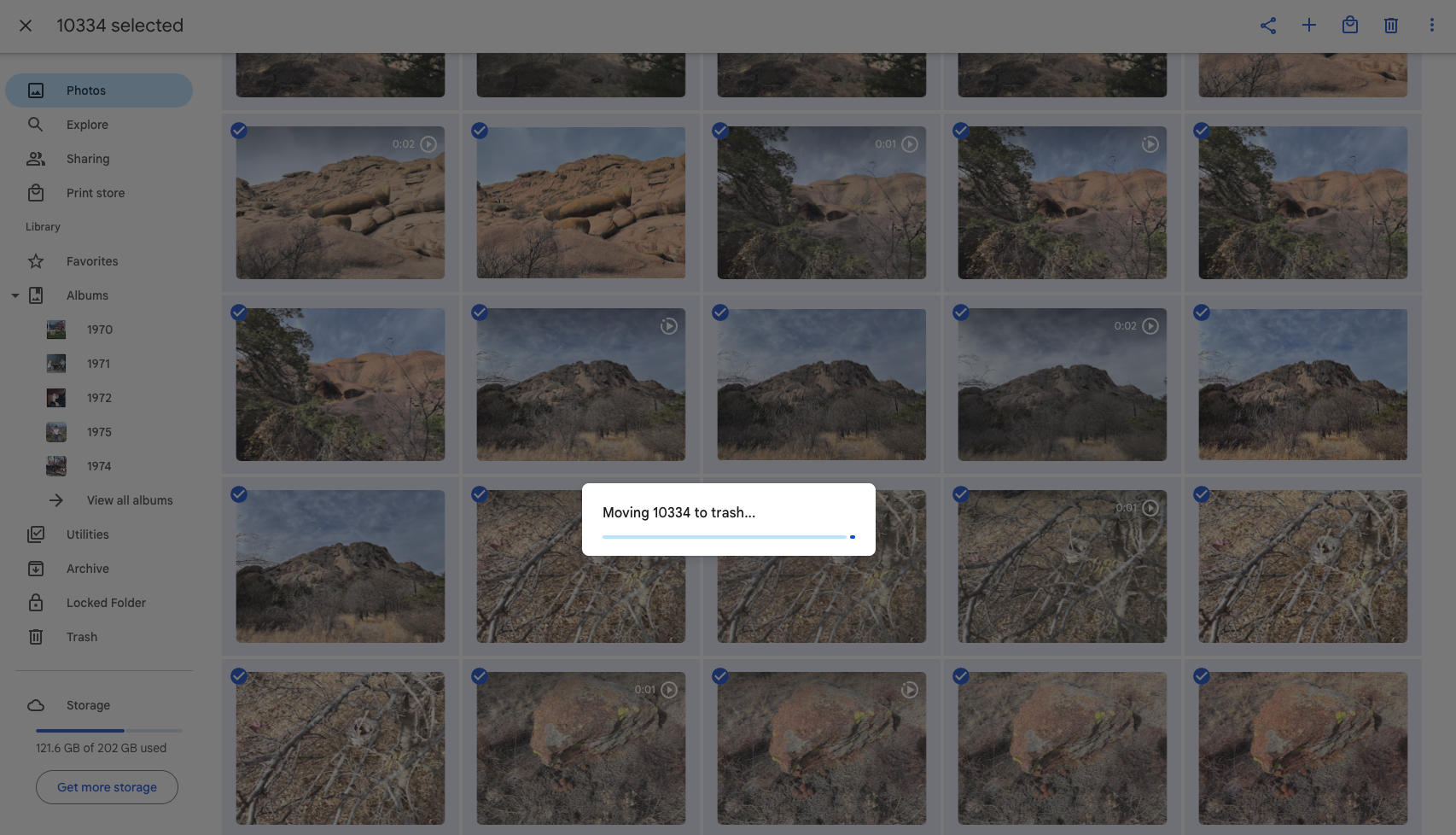
I decided to delete all of my photos in Google Photos to avoid a subscription increase. That turned out to be a tedious process. For safety’s sake, I deleted the Google Photos apps on my iPhone and iPad, to be certain that any integrations wouldn’t delete photos from those devices’ built-in photo libraries. Then I had to select the first photo in Google Photos on the website, scroll down some distance, hold down SHIFT, and select a later photo. That would select all the photos I had scrolled past, and I could delete them.
It didn’t work to select the first photo and rapidly zip down to an earlier date with the right timeline sidebar to select the last one: that didn’t select the photos in-between. A perusal of the internet showed that Google hasn’t made a provision to bulk-delete your photos. So I went through the manual process, deleted thousands of photos at a time.
OneDrive

In my previous post, I shared my plan to allow my Microsoft 365 Family subscription expire in June, so I didn’t bother creating an album example for this post, and I’ve actually never created any albums there. But for a couple more months it will be the online backup for the 130,000 photos stored on my Windows desktop computer.
Amazon Prime
It was only when writing this post that I learned of Amazon Prime’s photo storage and sharing service. As a Prime member, I have unlimited storage there. Now, I know all too well that Amazon is run by sharks, and they are likely to change their terms or even drop the service altogether at some point. Google and Apple are less likely to drop their photo services since they are selling points for Android and iOS hardware.
Here is an album of the same photos on Amazon Photos:
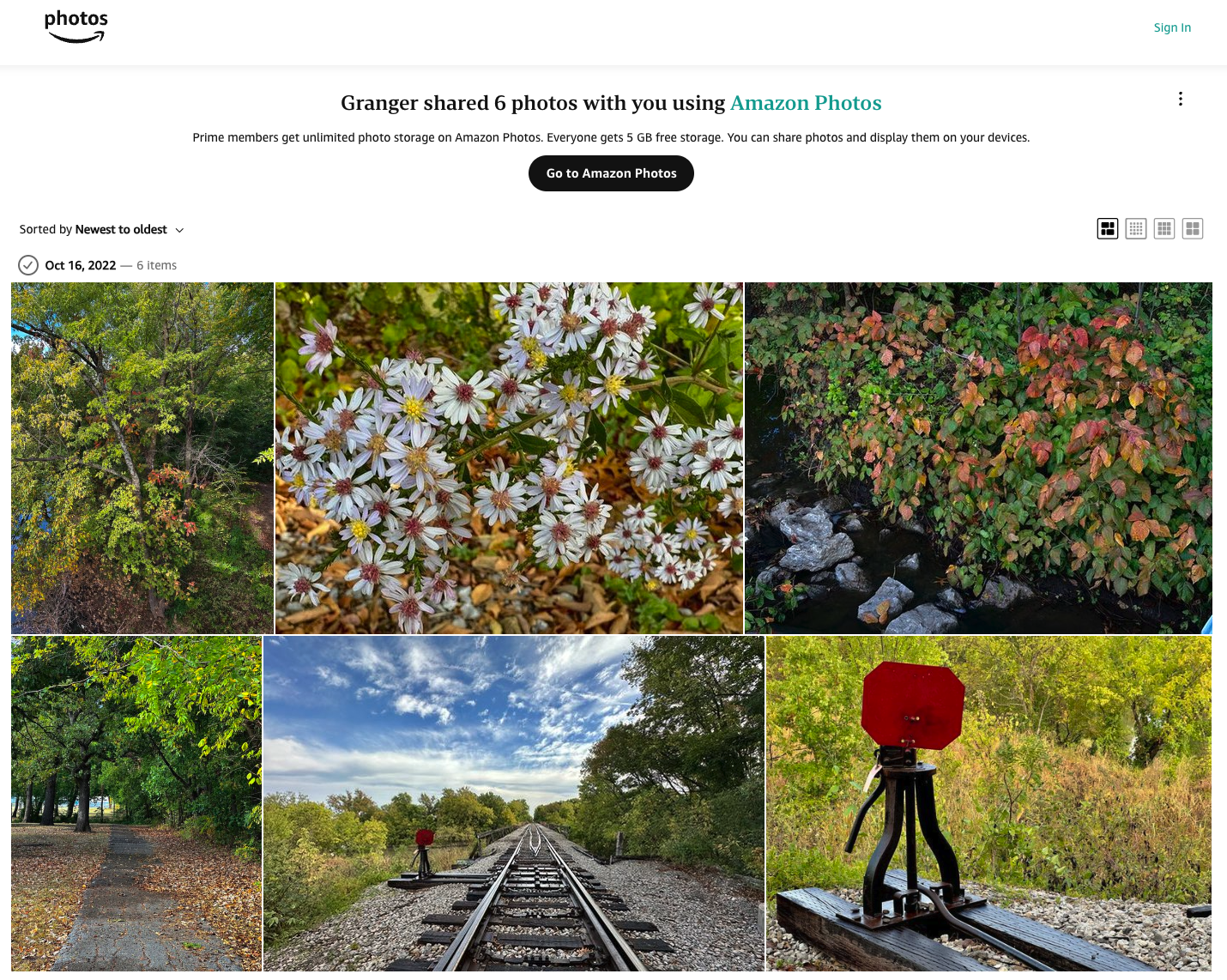
The album title was omitted, so despite the unlimited storage, I’m skeptical of sharing photos with that service. However, at least for now I have unlimited storage of photos at full resolution there as part of my Prime membership.
So I went ahead and downloaded, installed, and set up the Amazon Photos app on my Mac, telling it to maintain an online backup of my photos on my external drive, as I had been doing with OneDrive for the photos on my Windows desktop computer.
Apple Photos

I saved the obvious photo service for a Mac user for last. I purchased Apple One Premier in late 2020, at the same time I ordered the Mac Mini. We were amidst the COVID pandemic, with no vaccines yet, and I decided it was worth $30/month to get the Music, News+, and tv+ services along with plenty of iCloud+ storage.
However, I was skeptical I would make any use of Fitness+ since I have long had my own morning aerobics routine, or Arcade, since I’ve never been much of a gamer. What sealed the deal was the ability to share all of those services with five other people, so I could give Wendy and my closest friends using iPads and/or iPhones the same benefits. The service had climbed to $38/month by December 2023, which is about 6% above the old pricing if you adjust for inflation.
I get 2 terabytes of storage with that service, and I was using 200 GB of that: 132 GB for 22,747 photos and 454 videos, 42 GB of documents, 20 GB of backups, 2 GB of text messages, and 55 MB of emails, which is cute since I rarely use the default Mail app on my iPhone or iPad, mostly using Gmail.
Those photos only partially overlap with the 130,000 photos on my home computer. I had only managed the iCloud+ photos in album form using my iPad. Also, Wendy and I like to create a Shared Album on each trip. So I had 175 of My Albums and another 95 Shared Albums.
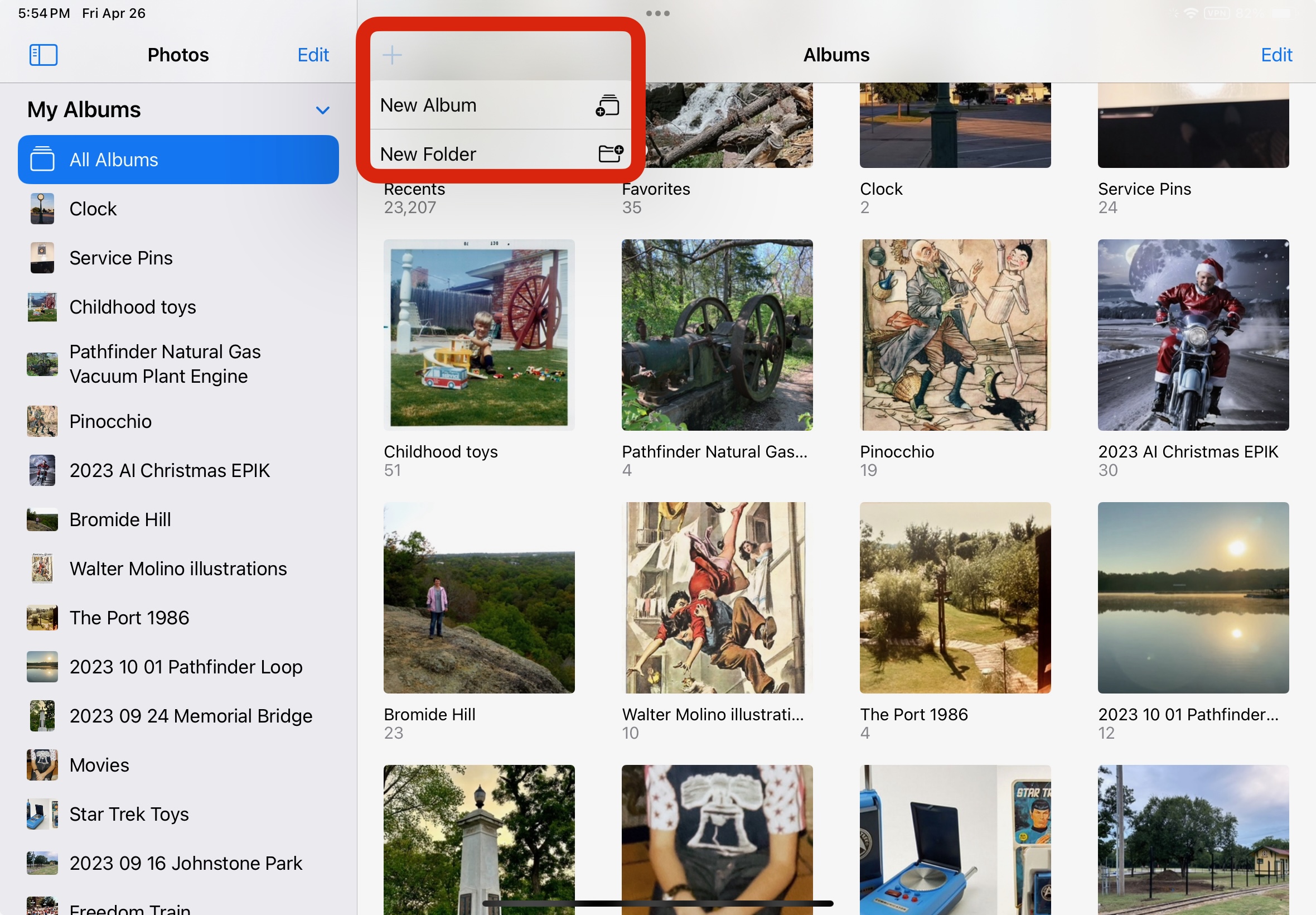
As my number of albums multiplied, they had become harder to manage on my iPad and iPhone, and I had wished for a way to nest them so that I could put travel albums in one group, history albums in another, etc. I didn’t know of a way to do that in iOS until I Googled the topic today. It turns out that you can do that on an iPad by tapping All Albums in the sidebar, then tapping +, then New Folder. However, I find selecting a dragging albums on an iPad cumbersome; I’d much rather organize them on a big screen using a mouse. So it was time to start doing just that with my Mac mini.
Before I went to town on that, I decided to look into what renaissance man Michael Wray had shared with me: that you can create separate photo libraries on a Mac and, since reportedly the photos or their index are all in one file, that could get corrupted. So he always has a backup and chooses to create separate libraries for different events, clients, etc.
I opened Photos on the Mac, and it complained that the photo library file was in the trash. I tried creating a new one, but it wasn’t showing all of my iCloud photos. I had to locate my “System Photo Library” and enable iCloud syncing for it.
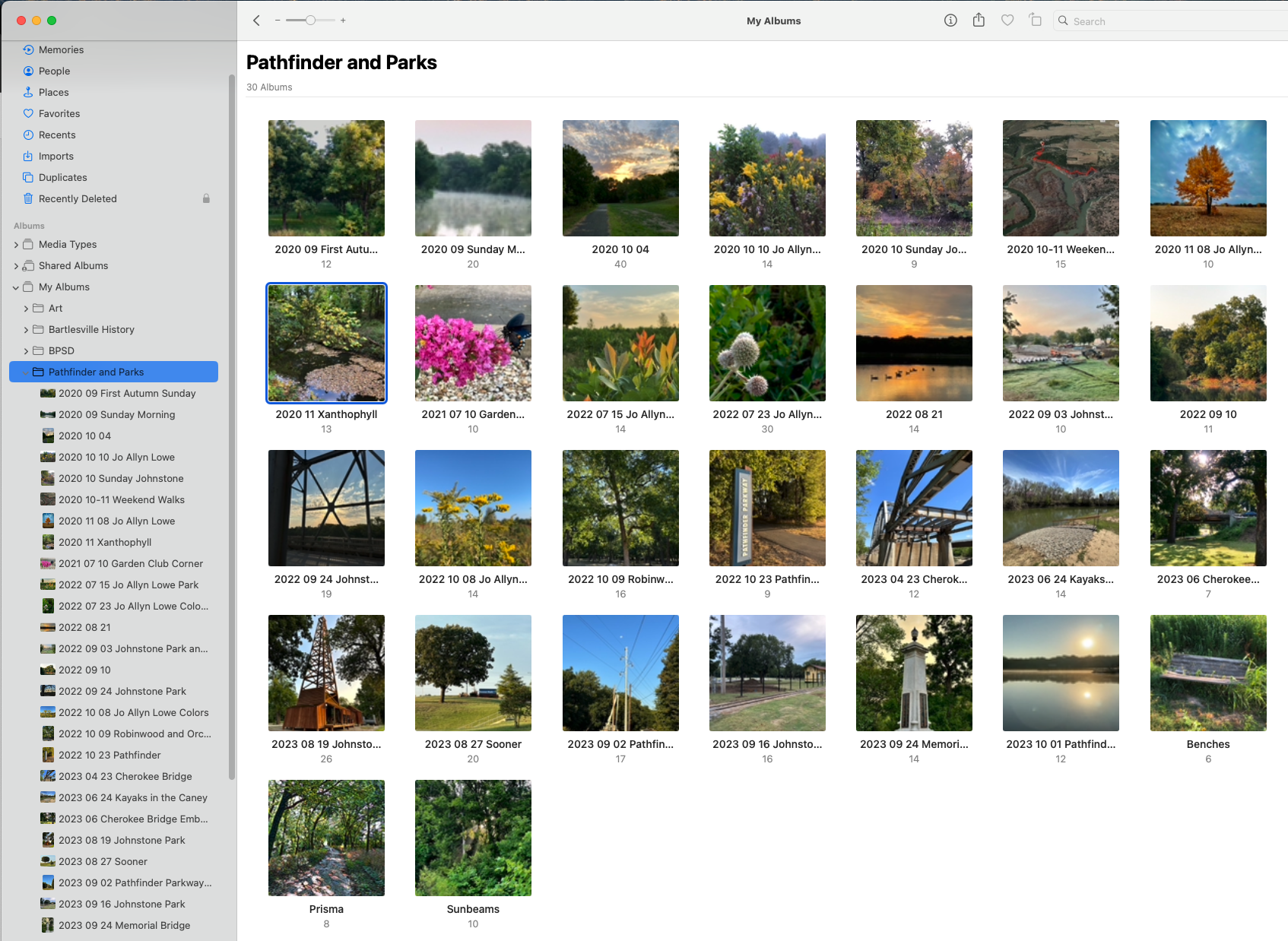
That made my multitude of disorganized iCloud albums visible, and I was able to organize that mess into 10 folders and then sort the albums in them alphabetically. It was a bit confusing in that you can only nest folders, not albums, and there is a bug when you try to create a new album in a folder. At first that correctly created a blank album, but later it would just duplicate the contents of the current folder. I could only get it to return to creating a blank album by closing the Photos app and re-opening it.
Unfortunately, Apple doesn’t support folders for Shared Albums or sorting Shared Albums except by date. So they remain a bit of a mess.
As for the 130,000 photos on my Mac’s external drive, I can’t simply add them into iCloud, even though I have plenty of space in the service, because that would then mirror onto my iPad and iPhone, and I don’t have enough storage on those devices.
I debated creating separate libraries on the Mac, that wouldn’t sync to iCloud, and using those to organize the photos. However, I already had the 130,000+ photos on my Mac sorted into file folders on the external drive. Now I was backing all of that up to Amazon Photos, which appeared to have similar search functions as the iCloud/iOS/Mac Photos apps, albeit how well they worked was still uncertain. So for now I decided to stick with just one Photos library on the Mac, synced with iCloud.
Workflow Changes
When I was using Windows, our vacation photos in a Shared Album would get downloaded as a ZIP file and extracted to a folder on my SSD. Then I’d build up a subfolder of selected shots, touch them up in Adobe Photoshop Elements 2018, and then upload them into a new album on Flickr for inclusion in blog posts.
That worked, but it was messy and redundant. Our best photos might end up in nine different locations, with only two of those being the final edited product. I could go back through dozens of folders to delete unedited shots, but that isn’t a good use of time.
I’m hoping to shift my workflow so that I keep the final edited album in iCloud, doing all of my edits in the Photos app, including the more advanced tools available in the macOS version. If I have to, I can do additional work in Gimp and then load the photo back into the iCloud album. Then I’ll upload them into Flickr. That would avoid creating folders on my external drive that are backed up to Amazon Photos.
What’s Next?
Getting my photos shifted and re-organized was my largest concern about shifting from Windows to the Mac. I’ll get some practice this summer with my new workflow after Wendy and I return from a vacation in southern Oregon and northern California.
The last “big thing” about moving to the Mac is its tighter integration with Apple One services and the various macOS counterparts to many of Apple’s own iOS apps. After I gain more experience with all of that, I’ll share. But I think this eighth post in a row about moving to the Mac is enough…for now.








 Meador Manor