Three years ago, I spent $27 on a wireless iClever keyboard and mouse combination for my new Mac Mini M1. The mouse was great, and the keyboard was cute and lightweight with scissor keys. I didn’t do anything with the Mac for over three years, but now I’m working to make it my primary machine after relying on Windows computers for almost 40 years.
I have always been fine with wireless mice if they use a dry cell, since that can be quickly replaced and you’re back in business. A wireless keyboard that uses a dry cell would also be fine, but I’ve always been leery of wireless keyboards you have to plug in to recharge. I suffer from recharging fatigue:
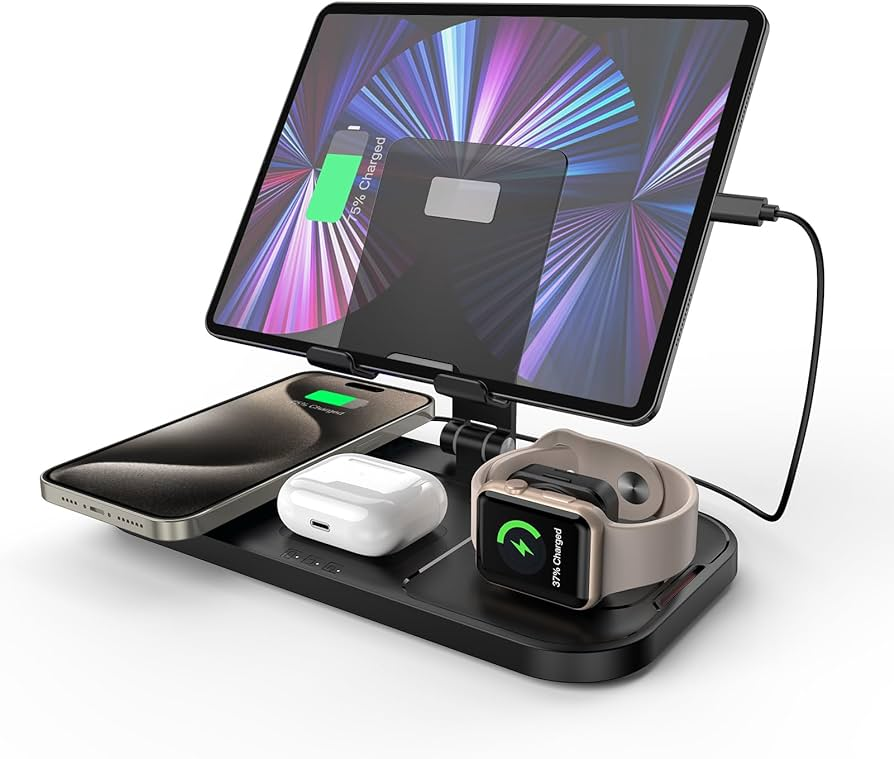
Things I have to recharge multiple times per week
iPhone (daily)
iPad (daily)
Apple Watch (daily)
SHOKZ OpenRun bone conduction headphones (every few days)
Things I have to recharge on occasion
EGO batteries for the lawn mower (or string trimmer or chain saw)
That is more than enough for my taste. Another drawback to the iClever keyboard was that it tries to live in both the Mac and PC worlds, no doubt to boost sales. That means it has some key labels that don’t make sense on a Mac, and if you turn the thing off, you have to remember to hit fn+Q to put it back into Mac mode. I decided to try something different.
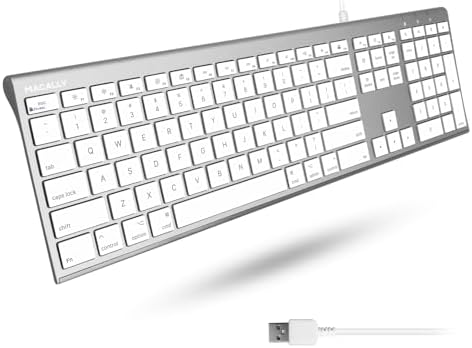
I first bought a $120 wireless Logitech keyboard. It was a nice typer, but I outlined my troubles with it in a previous post. I returned it, got a refund, and promptly ordered a Macally Ultra Slim USB ACEKEYA wired keyboard for $43. I received it today.
The Macally Ultra Slim USB ACEKEYA
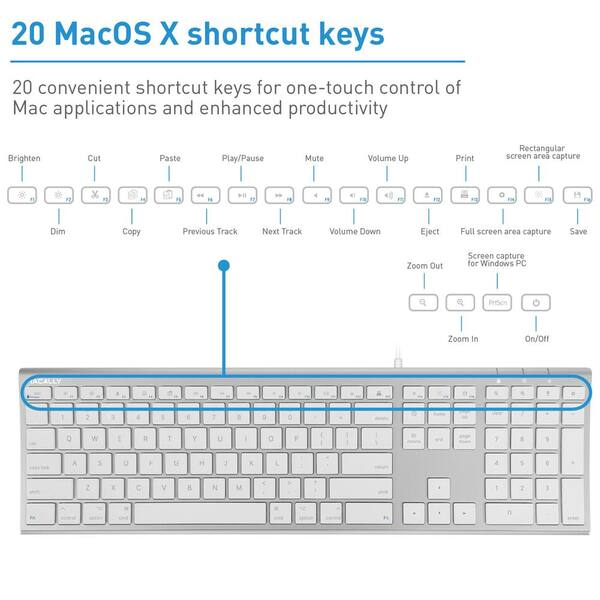
The new keyboard has the Mac key layout and 20 shortcut keys, all of the quiet scissor switch type. I’m fine with scissor switches or old-style mechanical keyboards, but Wendy’s hearing is far more acute than mine, so I figured the quieter scissor switch keys might be welcome.
One immediate concern with the new keyboard was getting it plugged in. My Mac Mini only has two USB-A ports to go with its two USB-C ports, and the USB-A ports were occupied by the mouse radio dongle and the multifunction printer/scanner. So I decided to replace the mouse dongle with a USB-A to USB-B cable leading to my monitor. That enabled two USB-A ports on the back of the monitor and two more on the side. I put the mouse dongle in one of the backside ports and plugged the keyboard in back there as well.
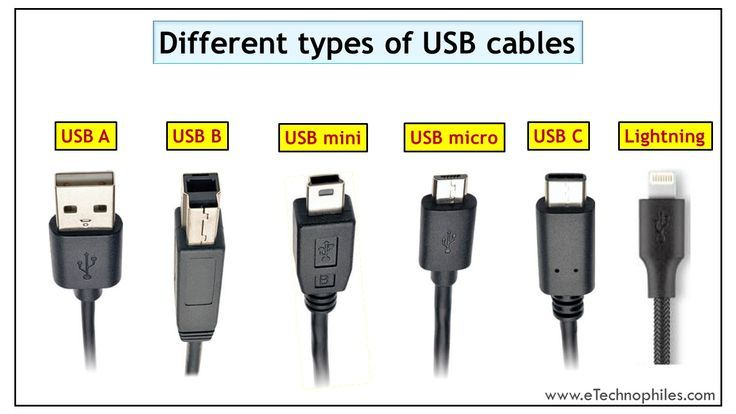
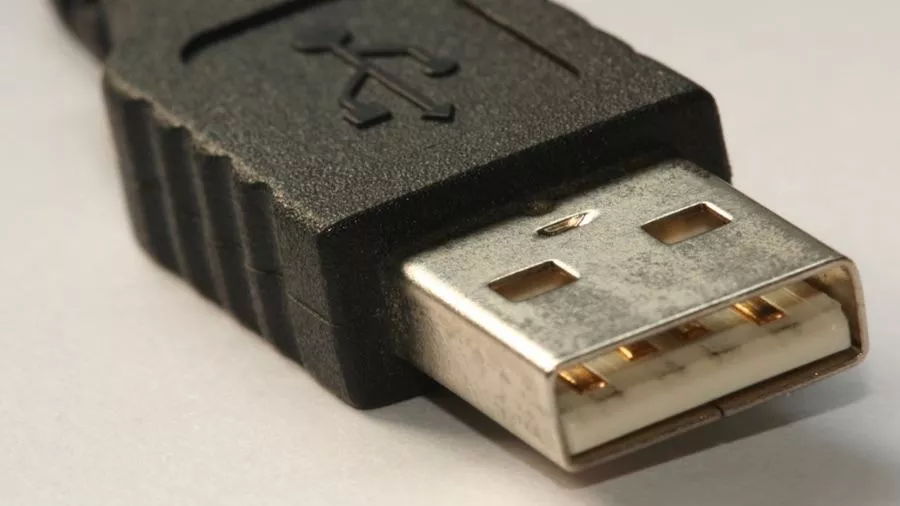
The ports were almost impossible to see, and since they were USB-A, I inevitably had the dongle and the keyboard cable facing the wrong way to be inserted. I eventually succeeded, although I muttered a few curses for the engineers of USB-A ports and cables. All of the modern serial cables shown above can only be plugged in one way, except for USB-C and Lightning.
USB-A cable are supposed to be plugged in with the USB trident logo facing up
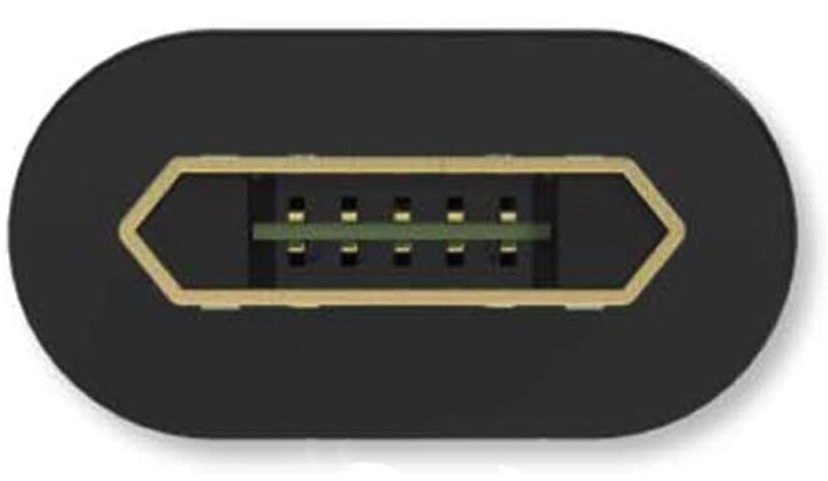
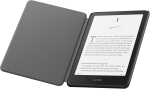
Purchasing a double-sided reversible Micro USB cable saved my sanity when plugging in my Kindle to recharge
I know that in general you can plug a cable in if the USB trident symbol is facing up, but in practice that often fails to help because ports are facing sideways or you can’t get a good view of them. Futzing with the Micro USB charging cable for my Kindle got so annoying that I purchased a cable with a double-sided reversible Micro USB end on it. That makes me smile every time I can insert it on the first try, which is always. Now if I could just change the charging LED. I am among the 5% of males with deuteranomaly, or green-weak, color vision. The Kindle’s LED is yellow when charging and green when fully charged, and I struggle to differentiate the hues it outputs.
One benefit from the recabling was that I have gained two available USB-A ports on the side of the monitor that should be able to handle 5 Gb/s data flows.
Can one be too slim?
If you’ve ever seen a typical supermodel, you know that one can be too slim. Once I could finally type on the new keyboard, I realized that Ultra Slim meant the front of the keyboard was so low to the desk that I couldn’t use even a thin wrist rest. With my wrists resting on the desk, the keyboard felt too low. So I went searching through our Drawers of Requirement (aka junk drawers) and found some adhesive foam strips I could affix to the underside to lift it up.
That helped, allowing me to use the thin wrist rest I had purchased separately for the somewhat svelte, but not slim or emaciated, Logitech keyboard I had returned. The typing action is comfortable and quiet, like the iClever keyboard, although I liked the steeper pitch of the iClever over the low angle of the Macally, so I added some more foam to the back side of the keyboard.
On my keyboard, the PrtScn key is actually a shortcut for Force Quit.
As for the shortcut keys, I don’t expect to use the Cut, Copy, or Paste keys since I’m used to CMD+X/C/V for those. I was hoping I might reprogram the function key shortcuts to do things like open the Calculator app, but the manual was silent on that.
I think this keyboard will be fine, so I’ll close by admitting that the title of this post is an intentional sly reference to the NeXT computer that Apple co-founder Steve Jobs developed after he was ousted from Apple by John Sculley in 1985. The joke is that Jobs had great taste in many things, but his mice were often terrible and I had no use for his minimalism on keyboards.
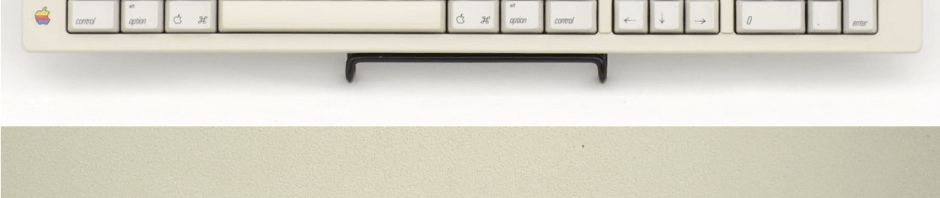
Steve Jurvetson has shared the story of how when Steve Jobs was in exile at NeXT, Jurvetson had Jobs over at his home to talk with a club of tech nerds. Jurvetson had already had Apple co-founder Steve Wozniak sign an Apple Extended Keyboard:
…I asked my childhood hero if he would sign my Macintosh keyboard.
He looked a little taken aback to see Woz’s signature already there, and then he exclaimed:
“This keyboard represents everything about Apple that I hate. It’s a battleship! Why does it have all these keys? Do you use this F1 key?”
No, I replied. And so, he pried it right off with his car keys. Same for F2 and down the line. He put the keys in his pocket, and then signed his name to the Apple Extended Keyboard that he despised. He then exclaimed, “I’m changing the world, one keyboard at a time.”
The poisoned relationship between Steve Wozniak and Steve Jobs led Wozniak to comment, “You may well have the only Apple device with both our signatures on it.”
That’s a great Steve Jobs story, among many, but I see that Jurvetson’s keyboard had all of its function keys in the picture. So did he scavenge them from another keyboard? Anyway, that keyboard was later auctioned for $74,535.
It looks like a decent keyboard. I would have paid $43 for it.
I enjoy reading, technology, day hikes, art museums, and photography. My wife Wendy and I work in the Bartlesville Public Schools in northeast Oklahoma, but this blog is outside the scope of our employment.








 Meador Manor