Passing the 300 Mile Mark for 2010

As I finished my post yesterday about my day hike with Betty Henderson at Fall River Lake, I noticed that, by the count on my spreadsheet, I was only 6.1 miles shy of 300 miles of day hikes in 2010. You know what that meant – I had to get in one more long day hike so I could top the 300 mile mark for the year!

Boot Lace Surgery

I’ve walked farther than that if I include many walks along portions of the Pathfinder Parkway, but I don’t count Pathfinder walks as day hikes. After all, the Pathfinder is paved and sneakers work as well as hiking boots on it. Speaking of boots, the pair I’ve used since I started tracking my day hikes in July 2009 are still working well. True, too many creek immersions and my own sweat have made them rather stinky. Spraying Lysol in them helped, but soon I’ll add some OdorEaters. To mark the end of the year I decided to finally solve one drawback of my boots – the laces have always been ludicrously long, with me laboriously tucking them under themselves every time I put on my boots. Enough of that nonsense and no need for new laces at this point – I took a pair of scissors and cut 6″ off each end of the laces for a full foot of lacing removed per boot. Homemade aglets of Scotch tape finished them off.

I didn’t want to stray far from town – the weather would start in the low 50s but slowly drop throughout the day and I did not want to be out on the roads when New Year’s Eve arrived. So I returned to a favorite haunt: Osage Hills State Park. A year ago I started mapping all of the trails with an iPhone GPS app and I’m now familiar with all of the landmarks on the various hiking trails and the mountain bike trails. I knew that if I combined the Bugle Trail (a loop formed from the lake, cabin, and falls trails) with the Red Mountain Bike Trail I’d surely go over six miles and the magic 300 mile mark.

My final hike of 2010

I drove over to the park, along the way admiring the new water tank up on the mound above the airport and research center, which is being nicely fancied up to look much nicer than the old tank. In Osage Hills I parked at the stone building by the bike trails, which a Flickr user recently identified as an old CCC pump house. I set out on the Red Mountain Bike Trail with my new EveryTrail Pro app running to document the journey.

I shot photos with my iPhone 4 of every landmark along the way and then, having gone just over three miles, set out on the Bugle Trail Loop as a separately recorded hike. Once again I shot photos of every familiar landmark, opting to skip the Creek Loop and Bluffs Trails this time since it was getting noticeably colder as I walked. I added a few short side trips along the way.

Stone stairs at Osage Hills

One new discovery was that the park employees appear to have cleared a grand rock stairway down from the cabin trail to the ball field. I broke out my regular camera for a shot of this welcome surprise.

When I finally returned to my car I’d hiked another 4.3 miles, bringing my total for the day to 7.4 miles and my total for 2010 to 301.3 miles. Whoopee! I spent 47 days out on the trails in 2010, so I averaged 6.41 miles per hiking day. That’s up from an average of 6.02 miles per hiking day for the 25 days I hiked during the second half of 2009.

I drove back to Bartlesville for a late lunch at Señor Salsa, where I added captions to the photos from the Mountain Bike trail. Then I tried to upload that hike over the 3G cell connection, but it ended with an error. I tried again at home over WiFi, but the errors continued. In the end I only got the track, in pieces, to upload to EveryTrail and only two of my photo placemarks were intact. How dreadful! Perhaps it was a mistake to use EveryTrail Pro?

But I’m not one to let technological glitches thwart my ambitions. As Jerry Pournelle is wont to say, “I do these things so you don’t have to.” By golly, I wanted an interactive map of this hike with all of those photo placemarks and that was what I’d get…somehow.

I’d set the app to save all of my photos to the camera roll and was able to download them from the phone to my desktop computer. Then I exported the track fragments from EveryTrail’s website into Google Earth and re-exported them as a single KML file, which I then uploaded as a new “trip” to EveryTrail.  Then I uploaded all of the photos as well to that trip. Alas! Their geolocations were not recorded in them, unlike typical iPhone 4 photos. I then tried to sync the iPhone photos with the saved GPS track using GPicSync, but the darn photos also had no date/time data embedded in the JPEG images. Drat!

I knew what I needed was the photo file’s date and time copied into the EXIF data embedded in the JPEG file. But I couldn’t find a utility to simply do that. Instead, I settled for using EXIF Date Changer to manually set the date and time stamp based on the precise time stamp for each file, which I could view with ThumbsPlus. Then I ran GPicSync again. That added geolocations to most of the photos, which I then renamed and uploaded once again to EveryTrail.

Scanning through the results, I found that most of the photos were now in place, only having to manually relocate a couple of them. Voilà, my hike was restored!

Red Mountain Bike Trail at Osage Hills

Red Mountain Bike Trail (click image for interactive map)

I reluctantly told the EveryTrail Pro app on the iPhone to try uploading my Bugle Trail hike next. Thankfully that went without a hitch and I was able to rename the photos online and have a completed record of landmarks on the main trails:

Osage Hills Bugle Trail

Bugle Trail (click for interactive map)

Lesson learned: Don’t try uploading EveryTrail hikes over a cell connection. Wait until you get a reliable WiFi connection and then have at it. And be sure to have the app save the photos you take to the camera roll in case the upload goes awry.

I’m willing to give EveryTrail Pro another try on my next day hike, which will be sometime in early 2011. A new year’s resolution: keep finding new trails to day hike in the region – they’re not exhausted yet.

Happy trails, and Happy New Year!

Posted in day hike, photos, technology, travel | Leave a comment

Warm and Windy Day at Fall River Lake

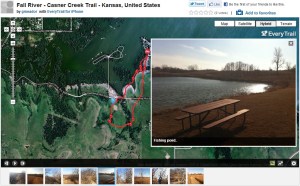
Fall River Lake (click image for slideshow)

The penultimate day of 2010 was unseasonably warm and windy, reaching over 70 degrees Fahrenheit with winds of over 20 miles per hour in southeastern Kansas. I drove 20 miles north to Caney and picked up fellow science teacher Betty Henderson for a day hike 45 miles more miles north at Fall River State Park.

We paid a day use fee and drove into the Fredonia Bay area to hike the 1.5 mile loop at Casner Creek. This trail was mostly a mown path through grassland and was not photogenic this time of year. After an uneventful trip through the grass for over half a mile we reached a small bridge over dry Casner Creek. The trail soon turned back north and we could glimpse Fall River Lake up ahead. The lake was down considerably and we managed to spook a deer or two. I spied an old board and tried to windsurf on it, but the water was too low. After crossing what I termed Brokeback Bridge, we returned to the trailhead, with tall grass leaning over in the strong south wind.

A drive over to the lake shore gave Betty a chance to explore a small ledge below a tree before spotting a massive tree with exposed gnarled roots. It was surrounded by partially eaten hedge apples. Throughout the day she was on the lookout for an eagle she had seen earlier, but mostly saw hawks and gulls. Driving over to the Quarry Bay area northeast of the dam, we ate Subway sandwiches we had purchased in Independence.

We then set out on the linked Overlook, Post Oak, Catclaw, and Bluestem Prairie trails for a combined loop of three miles. Thankfully most of these trails were in hollows and amongst trees offering some shelter from the strong wind. We saw a small sandstone ledge which we would return to later in the loop and use for a breather. The Post Oak trail was the prettiest one, with a few lichen-covered sandstone outcrops and a view over Craig Creek. The trail wound around to an overlook of the lake, and then we crossed the largest pedestrian bridge of the day to a small creek leading into Quarry Bay. There were a few large boulders by the trailside and after crossing the creek we travelled through a winter-barren thicket towards Quarry Bay. The trail led south down the east side of the bay through tangled trees which in winter resembled a massive cobweb.

Our last stop was over below the dam. As soon as Betty saw the old bridge across the river here, she recalled this as where her parents took her and her brothers to fish many years ago. We went down to the river to shoot the bridge. Along the way Betty hooted about a crazy set of signs that seemed to encourage those in wheelchairs to cautiously wheel down a steep metal stairway.

It was a fun sunny day allowing me to experiment with different iPhone trail apps, using one of them to easily create an interactive trail map, albeit for the inferior Casner Creek trail.

Click here for a slideshow from this day hike

Click here for an interactive map of the Casner Creek Trail

Posted in day hike, photos, travel | 1 Comment

Trail Trials

In my previous post I discussed GPS enhancements for my day hikes. I’ve now built three fly-throughs of recent hikes, with linked photos, in Google Earth. The results are very nice, but it takes more time and effort than I would prefer. I decided to try out some new GPS hiking apps on my iPhone 4 and see what nifty things I could make with them. At the same time, I would try adding geolocation data to the photos I took with my regular camera with two different GPX file sync programs.

MotionX

Up to now, I’ve always used MotionX GPS. It has many features and I’ve gotten used to its quirks, but it does have some drawbacks. Its photo placemarks are not integrated with its tracks, and its user interface is needlessly complicated and noisy. I especially dislike how I have to manually rename tracks and its method for pre-downloading map tiles is quite cumbersome.

Today it was unusually warm and windy for the end of the calendar year, with a high temperature of 71 degrees Fahrenheit and winds of over 20 miles per hour.  I decided to try out some new hiking apps while on a day hike with fellow science teacher Betty Henderson at Fall River Lake in southeastern Kansas.

I drove north into Kansas, picked up Betty in Caney, and we drove on northward to Fall River Lake to hike the Casner Creek, Post Oak, Catclaw, and Bluestem Trails. I knew the scenery would be subdued and thus it was a great time to try the new iPhone hiking apps: EveryTrail Pro and AccuTerra Unlimited.

Using EveryTrail Pro on Casner Creek

We first drove over to the Fredonia Bay area, paid the day use fee, and took the Casner Creek trail loop, which winds 1.5 miles across a grassland. It was not a pretty hiking area this time of year, but I used the EveryTrail Pro app to track our progress and periodically hit the camera button on its tracking screen to take a representative photo. At some places I also composed a shot with my “real” camera.

A few days beforehand I had taken the time to download the terrain maps in the app for the area since I suspected there would be no data service out at the lake. That was indeed the case, but I was disappointed to find that I had to zoom pretty far out on the app’s map to see the terrain map I had previously downloaded – so far out that it wasn’t of much use.

At the end of the day I reviewed the track and the photos linked to it, adding a caption to each one and then telling it to upload everything to the EveryTrail website. That went fine until I hit the first photo upload and the app gave me an “Out of RAM” error. Later I tried again, probably not having my TomTom GPS navigation app running this time, and the photos uploaded successfully.

What I like about EveryTrail Pro is the map it creates on its website using the track and photos you upload. It defaults to an interactive Google map satellite view of the hiking track with photo placemarks which the map automagically scrolls through, popping up the image matching each placemark. You can change to other types of maps, zoom around, and so forth. You can scroll along the photo thumbnails below the map to see where they are on the route and click them to see a larger image. A “statistics” button shows you an elevation and speed graph in a window you can relocate, and if you scroll along the graph you see the corresponding points on the track. You can download the map to Google Earth and also export a GPX file. All very nice and, best of all, very automated!

Using AccuTerra Unlimited on the Post Oak, Catclaw, and Bluestem Trails

Betty and I then drove over to the lake for some shots, had a sandwich lunch, and set out on the linked trails in the Quarry Bay area northeast of the dam. This time I tracked our progress with the AccuTerra Unlimited app, snapping photos along the way with the iPhone’s camera app, since I had not noticed a camera icon in the AccuTerra app. It turns out you have to “Track” button on the screen to get the Camera button to appear for photos. So none of the photos I took along the way created placemarks in the AccuTerra app. So I wound up only testing its tracking feature, not its ability to create photo placemarks.

I had also pre-loaded terrain maps in this app beforehand, being careful to download both the larger-scale and smaller-scale versions for the lake area. This app did show a more useful terrain map during the hike, although it doesn’t represent your progress as a tracking line but instead shows a series of placement dots as you go around. When you are done it shows a regular tracking line.

This app has less intuitive controls – I’ve already mentioned how it doesn’t show a camera icon on the tracking map, and after the hike I had trouble finding out how to access my stored track. I discovered you hit “Map View” and then pick “Library” to see your saved track. It has a “walking tour” that recreates your path, but it doesn’t seem to have an interrupt, so it makes you sit through the entire trip, which is annoying. I emailed the track to myself, which sent me a temporary link (good for a month) to view the hike with Google Maps in my browser. That gave me a map which I could then easily export to Google Earth via a KMZ file.

Using the Generated Tracks

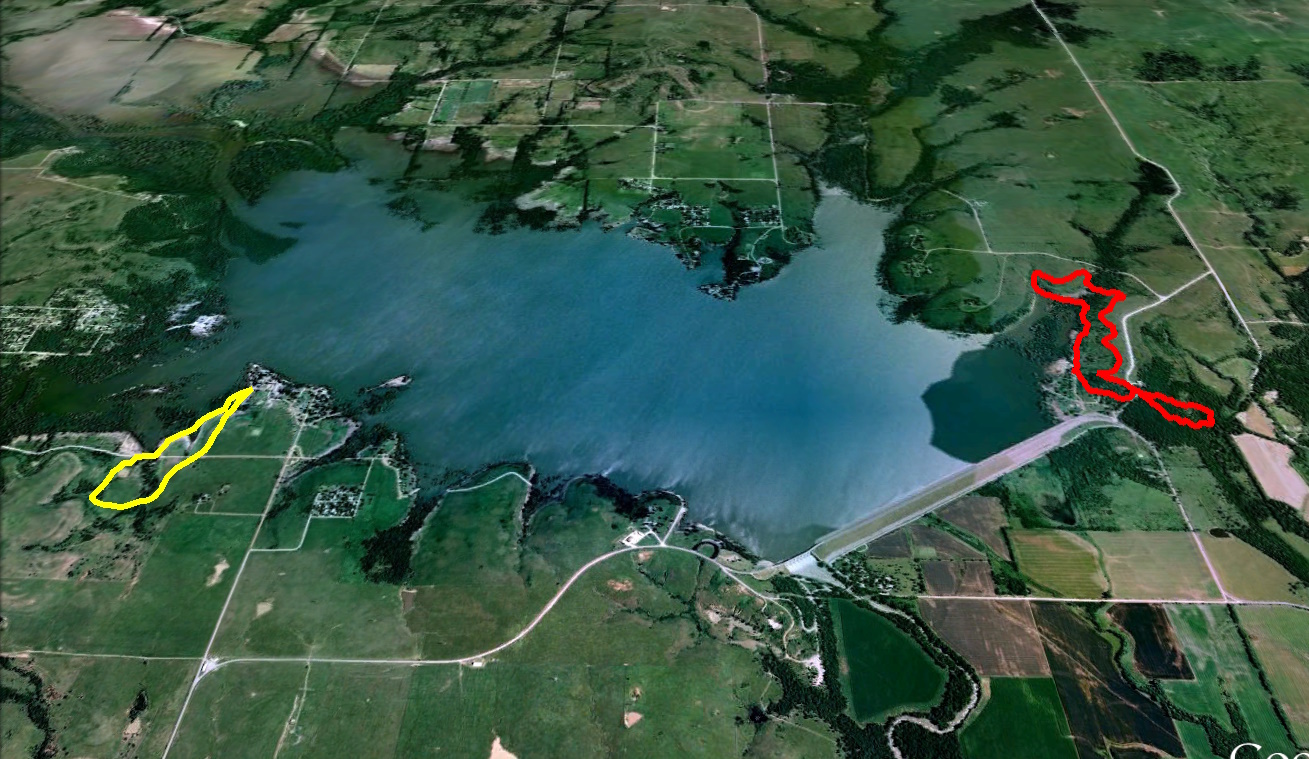
I loaded the GPX file from EveryTrail Pro and the KMZ file from AccuTerra Unlimited (via Google Maps) into Google Earth, where I created my typical sort of static trail map. So either app could generate the same sort of data I’ve previously extracted from the MotionX app. I then downloaded the pictures from my “real” camera so I could try adding geolocation data to them using the GPX and KMZ files from today’s hikes.

I first tried using the GeoSetter program to sync my own photos to the GPX file info created by EveryTrail Pro, but although it said it found the GPS data, it did not write it into the picture files. That program is so complicated I may have had something set wrong. It had no luck at all with the data from AccuTerra Unlimited. The KMZ and KML files I exported from Google Earth did not work, nor did a GPX file I created using a free KML-to-GPX conversion utility I found online.

A friend from my grade school days, Dale Blue, had indicated via Facebook that he uses the GPicSync program to sync photos with GPS tracks, so I downloaded that program.  Once I got the UTC time code set right, it worked great with the GPX file generated by EveryTrail pro, not only inserting coordinates into the pictures but also creating a nice Google Earth track with linked photo placemarks. That’s great, although the placemarks did not have the proper photo links for use on a website. It would still take a lot of manual work to post a photo tour.  And GPicSync also had no luck with the files I had created from the AccuTerra Pro app’s data.

My Verdict

Even though I liked its terrain map better during the hike, I’m not going to bother with the AccuTerra Unlimited app since the data I got from it was far less useful. I am impressed with EveryTrail Pro, however, for how it generates an interactive Google Map with photo placemarks and speed/elevation graphs. That’s definitely more than MotionX can do at this point, and I’m going to try out EveryTrail Pro some more and see if I can improve its terrain mapping or just live with it. And I’ll use EveryTrail Pro’s GPX files with GPicSync to add geolocation data to the photos I take with my regular camera.

THE WINNERS:

EveryTrail Pro for its easy creation of interactive trail maps

GPicSync for adding geolocation data to existing photos

Posted in day hike, photos, technology, travel | 3 Comments

Skinning the Kindle

I love my Kindle 3 (since I’ve rid myself of the defective cover from Amazon), but now I carry it around without a cover and its drab brown case was uninspiring.  So I splurged on the Library skin from DecalGirl.  Here are some unscientific before-and-after shots I shot with my iPhone:

I know, I did not match up the background and lighting and what was on the screen, but I really do like my Kindle’s new skin. It looks warmer and more personal now.

Posted in technology | Leave a comment

GPS-Enhanced Day Hikes

The MotionX GPS app on my iPhone has added greatly to the enjoyment of my day hikes. Without it I’d be far more nervous about hiking solo on unfamiliar trails. On a hike I can use MotionX to see how far I’ve gone, a map of my route, the elevation changes, and so forth. I’ve also saved many of those tracks and imported the data into Google Earth so I could create an image of my path to include with each post.

Adding Geolocation Data to Existing Photos

My workflow for day hike posts is fairly lengthy:

  • Plan the hike using my hiking books and various internet sites and maps.
  • Go on the hike and snap photos while the MotionX app tracks my progress.
  • Use the iPhone to email the track to myself after the hike.
  • Later import the track into Google Earth and create a perspective view to include with my photos.
  • Import all of the photos on my camera’s SD card into a computer.
  • Pick out the best photos and edit them with ThumbsPlus and/or Adobe Photoshop Elements.
  • As I edit the photos, write a corresponding draft of the blog post using either the online WordPress editor or Windows Live Writer.
  • Upload the finished photos to Flickr, putting them into a set of their own.
  • Manually add geolocation information to each photo using Flickr, relying on my memory and the GPS tracking map.
  • Organize the completed set of Flickr photos into my collections structure at Flickr.
  • Link appropriate words in the blog post to each photo.
  • Pick out an eye-catching photo to embed in the blog post and create links to the corresponding Flickr slideshow.
  • Add the hike to my Google Map and my Google Docs spreadsheet.

Now you know why I may spend four to six hours composing a single blog post about a day hike. Perhaps the most tedious step is the one in italics: manually adding the geolocations for each photo. Flickr’s online mapping is cumbersome and the information I provide only resides on Flickr and thus could be lost if that service is discontinued. I want GPS coordinates embedded in my local photo files. I should note that photos taken with my iPhone 4 already have GPS coordinates built in, but very few dedicated cameras have built-in GPS because of the battery drain and the time it takes to lock in on some satellites. I could buy a WiFi card which includes GPS, but it would still be a big battery drain for the camera.

So I downloaded GeoSetter for my Windows machines and gave it a trial run. I can give it a set of photo files on the computer and an exported GPS track from my iPhone app, and it will match up the timestamp on each photo to the GPS info and embed the corresponding location coordinates in each photo. So long as I keep the time set properly on the camera and have MotionX tracking my position on the iPhone, I can now have geolocations built into each image. I’ll give this system a full-scale run later this week when I day hike at Fall River Lake in Kansas. (I need to find a similar app for the Mac, since I use it on the road, although I could run Geosetter under Parallels.)

Interactive Maps and Elevations for My Posts

I’ve also spotted some nifty webpages where people show the elevation as well as the map of their GPS track for their hikes. I’ve found I can manually create a tour of a hike using Google Earth by importing the GPS track, creating placemarks, and then recording a tour as I manually click through the placemarks. To put that out on the web I then have to export the GPS track with the tour and placemarks to a website and feed that link into their Embed Tour Gadget.

Unfortunately, I use the free WordPress.com service to host my blog and it does not allow scripts, so the Google Gadgets don’t work there. I created a couple of tours of my recent hikes in the Wichitas, then exported the altered .kml files out of Google Earth and uploaded them to the web hosting account that comes with my cable modem, then went to Google’s free Blogger service where I set up a new account. I then set up embedded tours using the Google Gadget and then created Blogger posts with that embedded code.

That’s nifty, and I could even add audio narration.  But building a tour is frankly too much trouble to go through for every hike. I want something that is more automated. I  could start adding an interactive Google Map of each hike track into my WordPress posts as shown below:

2/2011 UPDATE: Looks like most if not all of my Visualized Google Map tours broke pretty quickly, with placemarks remaining but no photos. That bites, and I won’t invest any more effort in that approach.

That would let readers manually explore the hiking route. But manually adding placemarks and images as I did in the above example is way too much work. I can also create an image with the elevation information from my hike either via a screen shot from Google Earth or a more customized view using GPS Visualizer, as shown below.

But again, that’s just one more step in the already overlong workflow. Plus, I really like how in Google Earth you can scroll your mouse along an elevation profile and see where you were on the mapped track at each point along the journey.  I wish I could find an embedded widget that gives that sort of interactive view of my elevation and track map.

I’ve also seen webpages, such as this one at EveryTrail, which playback hiking tracks with accompanying picture placemarks.  That’s pretty cool, but again I’d need it to be very automated. There are iPhone apps which do this sort of thing, using pictures taken in the app itself. It’s not quite what I’m looking for, but I’m going to experiment with it. I’ve purchased both the AccuTerra Unlimited and EveryTrail Pro apps and will give them a trial run. But there is a limit to how much mucking about with the technology I want to do out on the trail.

In the end, I may add some more GPS features to my day hike posts, or I may not. I presume some readers just view the slideshow while others read the narration and use its picture links.

Posted in day hike, technology, travel | 3 Comments