Art Civi et Reipublicae

August 6, 2014

Recently I was in Norman on the campus of the University of Oklahoma, where I earned my bachelor’s degree over 25 years ago. I’ve been drawn to Norman on school-related business a few times over the years, but usually I only have found time to drive quickly by the various new and renovated buildings and campus improvements. My tourism has focused on the Sam Noble Museum of Natural History, which replaced the old Stovall museum in 1999.

But this time I had several free hours and my interest in art lured me back to the Fred Jones Jr. Museum of Art. When I was an undergraduate, it was called the Fred Jones Jr. Memorial Art Center and restricted to an early 1970s building with outdated and somewhat dark and uninspiring galleries. Back in 2000 the university received the gift of the Weitzenhoffer Collection of French Impressionism, consisting of 33 works of art by Degas, Gauguin, Monet, Pissarro, Renoir, Toulouse-Lautrec, Van Gogh, Vuillard and others. It is the most important collection of French Impressionism ever given to an American public university, and in 2005 the new Lester Wing opened and became the home of that collection while providing much more space for other works of art.

OU’s Museum of Art (click image for slideshow)

I toured the wing before 2010 and liked the architecture but was underwhelmed by the Weitzenhoffer Collection, as I am not overly fond of Impressionism. So I had moderate expectations for this visit, but was happily surprised to find that the older section of the building had been expanded with several more gallery levels in the Stuart Wing, filled with a large collection of southwestern art and several temporary exhibits.

Mustang by Luis Jeminez

I noticed Adrian Arleo‘s ceramic Lead (Woman with Two Horseheads) with its odd striations, but Luis Jiménez‘s Mustang (Mesteño) with its glowing red eyes and blue-and-white body was a standout. Those eyes really add something to the fiberglass work. In the same gallery one will find the related lithograph. Both of these works relate to a larger one outside the Denver airport. Perhaps the Mustang is as evil as its red eyes make it appear: the artist was killed by a piece of the torso which fell as he sculpted the larger statue at his studio in New Mexico. His two sons, working with others, finished it.

Far less intimidating were a number of black-on-black pots by Maria Martinez, the San Ildefonso pueblo artist Wendy and I learned about during our stay in Albuquerque on the first of July. A wedding vase from 1929 and a huge lidded jar from 1967 showed the variations in her work with other artists over the decades.

Miniature Platter by Rebecca Lucario

Two small ceramic works by Rebecca Lucario of the Acoma pueblo were particularly striking in their studied intricacy. A miniature platter was covered in “eyedazzler” patterns which she painted with yucca grass and black slips, and a nearby vase showed similar creativity and attention to detail.

José de la Cruz “J.D.” and Sofia Medina, of the Zia pueblo, produced a nice Polychrome Jar with Dancers in the 1970s which depicted several different dancers on its white painted surface. I turned the corner from those happy scenes to be confronted by a Skeleton Figure Mask from Mexico.

Another sort of ambush was depicted in Henry Farny‘s Suspense, of gouache on paper from 1890. In it, an Apache waits in hiding to attack his adversary. I loved the expression on the Apache’s face.

Suspense close-up

The much larger Yeis in Chanting Procession by Tony Abeyta depicted three dancers in the cermonial guise of the Yéi or Holy People of the Navajo, likely involved in the Nightway ceremony of healing.

A large and quite striking oil painting was Hopi Snake Dance by Cornelia Cassady-Davis in 1897. The dancers are caught mid-step with snakes held in their mouths and hands, having just rounded a sacred rock. This painting once graced the El Tovar hotel on the rim of the Grand Canyon. You feel like the dancers are coming right at you as you stand in front of this fine work, being transported to the depicted surroundings.

The Stuart Wing

These works and much more grace the airy yet warm Stuart Wing. The more intimate Lester Wing has recreations of several rooms of the Weitzenhoffer home in Oklahoma City. So Impressionist paintings are joined by 18th century English furniture, Chinese export porcelain, and other antiques which Clara Weitzenhoffer left to the university. The dalmations I could well live without, but in the dining room I liked the bold lines and colors of Raoul Dufy‘s Paddock.

During a tour with Wendy of the museum, she pointed out Shoson Ohara’Nandina and Flycatchers in Snow from 1929, saying it reminded her of photos I’ve taken of my own nandinas in wintertime.

Bird on Sphinx

Having completed a tour of the interior, it was time for exterior sculptures. Out front, a bird was happily chirping atop Fernando Botero‘s typically bulbous Sphinx bronze, which squats outside the entrance to the Lester wing, its curves contrasting with the linearity of the building.

I’m not fond of that sculpture, a gift of Jerry Westheimer. Wendy and I both prefer the granite Interlocking Triptych by Jesús Bautista Moroles, which Westheimer also donated, grateful that it is the backside of that one sees from inside the Stuart Wing, and not the backside of the Sphinx. Across the street is Boyd House, where OU’s President Boren resides.

On the opposite side of the museum one finds Glenna Goodacre‘s white marble Bather, which is quite lovely, but quite still in contrast to the swirling liveliness of Kim Walker Ray‘s The Dance, a bronze ballerina tucked away on a small plaza for the Don Reynolds Performing Arts Center located south of the museum.

The Dance

A statue by Paul Moore of the university’s longest-serving president, George Lynn Cross, sits out in front of Evans Hall, the beautiful administration building of 1912 which anchors the north oval. Its Cherokee Gothic architecture is echoed in many of the university’s academic buildings, influencing the much more severe 1982 Neustadt Wing which is now the main entrance to the Bizzell Memorial Library. The E.T. Dunlap clock tower out front was a final construction project under the leadership of the somewhat controversial university president Bill Banowsky back when I was attending OU in the 1980s; we wags unkindly termed it “Banowsky’s Last Erection”.

Banowsky’s Last Erection

David Levy’s clippings

I ventured inside the library, where the large room filled with card catalogs back in my day now brims with computer terminals. But I was glad to find not everything had changed. Decades ago I prowled every corridor and stack of the library and was amused by how the door of professor David Levy’s office in a back hallway was plastered with funny newspaper headlines; the professor has retired, but the clippings are still there.

The latest wing at the art museum is just another example of how OU’s facilities continue to expand and improve, living up to its motto of Civi et Reipublicae: For the benefit of the Citizen and the State.

Click here for a slideshow from these visits

Posted in art, photos, travel | Leave a comment

Mobile site design tips

August 1, 2014
Browsing on small screens is a challenge

Browsing on small screens is a challenge

In the previous series of posts, I have outlined why the increasing number of mobile browsers being used on our school district websites led me to develop a new mobile website for the district. My next target was to build a similar mobile website for the high school, but my previous post described the problems our district has had with inconsistent websites, so I was determined that the two new mobile websites avoid those problems. I also needed to think about how to structure the high school mobile site to duplicate the functionality of the regular high school site, which is more complex than the district website, while keeping navigation easy and mobile-friendly.

In this post I discuss the deliberate design differences between the two mobile websites, features on the mobile site which helped address the complexity of the regular site’s navigation and content for small screens, the issue of when and how to redirect visitors to a mobile site, and designing alerts for the mobile site.

Similar but different

I needed to walk a fine line on how to make the two new mobile websites similar but different. I couldn’t make the high school mobile site look just like the district site, or users would become confused as to which site they were using. But I also did not want the shift from one to the other to be too jarring.

For the homepages, I used the same color scheme to unify the designs. But I used a different background color for the headers and adorned each homepage with a different upper-left corner graphic. I also used a different style of search and back buttons in the headers for the two sites.

UPDATE: Later I changed the styling of the upper right header icons at the high school site to resolve some issues with title text.

If you play “What is different?” you should also pick up on how I deliberately inset all of the main buttons on the high school website, whereas the district site’s buttons extend across the full width of the mobile screen.

The most obvious difference was how I included on every page of the high school mobile site, including the homepage, a horizontal button bar at the bottom of the header. It matches the primary entries in the regular site’s top horizontal button bar with its entries for News, Bulletin, Calendar, and Contact. While having these functions always readily accessible is nice, I was really more motivated by how that would distinguish the high school site from the district one, which has no recurring button bar in its headers.
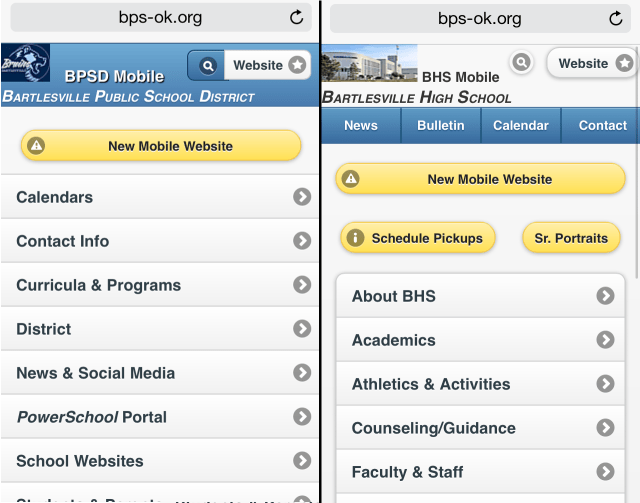
A button bar in the header distinguishes the high school mobile site

Different header colors and buttons distinguish the two mobile sites, along with the high school site’s header button bar

That way, no matter where you are in either site, there are several distinguishing characteristics to help keep you oriented. The limited screen size meant I did not want to expand the header to include more than a simple title on each page. People are always reluctant to scroll, so it is important to keep as many buttons visible as possible on the initial pageload. Below is a comparison of pages situated one level deep at each of the sites; note the various subtle changes.
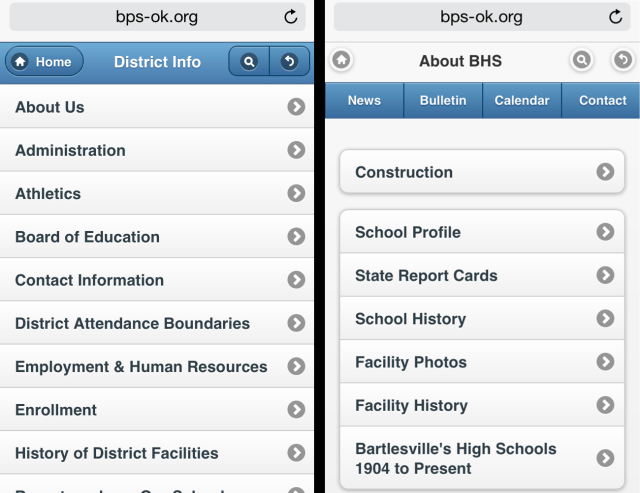
Different headers and buttons help distinguish the two mobile sites

I also used full-width buttons on the district site versus inset buttons on the high school site

When visitors did scroll down far enough to hide the header, I still wanted visual clues as to which site they were using. The inset buttons on the high school site were my solution, plus a different color scheme and button style for the footer. Since the footer concludes a page, I felt free to add “Bartlesville Public School District” to the district footer below its discrete buttons, but felt that adding “Bartlesville High School” to the high school footer’s button bar did not blend well with its rectangular design. So I put “BHS” on the central button itself.

UPDATE: Later I discovered how to keep the header visible at all times and opted to do that, although I kept the high school site’s button bar out of that always-visible header.

The footers of each site are also quite different

The footers of each site are also quite different

Navigational differences

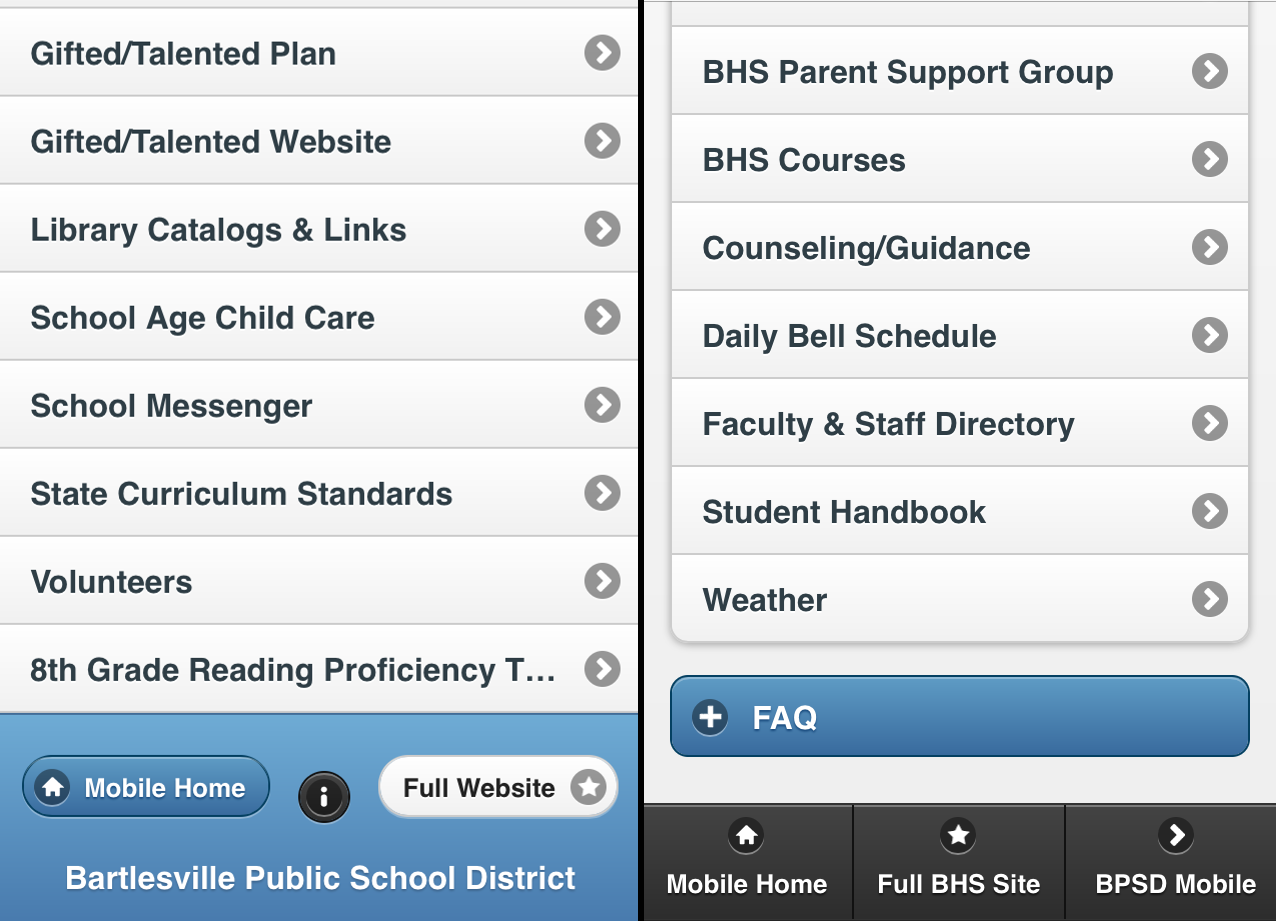
Resources page links appear only on the homepage of the BHS mobile site

Resources page links appear only on the homepage of the BHS mobile site

The comparison of the two footers also points out a navigational difference between the two sites. The high school site includes in its footer a direct link to the district’s mobile site, but of course the district site doesn’t return the favor.

Instead it just has a little information button which gives me credit for the site, provides an email link for feedback, and provides brief instructions for converting the mobile site into a homepage icon on iOS and Android mobile devices. That same information is more hidden on the high school site; it appears as a “Website issue?” entry in the Frequently Asked Questions nested lists in the various Resources pages.

Those Resources pages provide specific sets of links for students, parents, staff, alumni, and visitors. They’ve been a part of the high school site since 2009 and are thus carried over to the lower part of the mobile site’s homepage. They are a good example of the space dilemma one confronts on a mobile site, which does not concern me much on a regular site with plenty of screen real estate. While on the regular site you can always see those resources links along with several other sets of links, the mobile site steadily displays only a select group of links.

More complex navigation at BHS

The high school’s regular site has three main navigation areas: key functions in a top-of-page button bar, links to specific programs in a “Life at BHS” left sidebar, and the audience-targeted Resources links below that on the left sidebar. This is considerably more complex than the navigation at the district’s regular website, where everything is sorted into six areas with a single horizontal button/menu bar below the header (plus groups of links buried way down in the footer).

The more complex navigation layout for the high school’s regular website reflects the great quantity and depth of information on it; in some cases the links nest into one another four levels deep. For example, information on facility additions made in each decade are shown under:

About BHS > Facility History > Campus Additions > 1990s, etc.

To keep people from getting lost down there, selecting “About BHS” reveals a second left sidebar for that link’s entries there. Picking one of those links then reveals a nested button list of additional choices. I like using vertical sidebars for this because it keeps the various choices visible while also providing a continual reminder of where you are at in the structure by using boldface list entries, nested bulleted lists, and > signs. This is more powerful than simply displaying a linked chain of nested choices, a la “About BHS > Facility History > Campus Additions > 1990s.”
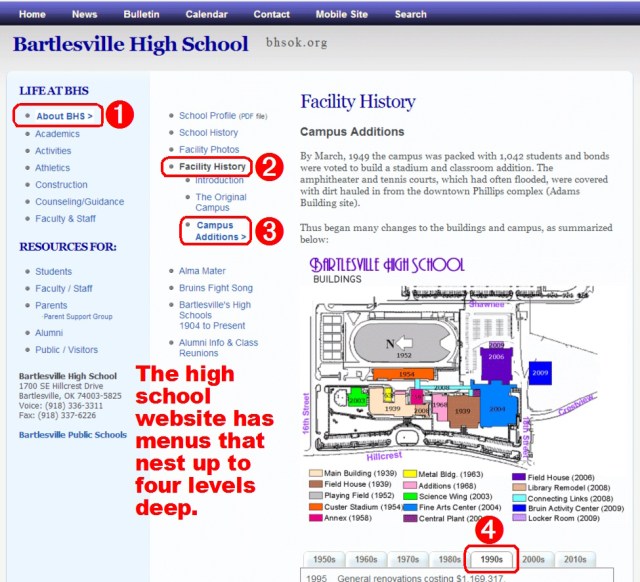
Multiple left sidebars on the regular BHS site keep visitors oriented in the deeper levels of the structure

Multiple left sidebars on the regular BHS site keep visitors oriented in the deeper levels of the structure

All that has worked fine for the regular site, but a mobile site doesn’t have that luxury. No one wants to click on tiny text links which are always displayed; you want whatever you are looking at to be the main focus and to rely more on scrolling than anything else to stay oriented.

So on the mobile site I dropped all of the visible left-sidebar links; you have to go back to the mobile homepage to reach another “Life at BHS” area or access a different audience-targeted Resources page. But those links are always just one click away using either the Homepage button at the top left or bottom left of each page. Notice how they are both on the left side; consistency is important to website visitors.
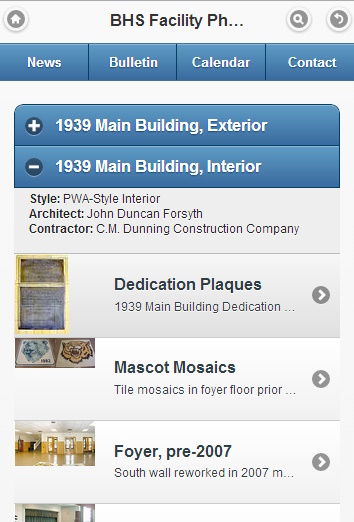
I used thumbnail list buttons for photos

I used thumbnail list buttons for photos

And sometimes I just didn’t try to convert things into mobile format; the high school site’s extensive entries on school and facility history have no mobile equivalent. If you select them from the mobile site, it just plops you back in the regular site. The message is that if you want to read all of that text, go get a bigger screen. But for more visual items, such as the collection of facility photos, I did take the time to build out an elaborate set of pages with a link to every photo. And each of those links includes a thumbnail view of the photo it links to. That lets users select based on the photo itself as well its description. Selecting a photo link displays the photo, with a caption, in a pop-up window resized to the device display. That avoids creating another page and is visually and operationally more simple than using an accordion list, a feature discussed below.

Choosing what to include and what to omit

I also took the time to create full mobile versions of the faculty and staff listings, both the long alphabetized list and a departmentalized one, with the latter adding thumbnail photos and buttons for email and web links. Again what you include depends on your goal and the screen size: someone using the long alphabetized list is probably just searching for an email link, so don’t lengthen that list with thumbnails and big buttons. Just include a job title to help reassure them they have the right person.

Someone looking at the departmentalized groups is likely more interested in things like a photo and web links. Also note how the email buttons in the alphabetized list have labels showing the person’s email address username, reflecting the focus of that listing, while the departmentalized groups go for easy navigation with a big “Email” button. The limited screen size meant that the buttons in the alphabetized list had to be smaller so that long usernames could fit without line-wrapping an entry; for a long list you want to keep the entries a consistent size for easier navigation.

The long alphabetized list omits the thumbnails and buttons shown in the shorter departmentalized groups

The long alphabetized list omits the thumbnails and website links shown in the shorter departmentalized groups

Accordion lists

So what else does the mobile site use to tame the navigational complexity? One trick I used a lot was expanding “accordion” lists. Those are single or grouped buttons which don’t load another page when tapped, but instead open up to reveal information or another set of links. That allows the mobile site to have fewer pages while keeping a page from getting too long. You expand the page only when asked, plus when someone opens another area in the same accordion group, the previously open area closes as a new one opens. That keeps the page from expanding again and again to awkward length and speeds up navigation. The user can scroll just outside of the currently opened item to quickly select other items above or below it, and also scroll more quickly to the header or footer.

All that is well and good, but the user has to realize how it works. So you want the accordion list to be clearly different from a regular button that goes to another page. jQuery swaps out the usual > icon at the right edge of a button with two different icons on the left end of accordion buttons. A + icon appears on closed items and a – icon on open ones. That is pretty clear guidance as to what is going on.

jQuery also automatically insets accordion lists, but on the high school site I was already insetting entries and I didn’t like mixing full-width buttons with inset accordions on the district site, so the insets wouldn’t help distinguish the accordions. Thus I chose, on both mobile sites, to emphasize that accordion lists were different by changing the colors of their buttons. I made them blue so that when an item opened up, the blue buttons of the neighboring accordion items would form obvious borders to the opened content. That would help folks realize what was going on when they scrolled out of larger opened items.

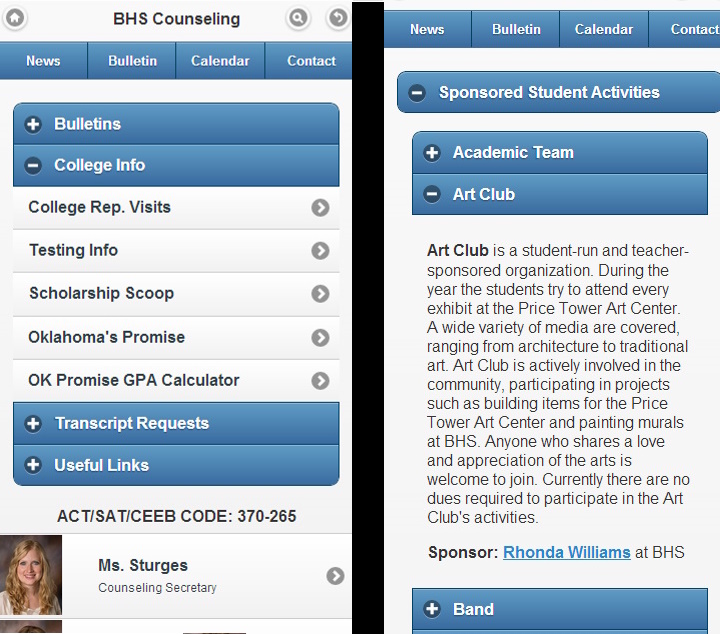
Accordion lists are a great tool for mobile sites

Accordion lists are a great tool for mobile sites

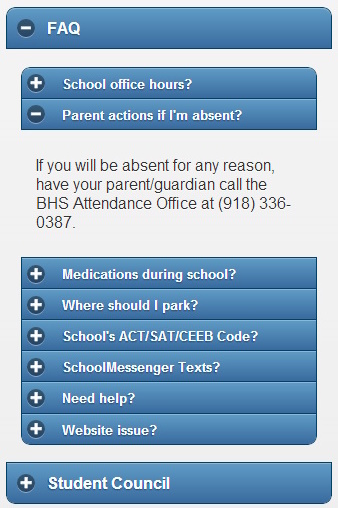
The FAQ accordions use smaller buttons to fit more questions on the screen

The FAQ accordions use smaller buttons to fit more questions on the screen

The screenshots show I used accordion lists both for sets of links and textual information. On the right is an example of a nested set of accordions; a large “Sponsored Student Activities” entry is part of an initial accordion list, but when you open it you find another set of accordion entries for the various organizations. That lets you build a lot of information into a small display space without requiring endless scrolling.

A variant on the nested accordion is the FAQs on each resource page; I used the “data-mini=’true'” option there to fit more of the FAQs onto the screen. The smaller button also reduced the size of the button text, allowing me to squeeze more question text onto each button.

Form select menus

Another trick I used to squeeze more onto the screen was form select menus. Website forms include various functions such as text input bars, radio buttons, checked items, sliders, toggle switches, etc. But the select menu is what interested me. A form will then display, using the operating system’s own formatting if you like, a list of items the user is to pick from. This is best used for a list of closely-related items which is too long to comfortably fit on the screen.

I used this type of input for state report cards on the district site, since there are so many different groups of them and every group had the same list of school sites. Accordion lists were not a good choice in that case because one expanded entry would look just like another: a long list of the same sites. You could easily get confused as you scrolled back and forth.

By using a select menu, I could keep more of the different groups of reports cards visible and let the device’s software provide the most convenient method of selecting an item. For example, opening a select menu on an iPhone produces the three-dimensional illusion of a scroll wheel of items on its small screen, whereas opening the same menu on an iPad produces a text box of entries for you to pick from on its larger display. The iPhone’s styling makes it easy to scroll and select an item with your thumb as you hold the phone. The iPad is likely used two-handed or while propped on something, so tapping with a finger on an item in a smaller text box is more practical on it than on a tiny phone.
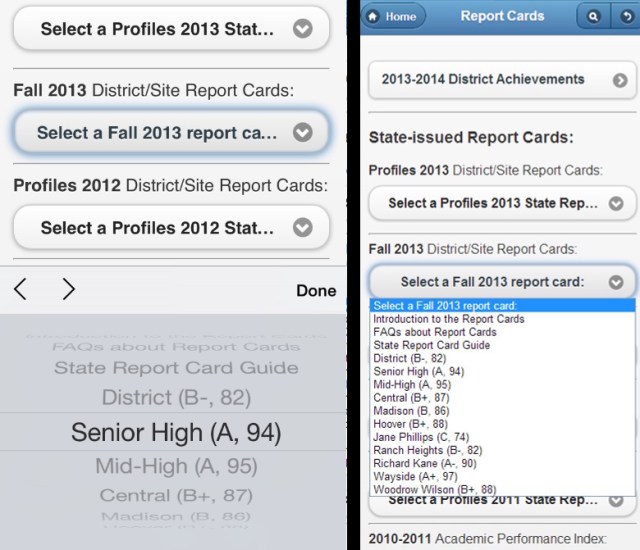
Form select menus render differently on iPhones versus iPads

Form select menus render differently on iPhones versus iPads

“Go Back” buttons and a deliberate inconsistency
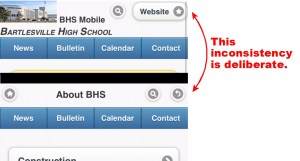
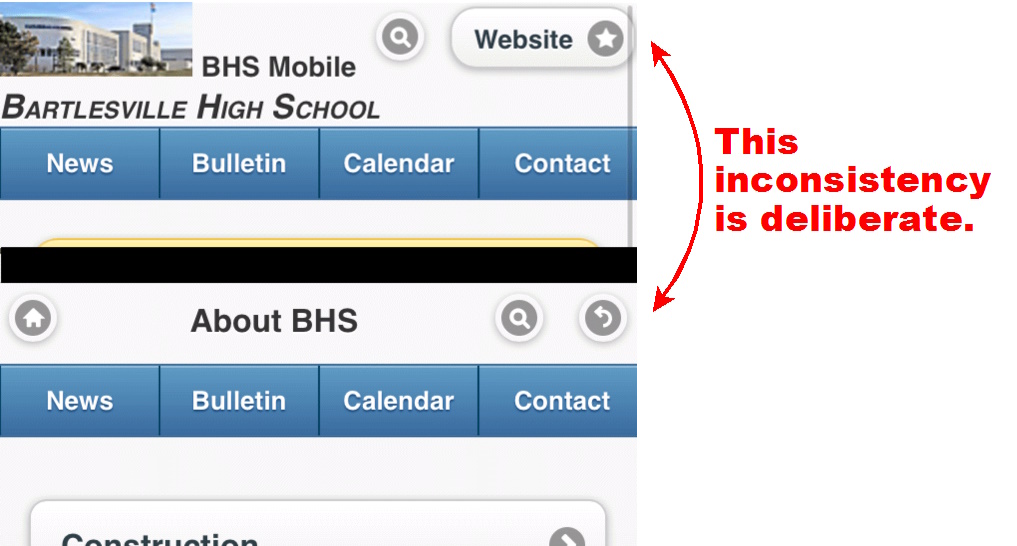
The homepage swaps the go-back button for an escape hatch

The homepage swaps the go-back button for an escape hatch

Another important navigational feature of a mobile website is the “Go Back” button, which displays the previously viewed page. In an environment with limited navigational controls, users often want to return to where they just were to select a different item or re-orient themselves. Nowadays many mobile browsers, such as Safari on iOS, maximize the screen real estate for a webpage by hiding the usual address bar and forward/backward web navigation buttons. That meant I chose to include a “Go Back” button at the top right of every page of each of the mobile sites to make that an easy option for the user.

But that isn’t quite true; there is one page at each site which lacks a “Go Back” button…the homepage. Why did I create this obvious inconsistency? Because the homepage is special; it is the anchor for all of the site’s navigation. You can go back to the homepage, but then you are not allowed to easily “Go Back” to a different level in the webpage’s structure. That emphasizes that the homepage is the starting point and also prevents someone from tapping the “Go Back” button repeatedly and having page-load latency mean they start looping wildly through the site.

So on the homepage I replaced the “Go Back” button with a large labeled button that takes you to the regular website. That killed two birds with one stone: it got rid of the “Go Back” button on the homepage while replacing it with an important feature for that page: the escape hatch. I will soon begin redirecting anyone who visits the regular websites’ homepages on a small screen to the corresponding mobile homepage. Below I’ll explain why I’m being so pushy, but I also know that anytime I force someone down a different path, I had better provide an escape hatch in case they didn’t WANT to be redirected.

Sometimes people don’t want to be on the mobile site; they want the regular site even on their tiny screen. So a mobile site should always include an escape hatch on every page; I included it not only at the top of the homepage but also in the footer on every page of the mobile sites.

Will that mobile user really be happy about the redirect?

Will that mobile user really be happy about the redirect?

The controversy on mobile site redirects

Informed people argue back and forth about whether someone trying to access a regular website on a mobile device ought to be redirected to the mobile-friendly site or not. Since many people will not discover the mobile-friendly site on their own, and it improves the web experience so much on tiny browsers, I think folks should be redirected to it when they are using a small screen. But you have to include an escape hatch in case they prefer the regular site, get confused, or somehow the redirection occurs when it shouldn’t.

Once I decided I did want to redirect, the next question was when and how. Web browsers include in their page requests information about the viewing screen size, the browser make and model, and the device. Any of that information can be falsely reported, but it does let you detect when someone reports that they are using a certain browser, device, or screen size. So when do you decide to force a redirect?

Some people argue that you should only redirect specific devices. For example, redirect iPhones but not iPads; redirect iOS and Android devices, but leave alone less popular devices which may not properly display the mobile site. Others argue that you base the decision on screen size, and I agree with that view.

I cannot take the time to maintain code to test for the latest and greatest in the blizzard of devices coming onto the market. And the whole point of the mobile site is to make things easier on small screens. So I wanted the redirects to occur when the screen size was smaller than a tablet’s typical resolution, thus targeting smartphones.

As for how to accomplish the redirect, the simplest choice seems to be this bit of Javascript code in the webpage header of a regular site’s page:

<script type=”text/javascript”>
if (screen.width <= 720) {
window.location = “mobile/default.html”;
}
</script>

If someone loads the page while on a device with a display that is less than 721 pixels wide, they’ll be redirected to the mobile website. I plan to activate this code on the homepages of the respective regular websites, but I did not want to do that without warning. No one likes big surprises, especially the average joe who is not overly familiar with web interfaces.

Of course redirection really isn’t as simple as the above code snippet. If that were all I did, then problem a) would occur: someone using the link on the mobile site to see the regular homepage would just be redirected back to the mobile site again. That has to be prevented, along with problem b): someone on a mobile device selecting the regular homepage, navigating elsewhere on the site, then returning to the homepage only to be redirected again to the mobile site. Problem b) is fairly common merchant sites, even large operations, and it is very annoying.

I could alter the links to the regular homepage throughout the mobile site so that the redirection code is disabled when they are used, but that would only fix problem a). Setting a session “cookie” that requests the regular site instead of the mobile site is a better solution. (A “cookie” is a bit of information you ask the user’s browser to remember for you; session “cookies” only last during a given session with the browser, while permanent “cookies” are stored for use in future sessions.) I might also use a “landing page” approach where small-screen users hitting the regular homepage are always asked if they prefer to see the mobile or the regular site before proceeding, with a timer that eventually kicks them to the mobile site if they don’t respond. I’m not used to doing any of this, since the only redirection I’ve used previously is a simple timed or immediate redirection to a new page when someone visits a page that has been superceded by some replacement located elsewhere.

A mobile link was added to the header of every page on the regular site

A mobile link was added to the header of every page on the regular district site

All of this complexity meant that when the mobile websites launched, I did NOT include the redirect at first. Instead I mentioned in the news announcement about the sites that in a couple of weeks users on small screens would be redirected, with an immediate reassurance that a link back to the regular website would be available on every page of the mobile sites. That provides a sense of fair warning. Meanwhile, I added a mobile link to every page of the regular sites so that folks could trigger the mobile site if needed. And I made sure the various links between the regular and mobile websites matched up: the mobile button on the regular search page takes you to the mobile search page, while the regular-site button on the mobile search page takes you to the regular-site search page, and so on throughout the sites. This helps users recognize that every page has an equivalent on the other site and access it more readily..

The high school site header bar also got a new mobile link

The high school site header bar also got a new mobile link

I decided to not include a redirect on pages other than the homepage. I did not want to drop someone into the mobile site willy-nilly; a forced redirect only occurs on the homepage. That way if someone uses a link to a sub-page on the regular site, they’ll always see the same thing. I don’t want links to sub-pages to give varying results; that sows confusion. And if someone is going to save and distribute links to sub-pages, I want those to go to the regular site, not the mobile site: the mobile site is NOT suitable for a large-screen display. Someone on a small screen who follows a link to the regular site can always invoke the mobile site with the links I’ve included in every regular page’s header.

UPDATE: When I implemented redirection for both of the mobile sites on 8/14/2014, I used a script installed only on the homepage of each regular website. The script checks the screen size and if it is less than 721 pixels it displays a dialog box. The visitor chooses “OK” to be redirected to the mobile site or “Cancel” to stick with the regular site. The script is smart enough to notice if the visitor just came from the mobile site’s homepage and in that case suppresses the dialog box and displays the regular homepage. This approach avoided having to modify every link to the regular sites on the mobile sites to include a cookie and then having to check and clear a cookie to avoid redirection loops. I think visitors can tolerate the minor inconvenience of the dialog box appearing when a visitor tries to visit the regular homepage on a small screen.

Alerts

BHS Mobile alert page

BHS Mobile alert page

Another precaution for the forthcoming redirection of small screen users is that I put a “New mobile website” alert button on the mobile website homepages. That provides an explanation for when the redirects begin and for folks who stumble into the mobile site on their own. Alerts are important for these sites for notifying visitors of inclement weather closures, vital deadlines, etc. I use blue and red-bordered text boxes for alerts on the regular high school site’s homepage, and a scrolling marquee on the district site’s homepage. Those elements simply disappear if no alerts are in effect. For mobile, it was obvious to put a big yellow button for an alert right below the header area. But then what?

Should the alert button link to a pop-up box? How about a separate page, kept in its own file on the server? Neither of those options worked out, although I tried both of them. I thought a pop-up box made sense, but when I implemented it in jQuery Mobile 1.2.0, closing that pop-up box was a problem. Sometimes I fumbled with the close target on my iPhone, and I noticed that re-invoking the alert made closure even more difficult. Also, while I had used pop-ups to enlarge photographs on the site, they are problematic for text. What if the text exceeds the screen area? Do you really want to scroll a pop-up? That isn’t intuitive.

So I gave up on pop-up alert boxes and tried invoking a dialog box loaded from a separate server file. That also suffered from the hard-to-close problem and the scrolling-box issue, and also meant I’d have to edit both the main mobile HTML file and a separate alert HTML file for each alert. That was too much work, especially since some alerts need to go up ASAP.

So I finally just had the button link to another internal page in the main HTML file, but coded that page’s header with a yellow theme, eliminated the usual header button bar on the high school site, and included a dedicated button at the bottom of the alert text to return to the homepage. Each of those changes would emphasize that an alert was important, different, and fell outside the usual navigational structure of the site.

That wraps it up

That wraps up my five consecutive posts on web development:

If you are a school district patron, I hope you enjoy using the new mobile websites. A lot of thought, care, and time went into their design and development; I sure hope it pays off for you.

Posted in technology, web design | Leave a comment

Our district’s multiple personalities on the web

July 31, 2014

In a previous post I outlined how the visitors to one of our high school websites showed a dramatic shift away from large screen PCs to small-screen mobile devices. That led me to build a new mobile site for the school district. With that ready to go by mid-July, I still had time before the start of the new school year to create another mobile site, one for the high school.

I knew right off that I’d want the high school mobile site to be similar to the district one, so that the modal transition between the two would not be too jarring. I knew this was crucial because, for well over a decade, our district has suffered from multiple-personality-disorder amongst its various websites. I explore that problem in this post.

Our websites’ multiple-personality-disorder

For many years none of the district’s websites were alike. Each had its own layout and structure, navigation system, colors and theme – the whole works. There was no sense of continuity for parents who might have children at multiple school sites, nor for the public accessing different district websites for information. Some sites had very outdated code, leading to malformed pages. Overall it was an idiosyncratic mess.

Until 2014, every website had a distinct design

Until 2014, every website had a distinct design

Those failings were due to the homegrown nature of the various websites. Each was initially built by a volunteer webmaster without any direction from the district. Eventually the site principals at the uppermost grade levels began paying a staff member to act as that site’s webmaster, but the elementary and middle school sites are still run by altruistic staff volunteers. To my knowledge, the district didn’t even earmark any funds for the district-level webmaster until it began paying me a small stipend in August 2012.

Using iframes to create a district border

I now embed school websites in a district-level iframe

I now embed school websites in a district-level iframe

In 2013 I took the first step to bring some order to this chaos. I reformed the district site’s link to each individual school site so that the school website displayed in an iframe. That let me keep a simple header navigation bar for the district site at the top to indicate that a viewer was still in the district’s website system.

However, using a basic iframe created a kludge. It forced the school’s website into a restricted window and was annoying, especially for scrolling content in the separate iframe window. So I made sure to include an obvious link just above the iframe that would open the school’s website in a full window, eliminating the frame.

Finally this summer I discovered how to use Javascript to automatically size the iframe to a school’s website if the school website’s files were located on the local server. So for those sites I now customize the iframe’s height and eliminate the frame’s scroll bars. Unfortunately that trick doesn’t work with sites hosted elsewhere (which is what is done for most of our sites now, as you’ll see below).  So for them I had to just set an arbitrarily large height for the iframe. This still simplifies the appearance to one window with one set of scroll bars, but it causes many pages to have immense blank footers. I found some of our websites have pages running over 10,000 pixels high, which isn’t good design, but you get what you pay for. I left the option above the iframe to escape it and reload the site in the full window.

UPDATE: At the start of the school year I kept running into link issues with the different school websites when embedded in an iframe. If links did not include target=”_top” they often did not work in some browsers. Since most of the websites are now more unified in their look and feel, as described below, I decided to stop using the iframe banner approach.

A new unified look-and-feel across most of the school websites

In 2013-2014 the district’s Teacher Specialist for Instructional Technology worked with the various volunteer webmasters for grades PreK-8 to migrate their websites to the MyBigCampus service the district has as part of its Lightspeed internet services agreement. At this point seven of the eight sites have moved to that service, with a consistent use of a header with a photo of the school and a horizontal menu bar. The body of the pages all use a white background. This has considerably unified their look and feel.

Six sites now use MyBigCampus, providing a more consistent look and feel

Seven of our district websites now use MyBigCampus, providing a more consistent look and feel

The remaining website design outliers are one elementary school, the Will Rogers Complex, the mid-high, and the high school. I presume that MyBigCampus could provide what is needed for the remaining elementary school and the Will Rogers Complex, so hopefully we’ll get those into the design fold. The mid-high site will be eliminated in August 2015 when grades 9-10 become part of the expanded 9-12 high school. That leaves the high school website to consider.

But what about the complex high school website?

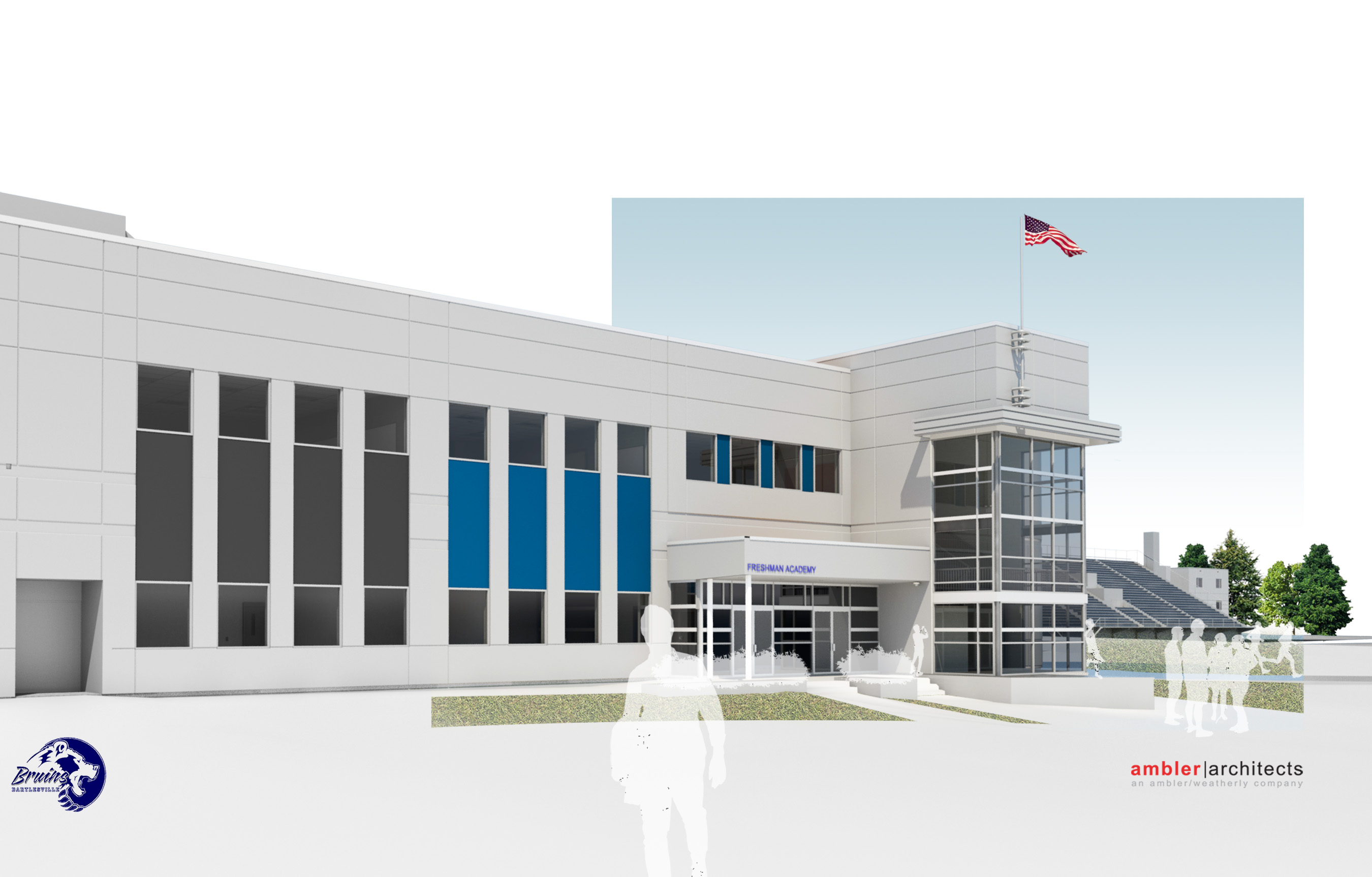
The Freshman Academy poses a website design challenge

The Freshman Academy poses a website design challenge

The site for grades 11-12 at the high school is already far too complex for the MyBigCampus service, and it will only grow more complex when the school expands to grades 9-12 in August 2015. I will either need to expand the existing design or re-think it entirely.

I’ve put a lot of work into the existing site, so I’d hate to start over from scratch, but the Freshman Academy creates a website issue that needs to be resolved. 9th graders will have most of their classes in a distinct area of the campus. They’ll have their own bell schedule, cafeteria period, administration, counselor, office, and library. So I’m leaning toward them having their own distinct website.

A potential way forward

I’m hoping that the Mid-High’s current webmaster, who is slated to be in the new Freshman Academy, will still be paid to run a new Freshman Academy website. It could link over to the 10-12 website as needed for shared content on news, services, campus information, and the like. We could stick with hand-coded websites or try to move one or both sites to a cloud-based web service for easier development and maintenance. If we went to a cloud service, it would need to have mobile-friendly responsive design.

Thankfully we still have a full year to work all of that out. Meanwhile, in July I had a mobile version of the high school website to build, and I wanted it to work very much like the district’s mobile site, but with just enough differences to orient a visitor as to which mobile site was being displayed. Addressing that problem, and how to deal with the more complex structure of the high school website in the mobile environment, is the focus of the next post.

Posted in technology, web design | 1 Comment

Fixing an out-of-touch district website

July 30, 2014

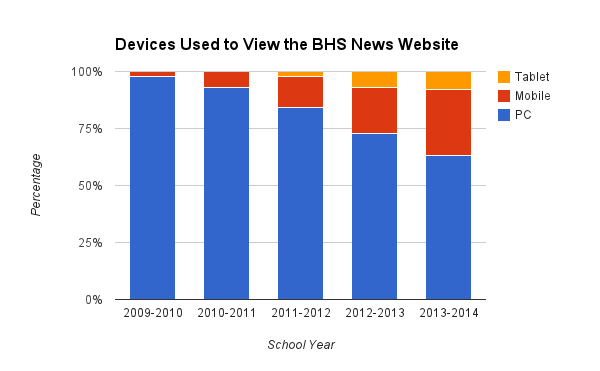
My previous posts outlined how I host and develop my various websites and why my two main sites for the district and the high school needed updating. Since 2009, when the current version of the high school site was designed, the number of visitors using mobile devices and tablets jumped from 2% to 37%. About 1/3 of visitors appear to be using small touch-screens instead of the traditional computer monitor and mouse. Those small screens make it harder to use the densely linked, multi-column layout of the websites, with horizontal header navigation menus or buttons plus additional vertical sidebars on the high school site.

Responsive design or a separate mobile site?

There are two basic ways to respond to this issue. You can devise a separate website tailored to small screens and touch control, with large header/footer navigation buttons, scrolling and collapsible screen-width menus, etc. Or you can re-structure your existing site for “responsive web design.” That means it has graphics which are scaled as percentages of a column rather than in pixels, and fluid columns and page elements which elegantly re-arrange themselves depending on the width of the viewing screen. Designmodo posted a bunch of examples.

Responsive Design is one way to be mobile-friendly

Responsive Design is one way to be mobile-friendly

Responsive web design is becoming more prevalent, since it has some distinct advantages over a separate mobile site:

  • Only one code base to support instead of two separate ones for large vs. small screens requiring replication of changes
  • Similar appearance and navigation for visitors using large (PC), medium-size (tablet), and small-screen (smartphone) devices
  • Simpler for web analytics and search indexing

The downside to this approach is that you have to re-think the structure of every page of an existing site. You need to think about columns and how they might best be re-ordered, or nested, and whether the navigation elements need to switch to a different style once the screen width narrows beyond a certain point. This requires some fancy footwork in the Cascading Style Sheets (CSS) which structure the page.

Separate mobile sites discard all of that complexity and re-coding of existing pages in favor of a separate site with a simplified interface. Mobile sites can be built which work with a wide variety of browsers on different operating systems of varying capability and ages. Mobile sites use larger interface elements to solve the “fat finger” problem. Consider the difference shown between Olive Garden’s regular and mobile sites.

Olive garden's mobile site differences

Olive garden’s mobile site differences

Until July 2014 I had no experience coding mobile-friendly websites and I knew there was no money in the district budget to go out and pay for one. So I first checked out what my existing 2012 version of the Adobe Dreamweaver CS6 web development software had to offer. It included both responsive-design and mobile-specific options.

Fooling around with fluid flow

Fluid layout options in Dreamweaver CS6

Fluid layout options in Dreamweaver CS6

My first attempt, back on July 11, was to try to re-create the district homepage using Dreamweaver’s “Fluid Layout”; this was clearly their take back in 2012 on responsive design. I have no Dreamweaver training, so I found an online 35-minute video from Patrick Lowenthal which stepped me through creating a page with a fluid layout. I fleshed out a page with the sort of menu layout I preferred and then tried viewing it at various screen widths.

The results were unimpressive. I didn’t like how the site looked at the narrowest setting or the widest. Goldilocks wouldn’t want the porridge on offer from my Baby Bear layout or my Papa Bear layout. With enough thought and care I could reach a better compromise, but I feared it would feel like a compromise, reducing the usability and efficiency of the current site on large screens.

Nor did I relish having to re-think every page of the website in terms of what would flow well. I wanted to complete an initial draft in a few days before I had a conference out of town, not get bogged down in a full rebuild. And I wanted the entire thing, with all of the polishing and debugging, wrapped up by the end of the month. Bartlesville teachers report back on 8/8 this year, and classes start on 8/12, and I have plenty of advance work still to do on teacher appraisals, a technology training manual, etc.

A separate but equal mobile site?

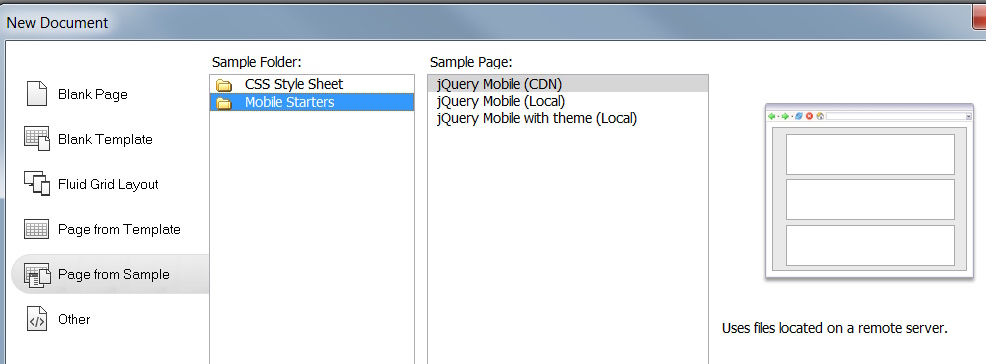
Dreamweaver's Sample jQuery Pages

Dreamweaver’s Sample jQuery Pages

So I shifted my attention to devising a separate mobile-only site. It could concentrate on easy navigation, while still offering full access. A pet peeve of mine is how many mobile sites only encompass a fraction of the options of the regular site, offering no clue of what has been omitted. I wanted our sites to provide access to everything on the regular site, even if that meant sometimes giving up on trying to convert content that was too much for tiny screens; if things got hairy, I still wanted links that would pop back into the full website.

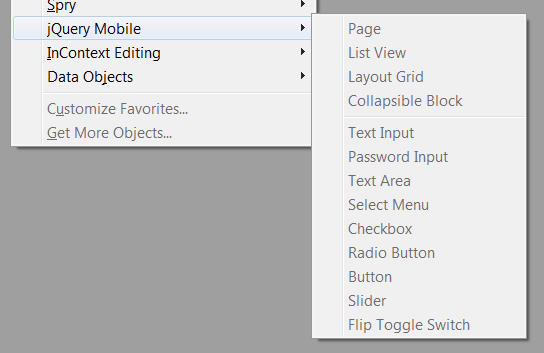
jQuery inserts in Dreamweaver

jQuery inserts in Dreamweaver

Browsing through Dreamweaver’s New Document dialog box, I came across some sample “Mobile Starter” pages written using something called jQuery Mobile. I started messing around with those and liked what I saw. Clean, simple boxes with big buttons and a variety of options for displaying links and information. Clearly the resulting site would look silly on a big screen, but it would be quite easy to navigate on a small smartphone.

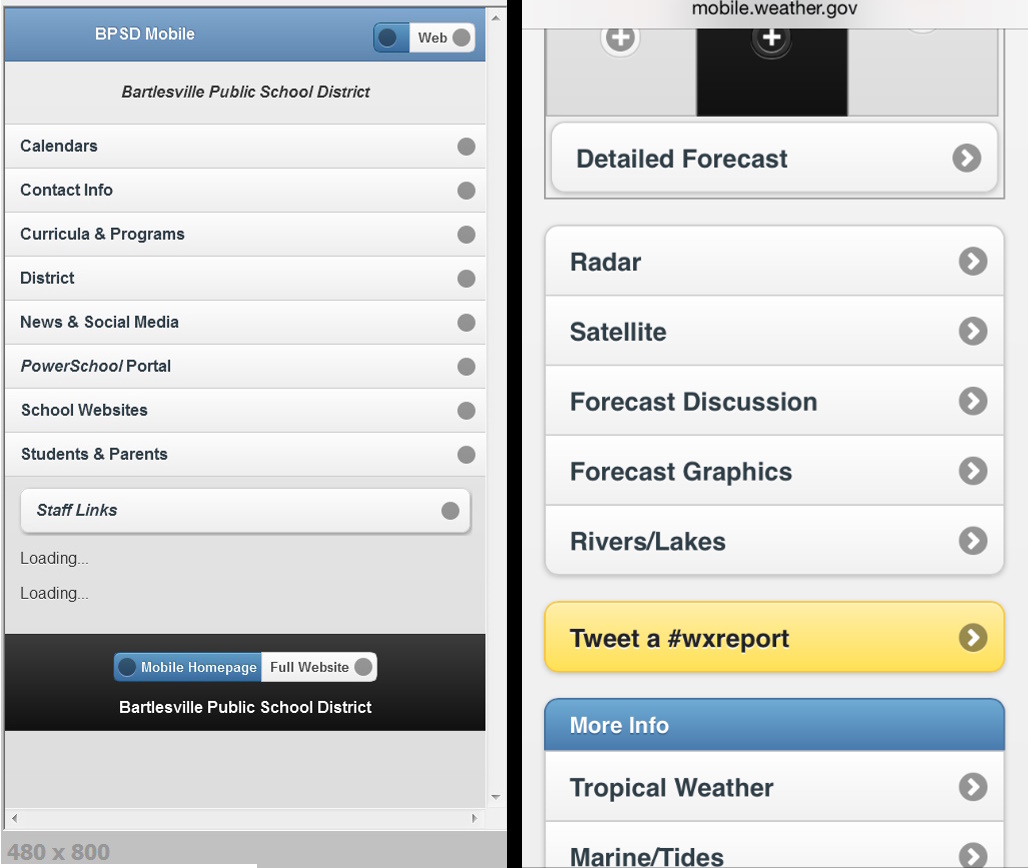
So I re-created the district homepage contents and links using the jQuery Mobile commands on Dreamweaver’s insert menu, without any fancy touches. The result reminded me of something I’d seen before…what was it?

I eventually figured it out; my sample page looked like the National Weather Service’s pages do when you use a mobile device. They must have coded them in this jQuery Mobile thing.

My first jQuery page and a NWS mobile page

My first jQuery page and a NWS mobile page

That meant I could visit mobile.weather.gov in my desktop web browser, do a “View page source” and study the underlying HTML and CSS files, and see what Javascripts they used, even though I don’t know Java. I suppose the traditional approach would be to go look up jQuery Mobile on the web and review the documentation, but that isn’t my default mode. I like to find something I like and try to peer at the code to see how it works so that I can steal and adapt from it.

I downloaded the various CSS and Javascript support files the weather service’s pages were using and starting building out my own pages to mimic the structure of the regular district website. There were the usual oddities that result from this sort of tinkering, with absent or mismatched graphics, flakey controls, and the like. But I knew I could eventually sort that out once I got the basic structures built to ensure this approach would satisfy my goal of a mobile-friendly site with full functionality, including fall-backs to the regular website as needed.

Internet tools evolve quickly

jQuery Mobile has some great demo sites

jQuery Mobile has some great demo sites

While debugging my code, I stumbled across a very well done website with online documentation and example code for jQuery Mobile version 1.2. I really liked the jQuery Mobile 1.2 demo site and made extensive use of it to learn various tricks. But I was seeing formatting glitches. Hmmm…my 2012-vintage Dreamweaver created version 1.0 files, while the weather service site I’d selected as a model used version 1.3 files. Evidently jQuery Mobile had put out several major new versions beyond what my copy of Dreamweaver knew. Since I’d been using some files via the NWS code, a mismatch of downloaded icon files, stylesheets, and Javascript was no doubt causing the formatting glitches I was seeing in my new site.

Eventually, when I couldn’t get something to format the way I wanted, I discovered at jQuery Mobile’s main site that they’re now up to version 1.4.3. But I couldn’t simply download and install the latest version: back in the transition from 1.3 to 1.4 they dumped several default themes I was using in my code and the demo site for 1.4.3 showed they’d reworked a lot of the styling codes.

Two buttons, one created in jQuery 1.2.0 and the other in 1.4.3

Two buttons, one created in jQuery 1.2.0 and the other in 1.4.3

For example, to create small button with a delete icon above the text, I’d grown used to coding:
<a href=”#” data-role=”button” data-icon=”delete” data-iconpos=”top” data-mini=”true” data-inline=”true”>Delete</a>
while the new version created a similar button with:
<a href=”#” class=”ui-btn ui-btn-inline ui-icon-delete ui-btn-icon-top”>Top</a>

I could see that they were trying to be more compact for faster code loading, but the new API (application programming interface) was also harder to remember with all of those ui- bits after growing used to more obvious codes. While the later version offered some snazzier options and special features, I had whipped up my own workarounds for what I needed with some inline CSS code.  So I didn’t have to jump to the newer version. I knew that if I did go to the latest version, I would want to re-work all of the code I’d written over several long days into the new style, since I hate mixing old and new styles in a page. I may not look at a particular page again for months, and I wouldn’t want to have to wrap my head back around two different coding methods.

So I gave up on using a more modern version of jQuery and standardized my site on version 1.2. I gave up some speed and efficiency and would be left without a few new features, but what I had coded was working well and I knew I’d be spending plenty of time polishing it before it could go public. Perfect is the enemy of good; I needed to stick with what I had already started to master. I had a fully operational version completed by July 14 and sent the link out to some administrators for their review. A bit more polishing and then I’d be headed down to Norman for a couple of days.

Homepage of my completed district mobile site

Homepage of my completed district mobile site

When I had some free time in Norman, I toured the vastly improved museum of art (a post on that with photos is still pending). But it was gnawing at me that, while I had checked repeatedly how my mobile site code behaved on my iPhone and iPad, I hadn’t checked it on any Android devices. That operating system is very popular, but I’ve never used Android more than a minute or two, and the only Android device I had easy access to would be Wendy’s Kindle Fire. That unit is older and uses its own fork of Android which is different from the versions on the popular Samsung phones. So while in Norman I popped into their Target store. I found an Android tablet demo unit there and pulled up my initial mobile site. It ran pretty well, with few glitches, and no fatal flaws I could find. That let me relax a bit.

After my conference, with only positive feedback about the new site, I polished it some more and then submitted it to the superintendent for consideration. But I still had almost two weeks before the end of the month, when back-to-school activities really would start to intrude; why not go ahead and use my new district site to help me build a mobile version of the high school site?

As I built another mobile website within the district, I needed to bear in mind a lesson from our district’s experience with multiple regular websites. That lesson will be delivered in the next post.

Posted in technology, web design | Leave a comment

The shift to mobile browsing means other shift happens

July 30, 2014
Mobile browsing was once impractical

Mobile browsing was once impractical

Yesterday I posted about how my various websites are a mix of hand-coded HTML and hosted free services. Google Sites offers an option to “Automatically adjust site to mobile phones” which will try to sort things into a single column and scale the graphics accordingly. That works fine on a simple site like the news sites for the high school and district as well as the district technology support site. But the more complex BruinBond.com I created for bond projects looks terrible on a phone screen when I enable that setting.

This MEADOR.ORG site is mobile-friendly, with the menus and sidebars tucked away and posts converted into a stream of text interrupted by same-size embedded images. But the complex sites I coded for the high school and the school district are NOT mobile-friendly. The high school site’s design dates back to 2009 and the district’s to mid-2012. The way folks are accessing those sites have shifted considerably over those time frames, as we’ll see below.

Zooming in on the district site makes navigation difficult

Zooming in on the district site makes navigation difficult

You can zoom, but can you navigate?

Granted, both of those multi-column sites with headers and footers are coded with Cascading Style Sheets (CSS), which means they have a logical structure (created by DIV tags) which mobile browsers can interpret for smart zooming. I can tap on those sites and my iPhone knows which column or graphic to zoom in on. But zooming in means you can no longer operate the navigation menus without a lot of scrolling or going back to the tiny un-zoomed view. That is a real pain on a tiny phone screen.

Now most people are mobile when surfing the net

The shift toward mobile web browsing

The rapidly expanding use of smartphones for web browsing means that websites designed only for use on personal computers and large tablets are no longer serving the public well. At the start of this year, mobile apps overtook PCs in U.S. internet traffic. Nielsen supports that finding, with its data that U.S. adults now spend an average of 34 hours per month using the internet via smartphones, while spending only 27 hours per month using the internet with a PC.

We don’t have good analytics on our main sites, which are hosted locally. But I have run Google Analytics for years on the high school’s separate news site. A review of that data shows a dramatic migration to mobile devices. Four years ago, only 2% of visits were made using a mobile device. Last year 29% were on what Google terms a mobile device, plus another 8% were on tablets. So our existing websites are probably not easily navigated by 29% to 37% of the viewers.

People are switching to mobile devices

Our audience is shifting to mobile devices

Schools are hardly speed demons when it comes to technology, but eventually we do react. The ever-increasing prevalence of students with smart phones is an indicator every teacher is aware of, but the web statistics show just how much things have shifted in the past few years. That convinced me we had to change our sites to be more mobile-friendly. The challenge was how to accomplish that despite a non-existent budget and my own unfamiliarity with mobile-friendly site design. My next post is about my search for a solution.

Posted in technology, web design | Leave a comment