Mercy

My February 2012 Song of the Month

This year I’m picking out a new favorite song for each month. New to me, that is, not necessarily new to the world! Last month it was Florence’s Shake It Out.

In February I discovered Duffy’s song Mercy and absolutely LOVE it and recommend the entire Deluxe Edition of the Rockferry album from which it came in 2008. Here’s the official video:

I first heard it while sitting in a booth at Garfield’s, finding my shoes flitting back and forth and my head bobbing and nodding uncontrollably. My iPhone’s SoundHound app identified the song for me, which I downloaded on the spot from iTunes and began pounding in the car as I drove away.

I’m recommending the whole album, which is chock full of retro-pop breakup songs penned by Duffy with several different talented songwriters. Mercy is by far the snappiest song of the bunch, but others also show Motown and other rhythm and blues influences along with echoes of Dusty Springfield, Carole King, Phil Spector, and more. Personal favorites are I’m ScaredStepping StoneRain on Your ParadeStopSerious, and Distant Dreamer. The title track, Rockferry, is a bit overwrought for my tastes, however.

Mercy

(Hit the beat and take it to the verse now)

Yeah yeah yeah
Yeah yeah yeah
Yeah yeah yeah
Yeah yeah yeah

I love you
But I gotta stay true
My morals got me on my knees
I’m beggin’ please
Stop playin’ games

I don’t know what this is
Cause you got me good
Just like you knew you would

I don’t know what you do
but you do it well
I’m under your spell.

You got me beggin’ you for Mercy (yeah yeah yeah)
Why won’t you release me (yeah yeah yeah)
You got me beggin’ you for mercy (yeah yeah yeah)
Why won’t you release me (yeah yeah yeah)
I said release me (yeah yeah yeah)

Now you think that I
Will be somethin’ on the side
But you got to understand that I need a man who can take my hand
yes I do

I don’t know what this is
but you got me good
just like you knew you would

I don’t know what you do
But you do it well
I’m under your spell

You got me beggin’ you for mercy
Why won’t you release me
You got me beggin’ you for mercy
Why won’t you release me
I said you better release me (yeah)

(overlay)
(You look at me and think we’re the same kind
Cause you don’t know what I’ve got in mind
I want a bit more than I’m asking for
But I just don’t want to waste my time
You think that I’ll be the other girl
Just like there’s nothing in this world
I wanna have fun, go get me some
I just don’t know where you’re comin’ from)

I’m beggin’ you for mercy
Why won’t you release me
I’m beggin’ you for mercy
You got me beggin, you got me beggin’, you got me beggin’

Mercy
Why won’t you release me
I’m beggin’ you for mercy
Why won’t you release me

You got me beggin’ you for Mercy
I’m beggin’ you for Mercy
I’m beggin’ you for mercy

Why won’t you release me yeah
yeah
break it down

< January 2012 Song of the Month

March 2012 Song of the Month >

Posted in music, video | 1 Comment

Previewing Windows 8

The pathetic new logo for Windows 8 - and you thought Google had no design sense

I’ve been hearing about Windows 8, the forthcoming version of Microsoft’s computer operating system, for months on the Windows Weekly netcast I watch regularly on the TWiT network. But I’ve never caught more than a glimpse of it in action. I was dubious of its relegation of the Windows Desktop to second-class status, but I’m also not a big fan of either the Windows Start Menu or the Macintosh’s Dock. Windows 8 features a new Start Page with “live” big rectangular icons of its new “Metro” interface, patterned after the touch interface of Windows Phone. It also features Metro-style apps, which are simplified touch-centric apps similar to what one sees on tablets and smartphones, brought to the home computer.

This is the boldest change to Windows Microsoft has made since Windows 95 and echoes how Apple is steadily integrating features from its own iOS system, which operates the iPhones and iPads, into its desktop OS X operating system for Macintosh computers like my Macbook Air. The two old competitors are still at it: Microsoft will release Windows 8 this year while Apple recently announced the Mountain Lion update to its desktop operating system – both updates show a distinct shift toward touch interfaces and increasing similarities between desktop and mobile platforms. (Although using “desktop” to describe Windows 8 is hardly accurate.)

Having similar mobile and desktop platforms should make transitions easier for casual users, for whom tablets could become a viable replacement for desktops if they solve the keyboard problem. But I’m dubious of the ability of a touch interface to integrate seamlessly with a mouse and keyboard one. However, even as a power user I often find myself wishing certain iPad apps would run on my Windows 7 desktop machine. So there could be some benefits of this “creeping mobility” in the desktop operating systems.

Microsoft released its Consumer Preview version of Windows 8 this week, so I decided I should take it out for a spin. Have to maintain my geek cred, after all. But I strongly advise you to NOT try out the Consumer Preview for yourself unless you are a Power User – it is not for the faint of heart and you could easily wipe out your existing Windows system if you are not careful. Let the geeks scout this new territory. For most of this article I’ll use Win8 to refer to my preview version of Windows 8 and Win7 for my existing Windows 7 system.

Sadly, my initial impressions of Windows 8 are overwhelmingly negative. I greatly dislike its oversimplified and obscure interface and am not at all sold on bringing the limited multi-tasking always-running nature of mobile apps onto the desktop. Furthermore, Microsoft’s implementation of Windows 8 is often counterintuitive, needlessly confusing, and inconsistent.

Creating a virtual machine to install the Windows 8 Consumer Preview

Geek Alert: This section is about the somewhat obscure methodology and settings I used to get the Windows 8 Preview on my system. If you’re not a computer geek, skip to the next section, Brave new world.

I certainly didn’t want to replace my stable Windows 7 system with an experimental Windows 8 one, and my existing one-terabyte RAID 1 mirrored hard drive had too little free space for me to want to partition it into a separately bootable Windows 8 drive. I also wanted to be able to readily switch between Windows 7 and Windows 8. So I decided to create a virtual machine on my existing drive. A nice bonus would be that if I hated Windows 8 I could simply delete the Windows 8 virtual machine and all would be back to normal.
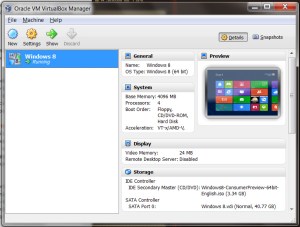
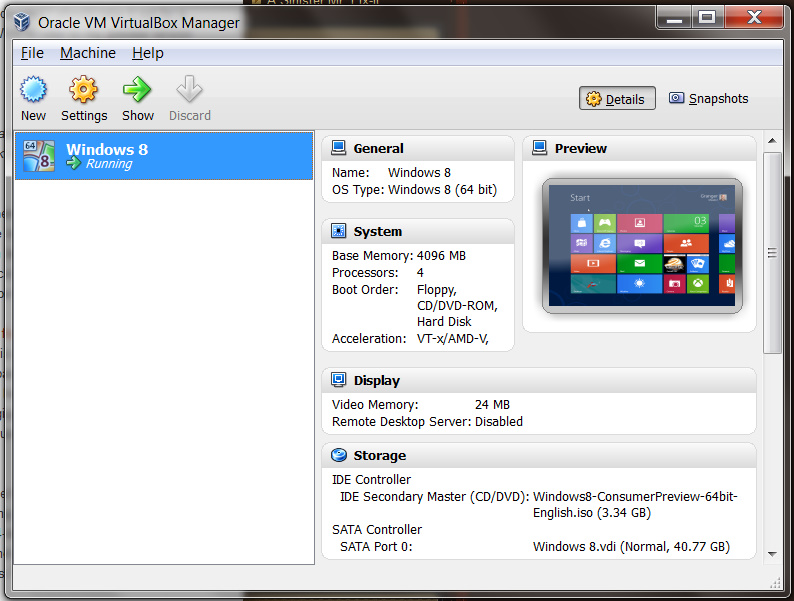
My virtual machine for running Windows 8 on my Windows 7 system

I cleared some space on my crowded hard drive since PC World’s instructions for installing a Virtual Machine to run Windows 8 indicated I might want to allocate more than 20 gigabytes for this experiment. I shifted my old iTunes television shows onto a networked hard drive to gain 30-odd gigabytes back, boosting the free space to almost 100 gigabytes. I then downloaded and installed Oracle’s VirtualBox, using the fairly helpful directions from PC World, choosing to let it use four of my eight gigabytes of RAM, allocating 40 gigabytes to its dynamically allocated drive, and on my own initiative adjusting a setting so that it could simulate 4 processor cores since my i7 920 processor supports hardware virtualization.

Then I downloaded from Microsoft the immense 3.3 gigabyte ISO disc image file for the 64-bit preview version of Windows 8. I installed the new operating system on the virtual machine, entering the product key shown on Microsoft’s web page. I chose to install the 64-bit version since I already run 64-bit Windows 7. It turns out that was probably a mistake: the 32-bit version works better under virtualization.

UPDATE: Later I created another virtual machine using the 32-bit version of Windows 8. It was much snappier.

The installation began and I told it to do a custom install, or what I would call a clean install, and waited for it to trundle through the installation process in its virtual machine window while I worked in Windows 7 in other windows, with the system lagging due to the intensive hard drive usage.

I dismissed various dialog boxes complaining about a 24-bit vs. 32-bit displays and telling me about the mouse and keyboard behaviors. Windows 8 asked me which of several background colors I’d like, had me pick a name for my machine, and then asked me if I’d like to use “Express Settings” and share some location information and the like. I told it that would be fine and then it asked for an email address I would use for a Microsoft account to download apps, share files and photos, and sync settings across machines. I gave it the address of my existing Windows Live account. It asked for my existing password, then for my mobile phone number as a way I could get my password reset later if I forgot it. That’s a first for them, an idea I’ve seen earlier from Google.

Eventually the installation was complete and I was ready to enter the world of Windows 8.

Brave new world

Wow – this sure looks different than the old desktop!
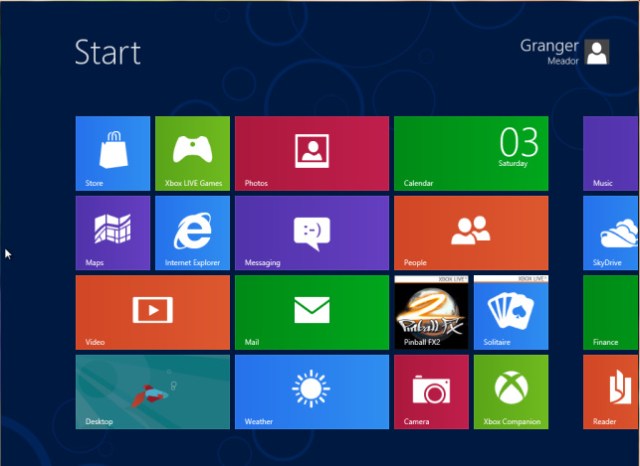
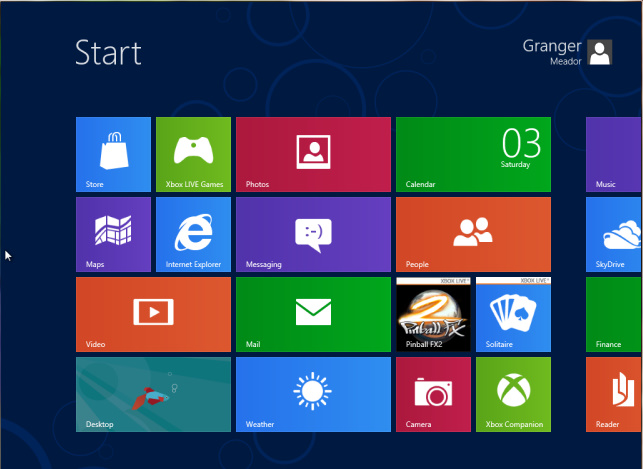
Windows 8's Metro-Style Start Screen

I don’t really care for the huge one-color boxes. They’re clearly meant more for finger taps than mouse clicks. But of course this was a clean install. Maybe it would look better once I personalized various apps. I decided to start with my profile icon, clicking to change my account picture. That immediately forced me to confront how I might transfer files from Win7 to Win8.

Getting files into my virtual machine
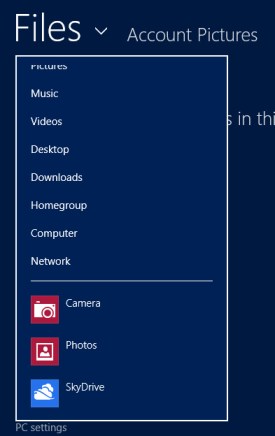
The files menu in Windows 8; I decided to use the SkyDrive to get my Windows 7 files into my Windows 8 virtual machine

Since this was a clean install, I had no files to pick from and I found I could not access my Win7 files from the virtual machine. I tried Homegroup, but Win8 and Win7 refused to see each other: leaving either Homegroup still would not get the other machine to see the existing Homegroup. So then I tried Network, typing in the addresses for my shared Win7 hard drive folders. That didn’t work either, possibly because of the quirks of using a virtual machine.

I knew I could log in to my DropBox account via Win8’s Internet Explorer and then download files from there, but I wanted something more elegant.

Perusing the Files entries, I saw a SkyDrive icon at the bottom. SkyDrive is MIcrosoft’s competitor to Dropbox, and it is a boon to have it built into Windows 8. My existing Windows Live account should include web access to SkyDrive, so I decided to try that out.

I logged into Windows Live on my Win7 machine and SkyDrive was right at the top of the menu bar. I uploaded a self-portrait into SkyDrive from there and then I could pick that photo using the SkyDrive link in the Win8 Files menu. Now I was cooking – with propane if not natural gas.

But my Win7 machine was bogging down terribly when I tried to switch back and forth between it and my Win8 virtual machine to work on this blog post. The hard drive was just thrashing about, slowing everything down. I finally learned to shut down iTunes in Win7, which is a terrible resource hog, and other unnecessary programs to give the system some breathing room.

You can pop-up these Charms on the right edge of any screen by placing your cursor on the top right or bottom right corner of the screen or by pressing WINDOWS-C
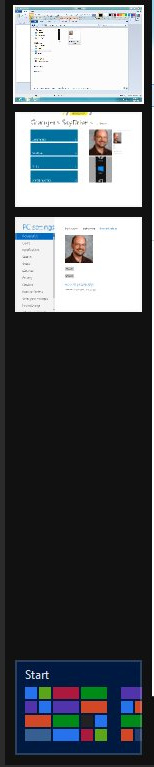
The top left corner of the screen or WINDOWS-Tab brings up a task switcher along the left side.

Mystery meat navigation

The most confusing thing for me at first in Win8 was how each thing you are doing takes over the screen. Why call it Windows when nothing is in a window? This thing acts much more like an iPad, where you need to press the Home button to escape what you are doing. But there was no obvious software Home button on the Win8 screens, just a tiny magnifying glass in one corner of the Start Page.

The overall interface is a prime example of what Vincent Flanders termed mystery meat navigation in his classic Web Pages That Suck: a visually attractive but concurrently inefficient, confusing, or abstruse user interface. Once you leave the Start Page there are few, if any, hints about where to put your mouse to get a response from the underlying operating system. I found myself pounding the Escape key in a vain attempt to exit a screen and return to what in the old days would have been the Windows Desktop, and in Windows 8 should be the Metro Start Screen.

I finally figured out that one way to navigate was to rest the mouse cursor in the lower right corner of the Win8 screen. That caused a “dock” to appear from the right with a few plain icons for Search, Share, Start, Devices, and Settings. I later learned these are called charms, which you can also get a preview of by placing the cursor in the top right corner of the screen and then moving it downward, or you can bring up by pressing the keystroke combination WINDOWS-C.

As I played around in the Metro interface, I found the magnifying glass on the Start Page would give me a shrunken view of the tiles while a right-click allowed you to see reduced-size icons, including many previously hidden ones. The Search icon in the charms sidebar provided an alphabetical listing of apps. So there are a variety of ways to access the equivalent of a Start button on the former desktop.

The problem is that once an app is running there is no obvious way to get the normal Start Page back. You can’t resize or minimize a Metro app. I had to resort to using the Start entry in the charms sidebar to return to the Metro Start Page.

Navigation was difficult enough that I decided to watch the early part of The Windows 8 Era, the 250th Windows Weekly netcast, to gain some insights into the new interface. That taught me that putting the mouse cursor on the top left corner of the screen allows you to preview and select different background programs – a task switcher, which you can also bring up with WINDOWS-Tab. You can also still cycle through active programs with Alt-Tab.

Microsoft should put something visible in the corners of the screen to help users learn and remember how to activate the charms and the task switcher. It took until Windows 7 for Microsoft to put a permanent “Show desktop” spot on the Win7 taskbar, rather than an often missing and easily deleted shortcut icon. And even then it left the Show desktop button unlabeled and transluscent so most users wouldn’t even spot it. Now it has shifted to completely invisible interface buttons. I guess it wants users to feel as clueless as Microsoft appears to be these days.

The default old-fashioned desktop in the Windows 8 Preview is truly hideous and lacks a Start button

The old desktop ain’t what it used to be

The familiar Windows Desktop is still present in Windows 8, complete with a truly hideous default desktop wallpaper of a pathetic drawing of a Betta fish. Ha ha – this is beta software. I didn’t get the joke at first, and it looks like they want the desktop to look so horrible that users will happily flee back into the Metro interface.

Sadly, although the Desktop view still has the usual taskbar, it has no Start button! That’s pretty nasty. How in the world are you supposed to get to your stuff? I tried the Windows key on the keyboard (the one with the little Windows flag icon on it which most people never use), but it just switched back and forth between the Metro interface Start screen and the hideous default desktop.

UPDATE: It turns out that if you carefully aim your mouse at the lower left-hand corner the Task Switcher will appear with a link to the Metro Start Page. But that’s hardly a Start button, allowing you to easily pull up various programs from the Desktop.

If Microsoft expects users to not be terribly confused, it needs to put a visible Start button on that old desktop. Yes, this would make it possible for folks to completely avoid the Metro interface, but why even offer the desktop interface at all if you aren’t going to fully enable it? No doubt they have to provide one for compatibility with the zillions of existing Windows programs, but they’re just going to confuse users when the new Desktop appears without the Start button. I’d even take a visible Start button that does nothing more than return one to the Metro Start Page or, even better, one takes you to Metro’s App Search. It is no surprise that users are already clamoring for utilities like ViStart to bring back the Start button.

Using Metro

I jumped back to the Metro Start Page and started tapping on the various tiles so that I could personalize them and see what their “live” views would do. I also wanted to rearrange them, finding that it was as simple as holding down your click on a tile until it shrank a bit and you could move it about. That is a clear counterpart to how iOS jiggles icons you want to move or delete. I actually prefer Microsoft’s Metro to Apple’s iOS in this regard – all of those jiggling icons on an iPad or iPhone screen are Just Plain Annoying.

I also found you can right-click a Metro app tile to configure its size and to unpin it from the Start Page.
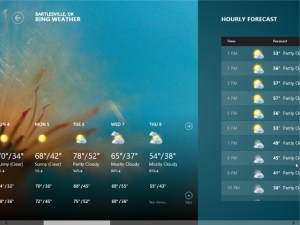
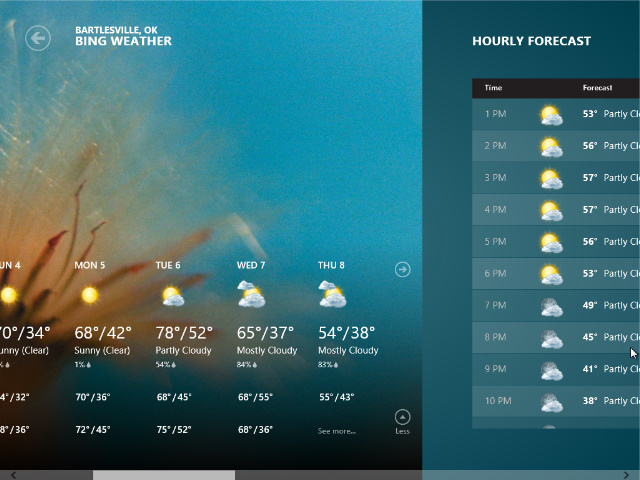
The Weather app is quite nice, but why can't I click and drag to see the additional information off to the right of the screen, rather than being forced to use the bottom scroll bar?

Weather

First up was the new Weather app. It asked for permission to locate me and quickly brought up the Bartlesville weather. I could click on the daily weather info for more details, including different forecasts from weatherunderground and weather.com. I could use the minimalist scrollbar along the bottom edge of the screen to slide the Metro view sideways for hourly info, maps, and more. That was okay, but the Metro interface would clearly be much faster and easier to use with a touchscreen. I felt I should be able to click and drag to slide the screen over, but the scrollbar was the only obvious way to reveal the additional information. I get that different Metro apps would use click and drag for different functions, but why not have the Weather app interpret a click and drag to mean to scroll the screen? Is that not obvious?

UDPATE: Paul Thurrott reports there is a “push scrolling” feature where you can glide the cursor against the edge of the screen to make it scroll. That doesn’t work in my installed versions, perhaps due to the windowing of the virtual machine? He also reports the arrow keys will scroll the screen, which did work for me, but in my installation his tip to use Page Up and Page Down for a quick scroll did not work. However, the scroll wheel on the mouse did work to scroll the screen. I still think click and drag would make a lot of sense to mouse users.
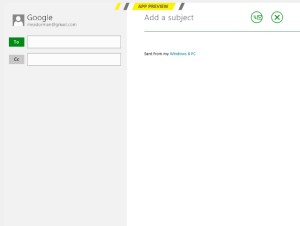
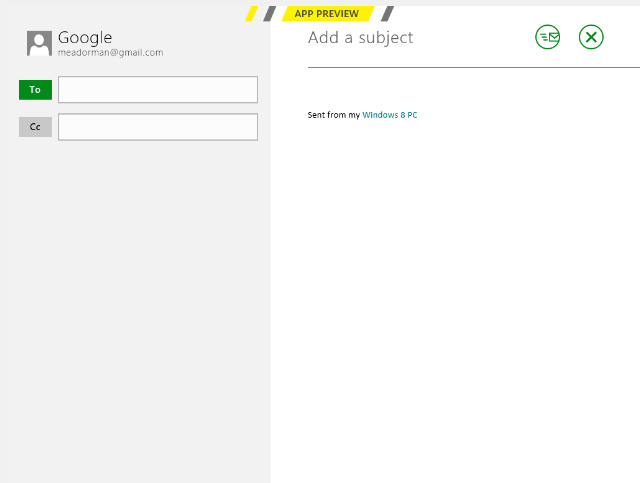
When you are composing a message, the only icons are for Send and Close. You have to know to right-click the mouse to get to the application settings.

Mail

When I clicked on Mail, it defaulted to asking me for an Exchange account’s info. I fed it my school’s Exchange info, but it then complained about me needing to enable various security settings. Even after agreeing to them it could not interface with the school’s Exchange server. That would be far too useful, wouldn’t it? I’d suspect that our Exchange server is not set up to support this sort of convenience, but if it someday would interface properly with Windows 8 that would be a godsend over having to use the WebMail interface.

I tried to compose a message and again encountered what I will call the I.I.I.: the Insanely Invisible Interface. The only visible icons were for Send and Close. I wanted to delete the nonfunctional Exchange account, and had to figure out for myself that a right-click on the mouse would bring up more options. If the point is to make the interface simpler for new users, why in the world would you expect them to know to right-click their mouse? A visible icon for more settings is too much for them? I just don’t get how this mystery meat navigation ever survived a focus group of new or experienced users. Did they even run any focus groups?

Once I knew the right-click trick I was quickly able to delete the Exchange account and install my Google account instead.

UPDATE: Paul Thurrott reveals that the keyboard shortcut for this type of thing, called an App Bar, is WINDOWS-Z. Of course. 😕
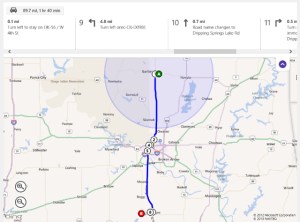
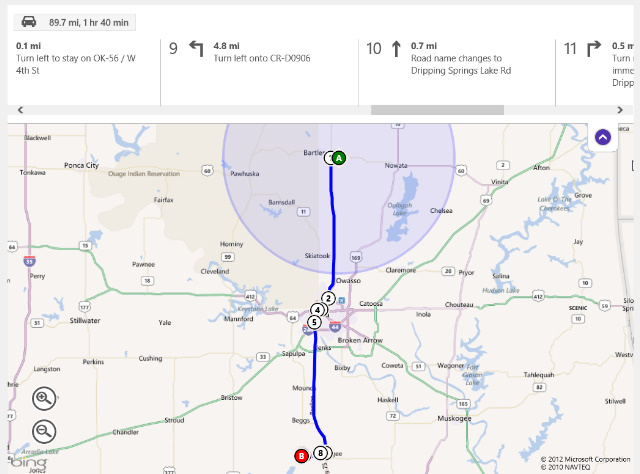
Click and drag moves the maps around like it should, but you can't use click and drag nor arrow keys to scroll through the direction panes...only the scrollbar works. How stupid.

Maps

Nice app, and click and drag does what it should: move the map around. Why the Weather app can’t figure out that click and drag should scroll the weather info remains a mystery. But when you get directions in Maps, neither click and drag nor the arrow keys will advance the direction panes…instead you’re back to using the scrollbar. Microsoft will seemingly never pose a challenge to Apple when it comes to designing user interfaces.

Killing off undead Metro apps

I exited back to the Start Page…but that isn’t true. I jumped back to the Start Page – I never really exited any of the Metro apps. That’s another “feature” of Metro: the Undead. That’s my nickname for the new syndrome in mobile operating systems, and now in Windows 8, for an application to lack any sort of close button but to instead get shoved into the background forever, where it supposedly is suspended and not using resources.

I know from experience that is often a lie, at least on Apple’s iOS. Some apps still run background processes when “suspended”, and for good reason. A GPS app needs to stay active to keep track of things, some audio apps need to be able to keep playing while you muck around in another app, and so forth. But that means I’m never really sure an app in the background isn’t still wasting resources and battery life. So all too often I find myself tediously killing off iPhone and iPad background apps in the iOS task switcher, which I think of as the tedious trick to truly terminating the undead.

Now I get to play the same game in Win8. There is no apparent way to shut down a Metro app. It just keeps running in the background, filling up slots in the task switcher. Some online sources said you could only kill off background Metro apps by using the Win8 Task Manager, but a quick experiment of mine showed you can right-click on an app in the left-hand-side Task Switcher view and close it. That’s just great – one of my least favorite aspects of mobile operating systems brought to the desktop for my annoyance. I was feeling worse and worse about Win8.

UPDATE: Paul Thurrott reports and my own test confirmed that ALT-F4 also will kill a Metro app.
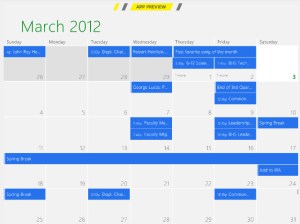
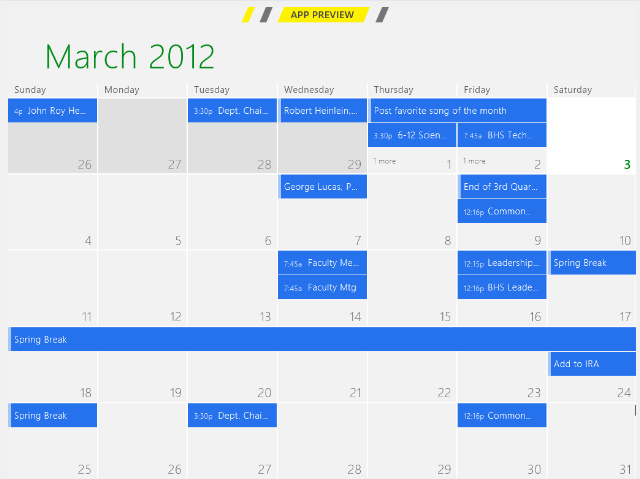
The calendar app was already populated, presumably because I had set up my Google account in the Mail app. But I couldn't figure out how to access its settings.

Calendar

I opened the Calendar and was surprised to find it already populated with a number of my appointments. Did it pick those up when I was trying to configure my Exchange mail account? But I thought I killed that off. Perhaps it is picking them up instead from the Google account I set up in the Mail app? I get that this sort of behind-the-scenes work makes life easier for newbies, but for power users it is frustrating not to know what data sources an app is utilizing.

One would think there is some way to configure what source the Calendar app is accessing, but my putzing around with clicks and right clicks and various keystrokes availeth nought. More I.I.I.?

Then I tried the old reliable F1 key, which has meant HELP! for ages. Nothing. I found out F1 worked some places, but not all by any means.

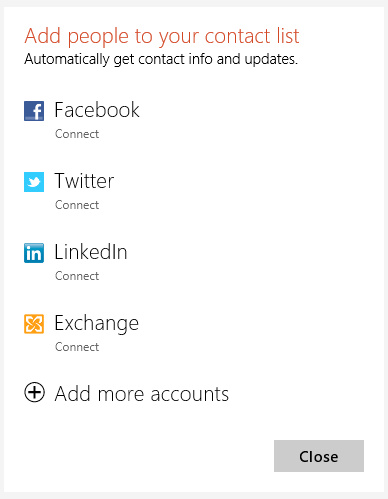
There are already a number of predefined ways to add to your contacts, which is called the People app.

People (Contacts)

I also tried People and found it was a contacts list or address book. It too was already populated, but at least it had obvious buttons to allow me grab contact information from Facebook, Twitter, and so forth. That’s more like it. Maybe they’ll have this sort of thing in Calendar when the app is finalized…but maybe not.

Finance

I deleted the default stock tickers in the Finance app and added a few of very minor interest to me. Yawn.

Solitaire

A foolish consistency is the hobgoblin of little minds, adored by little statesmen and philosophers and divines.

Solitaire was sluggish and I was puzzled that it took a double click to get more cards dealt in the 64-bit version, but the 32-bit one

I thought of that Emerson quotation when I tried to get another deal in the requisite Solitaire app. Clicking on the blue card did nothing; I had to double-click instead. I didn’t recall double-clicking anywhere else in Win8 up until then. Harumph.

UPDATE: For some reason only a single click was needed to deal more cards in the 32-bit version. How strange.

Solitaire was also very sluggish in moving and updating cards. That might be an artifact of my virtual machine, but for such a simple app to lag so noticeably is a concern. Perhaps I should start over with the 32-bit version of Win8 on my virtual machine?

UPDATE: The 32-bit version was indeed snappier, although still had some lag.
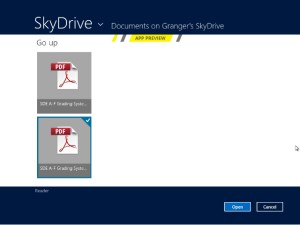
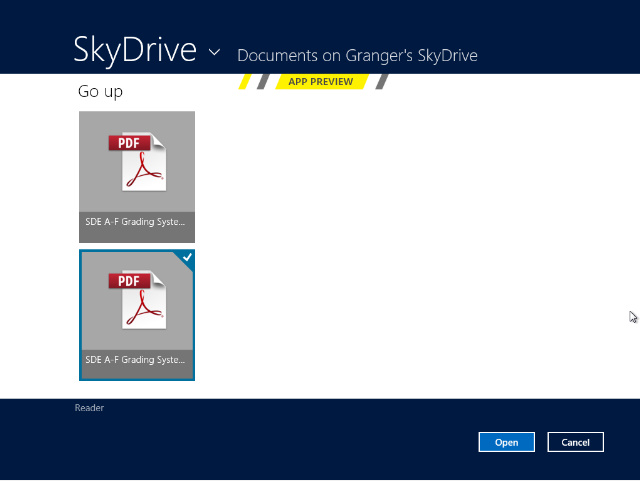
Double-clicking a file's icon in Reader did not open it. I had to click the Open button...another design flaw.

Reader

This is a PDF reader, I guess. I uploaded a couple of PDF files to SkyDrive and was unamused to find that double-clicking the icon for a file did not open it. Instead I had to click to select a file and then separately click a dedicated “Open” button. That cinched it – Microsoft’s own app developers are not following consistent interface rules. Pathetic.

How live are those tiles now?

I worked my way through the remaining default apps, deleting the Xbox ones since I am no gamer and have no Xbox Live account. That meant Videos and Music didn’t do much beside serve up ads and struggle to connect to my non-existent Xbox Live account.

Here’s what the Start Page looked like after my initial foray through the Metro apps:
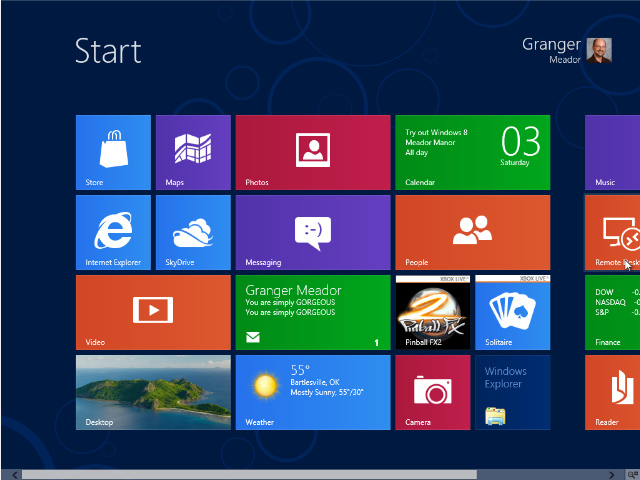
After trying out the default apps some, but not all, of the Start Page tiles showed signs of life

I was a bit surprised more of the icons hadn’t shown signs of life. But Desktop showed the better wallpaper I had slapped over that hideous Betta, weather showed current conditions and forecast high/low, Mail showed the most recent flattering message, Calendar showed today’s appointments, and Finance showed the stock market indices. I was surprised Photos didn’t show the currently selected photos in that viewer, Internet Explorer didn’t show a thumbnail of the currently displayed page, and Maps didn’t show a map thumbnail either. Maybe you wouldn’t always want such thumbnails to be visible? Maybe you can customize the tiles to show them? I’d have to experiment more later on.

Is Windows 8 the next Vista?

I think of early versions of Windows as being somewhat like the early Star Trek movies:

Star Trek Films Quality Windows Versions
I: The Motion Picture Not bad, but had significant shortcomings Windows 3.31 for Workgroups
II: The Wrath of Khan Awesome Windows 95
III: The Search for Spock Yawn Windows 98
IV: The Voyage Home Very popular Windows XP
V: The Final Frontier Simply dreadful Windows Me

It isn’t a perfect analogy since I’m ignoring Windows 2000, which was very stable compared to Windows 98. But a fresh pattern of alternating good and bad may have begun with Windows Vista, which deserved its horrible reputation, while I quite like Windows 7. Windows 8 strikes me as another misstep.

I applaud the idea of live tiles and the availability, if not dominance, of simple apps. But I’d much rather they become part of the standard Windows Desktop rather than having the Metro interface dominate with the Desktop left crippled and hidden away as yet another Metro app. And many of the Metro apps and the overall Windows 8 interface suffer from invisible navigation tools and inconsistent interface design.

A good polish on the Metro apps, providing visible icons for settings and options, could help immensely, as would visible icons for the right-side charms and left-side task switcher. But I’m left wondering how a Metro app would ever provide me with the wonderful functionality I now enjoy in Windows 7 of having two windows open, speedily tiled with each other by simply dragging a window to the left or right side of the screen.
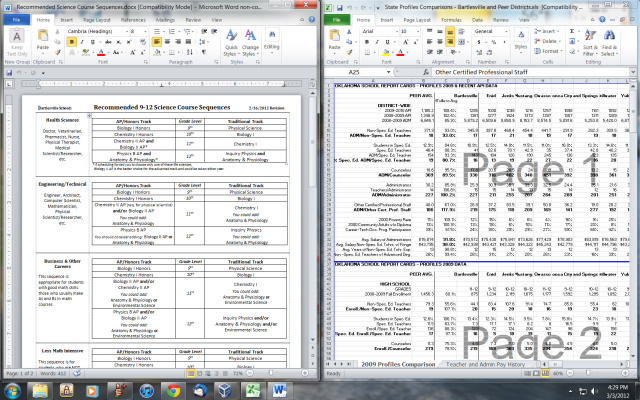
I'm a big fan of how easy it is to tile two application windows in Windows 7; can Metro apps ever do this?

And I love having all of my favorite apps always available in the always-visible task bar at the bottom of the screen. Metro’s full-screen interface feels very limiting compared to the power of the Windows 7 interface, which reflects 14 years of interface refinements since Windows 95. At least Windows 8 preserves the Desktop environment, although the lack of a Start button grates.

I especially dislike the modal nature of Windows 8 – you are consciously switching modes when you leave Metro for the old Desktop. I suspect new users will be confused and annoyed by the Metro overlay and businesses will be in a world of hurt, their users often left adrift, unsure of what in the world has happened and why they can’t escape from whatever screen they have landed on. No doubt most businesses will ignore Windows 8 on the desktop just as they did Windows Vista, hoping for a better bargain with Windows 9.

UPDATE: I must agree with Paul Thurrott and former student Zach Harbort that Windows 8 will make its biggest inroads in the tablet market. I’m certain that Its touch interface is far superior to the touch features of Windows 7, and Microsoft needs an OS presence in the burgeoning world of tablets to compete with Apple’s iOS and Google’s Android. But Mary Jo Foley is right that businesses will be very leery about putting Windows 8 on desktop machines, even if policies can jump users into the Desktop rather than the Metro interface.

I haven’t given up on Windows 8 and will educate myself further on its interface and features. But I’ve completely skipped past versions of Windows and benefited from that negligence: I’ll never regret not using Windows Me or Vista. Windows 8 may suffer a similar fate for desktop computing unless it undergoes significant change, which appears unlikely at this late stage.

Posted in technology | Leave a comment

Mr. Fix-It Heats Up the Bathroom

March 1, 2012

This was the second winter in which my morning shower was preceded by increasingly vain attempts to get the bathroom heater to operate. My house was built in 1981 and the bathrooms are equipped with NuTone combination light/vent/heat units. One unit’s heater fan stopped working years ago, but the one in my own bathroom worked fine until last winter. It started the dreaded buzzing instead of roaring into life.

I like the NuTone unit because the heater blows hot air directly down into the shower, taking the chill off my entry and exit. For months I could just flip the switch on and off a few times and the heater fan would start working. But this winter it gave up completely, buzzing away until the unit overheated and shut off.

The NuTone H965 Ceiling Light/Exhaust/Heater

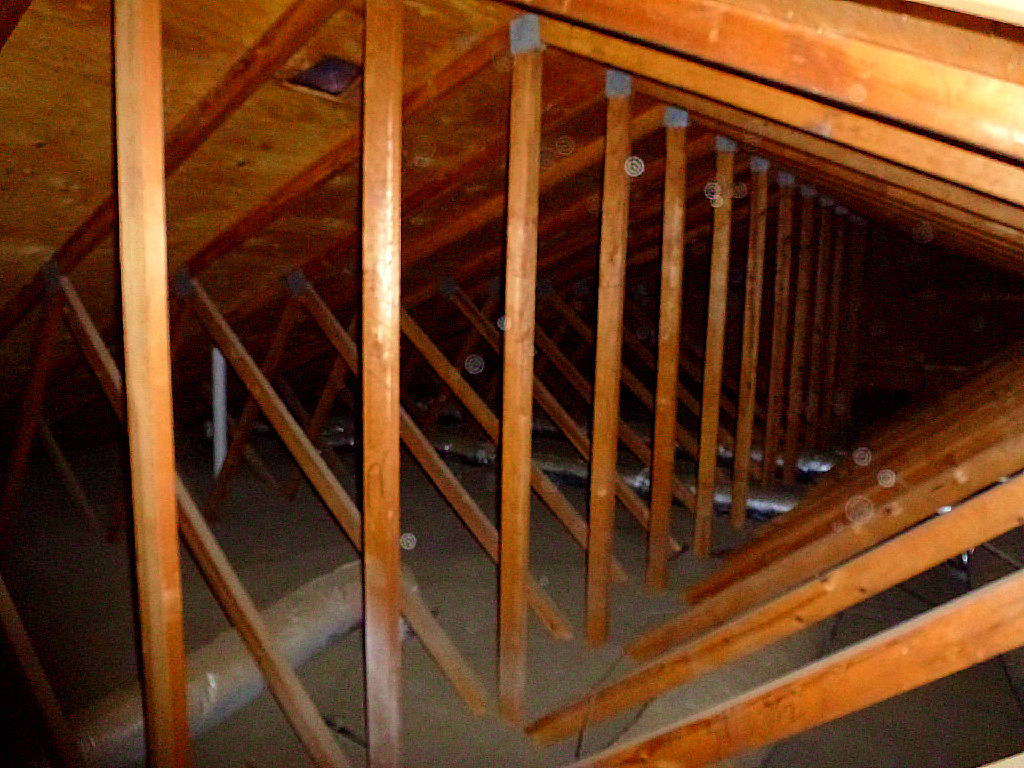
As I’ve noted previously, I’ve never been particularly adept at home repair. A few years ago I considered trying to install a new bathroom ceiling unit purchased from Lowe’s, but it looked like installation would require a trip up into the attic and back over the bathrooms. I’m not at all afraid of attics: a few summers back I installed a big new television antenna in the attic at my parents’ home, complete with signal booster and threading new coaxial cable to three different rooms. The problem is that the blown-in insulation in my own attic covers the ceiling joists, so I’d prefer to lay down some boards to walk on, but the Dutch gable roof built up out of trusses makes that quite problematic.

My attic is not pedestrian friendly

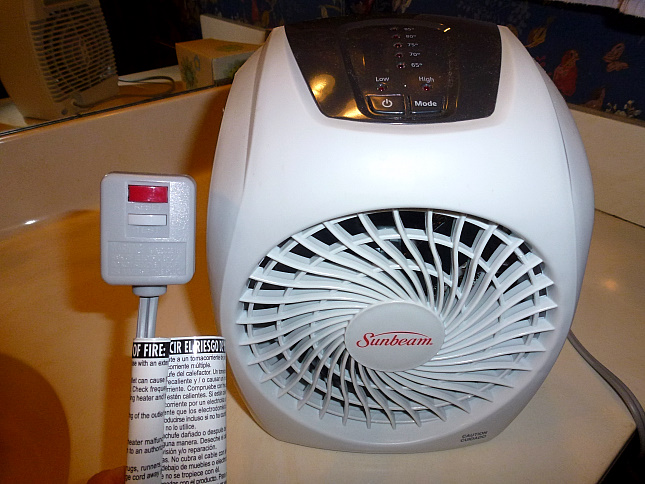
That complication was enough to keep me from pursuing a repair. When the heater fan gave up for good I went out and bought a cheap space heater with GFI shock protection at Wal-Mart and used it on the floor of the bathroom. But it blew air at the shower curtain, not down into the shower, so it was far less effective.

The GFI-protected space heater I used in the bathroom as a temporary solution

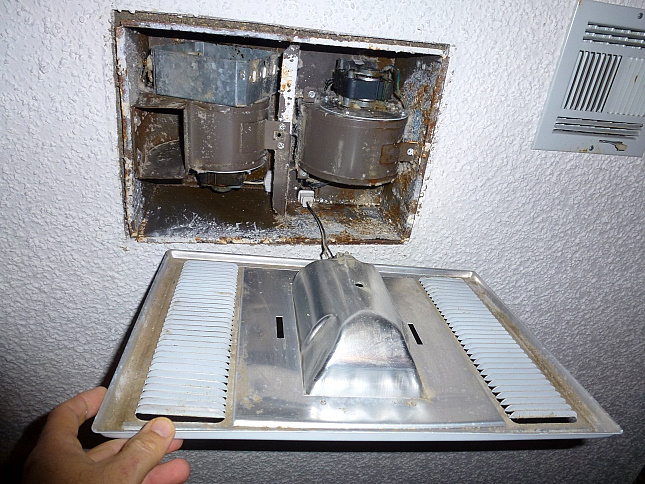
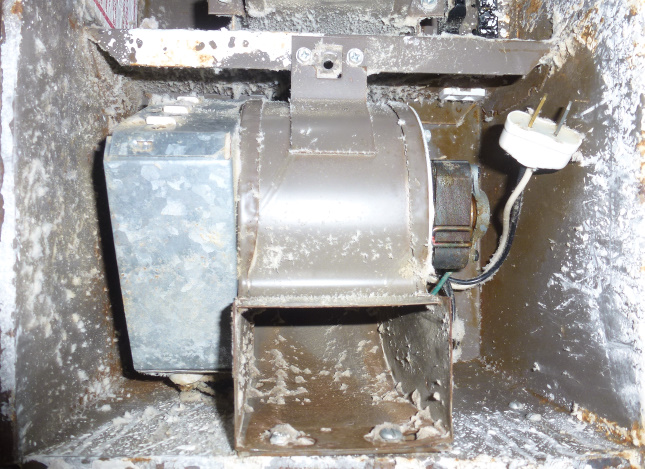
So I finally screwed up my courage and dismantled the ceiling unit to see if I could possibly repair, rather than replace, it. When I first opened up the unit, it was caked with dust and lint. I vacuumed it out and lubricated the fan and motor, but that didn’t help.

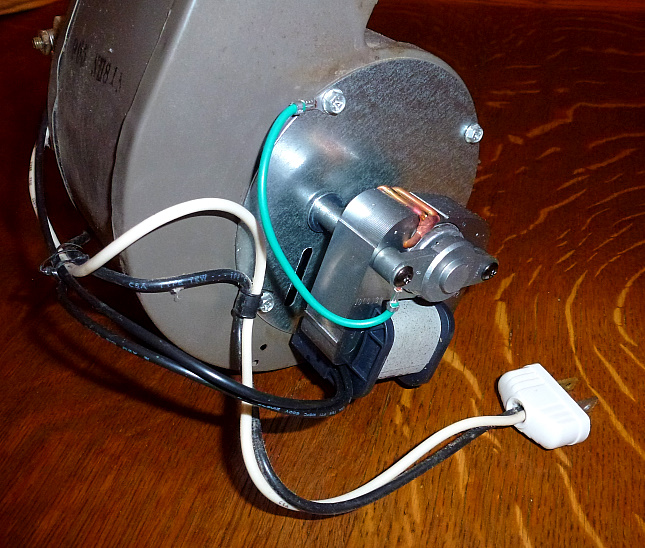
However, it was apparent that the heater or exhaust units would be quite simple to remove. The old wrinkled label identified the box as a NuTone H965 unit. I sealed it all back up and went online, where a search at NuTone/Broan showed the original heater fan to have been discontinued, but further searches showed it was simply replaced by a new model number, the 69355000. I ordered a new one from VentingDirect.com, obtaining a discount through RetailMeNot, for $71.20 with shipping. Twelve days later the new fan unit arrived. It was time for Mr. Fix-It!

The new heater motor and fan unit I ordered

First I removed the lens.

Remove the plastic cover over the light bulb

Then I removed the bulb, exposing the mounting screw.

Remove the large screw hidden behind the bulb

Removing that allowed the light and cover plate to dangle free.

The cover plate and bulb socket will dangle from an easily removed plug

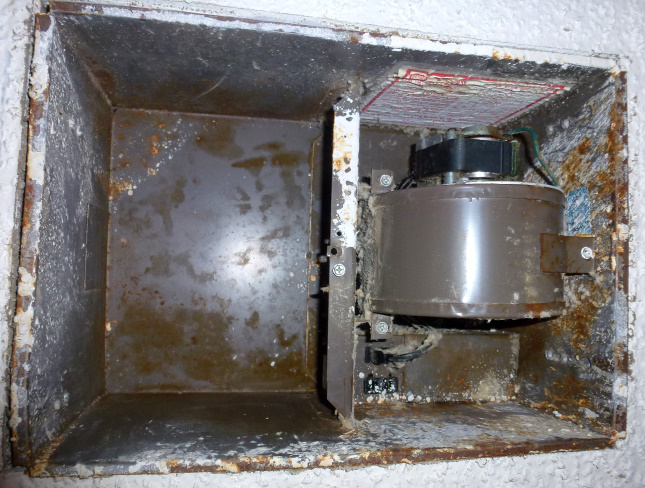
I unplugged that unit and could see the various parts of the unit.

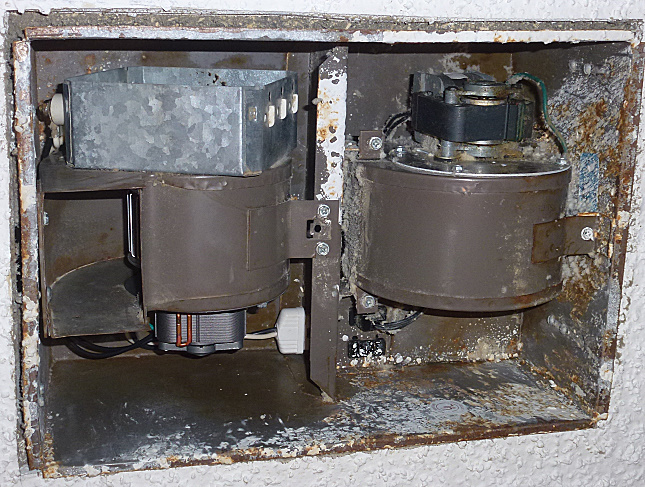
You’ll see the separate heater and exhaust fan units

I unplugged the heater unit.

Unplug the heater unit

I removed two screws from one side of the heater, removed another from the other side, and it slipped free, leaving an empty slot in the ceiling box.

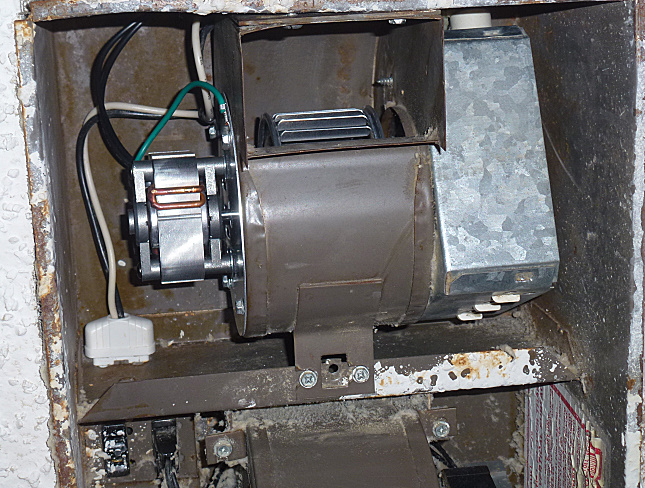
Remove a few screws and the unit slips out of the ceiling box

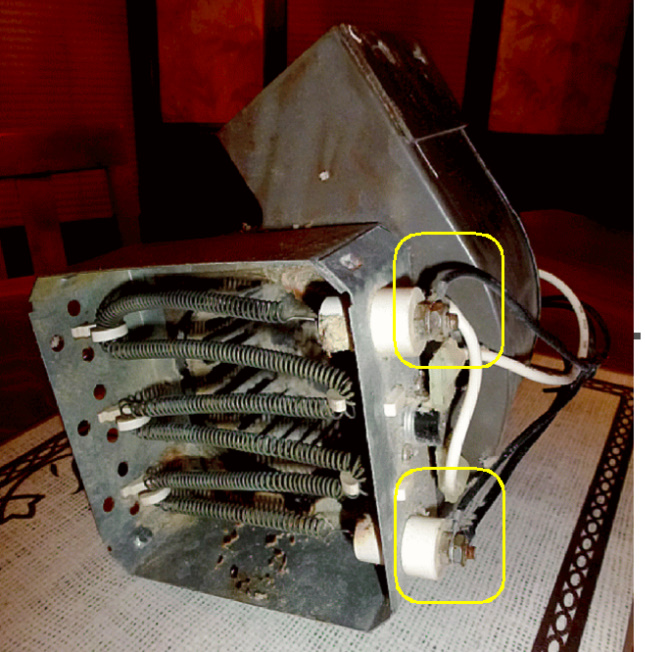
I examined the unit, noting where the two black wires from the motor connected to the heating wire assembly.

Note where the old motor wires connect to the heating wires

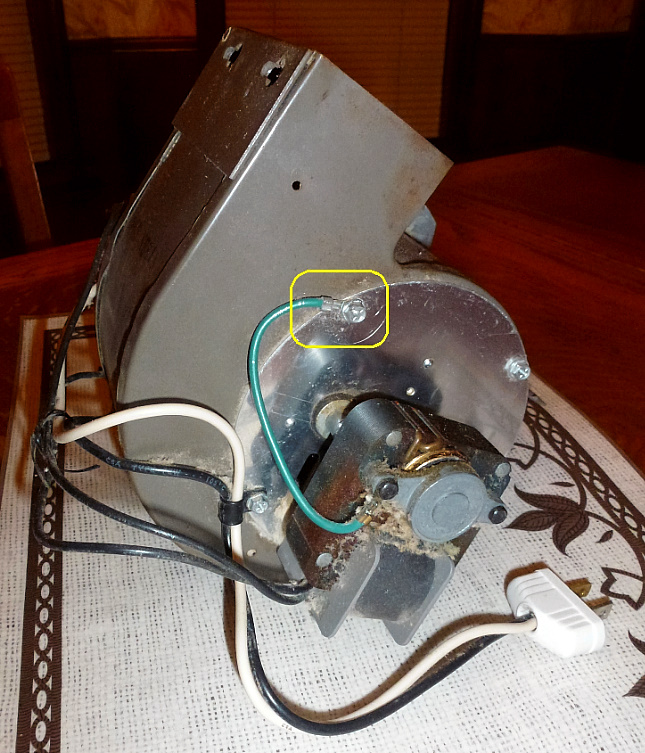
I also noted where the green grounding wire was connected to the fan housing.

Note how the grounding wire is attached to the case

It was a simple matter to remove four screws and take out the old squirrel cage fan and burned out motor. I inserted the new one, attaching the three wires in the appropriate spots.

Take out four screws to remove the old motor and fan; insert the new one; screw it and the wires on

I replaced the repaired heater unit in the ceiling box and plugged it in.

Reinstall the heater unit in the ceiling box

I admired the new motor and fan for a last time.

Check that all of the connections are made properly

It was time for the ultimate test!

Yeah! I plugged the light socket back in, screwed on the cover plate, and reinstalled the nasty old plastic lens. Yes, I’m going to replace that cracked old yellowed cover, even though a new one costs a ridiculous $24.

I’m so encouraged by this repair that I’ve ordered another heater fan/motor unit and a new plastic lens from VentingDirect and look forward to having both of my old NuTone bathroom units back in full operation. And I’m looking forward to a nice warm shower in the morning, before and after the hot water flows.

3/7/2012 UPDATE: I installed a new heater fan/motor in the other unit tonight and it is now working again, and a new lens on my the unit in my own bathroom brings both units back up to snuff. If only all home repairs were so simple.

Posted in home repair | 21 Comments

The Refreshing Greenleaf Hiking Trail

Greenleaf Lake (click image for slideshow)

After a truly horrid work week I was more than ready to escape on a good day hike. Saturday’s weather was overcast and rainy, but Sunday was sunny and warm. I rose late and drove south through Tulsa and southeast on the Muskogee Turnpike, turning off at the Muskogee Power Plant to drive over to Camp Gruber for a return to the Greenleaf Hiking Trail. The entire trail is 18 miles and back in May 2010 I’d hiked the first bit to a swinging bridge. This time I planned to hike about 10 miles, completing the south loop of the trail.

I’d read online that the Ankle Express group which maintains the trail sometimes does trail maintenance in February, I knew that sometimes the trail is closed for hunting and for military maneuvers in Camp Gruber, and they want you to sign in when you hike there. So I dutifully went to the road-accessible trailhead in Greenleaf State Park, signing in at the trail registry but then driving back out onto Highway 10 and crossing the highway bridge over to the abandoned asphalt road south of the dam. It was even more rutted and washed out than before, so I parked over to one side and hoofed it down the trail toward the lake.

I noticed a foot-travelled abandoned road leading east and knew that the asphalt road slowly curved down to the trail and this abandoned road looked like it would be a helpful cutoff. There were clear signs of trail maintenance along the path, with a ramp someone had set up for bike vaults.

Soon I reached the junction with the Greenleaf Hiking Trail and its telltale blue blazes. It wasn’t long until I saw the swinging bridge, had crossed it so that I was now on a path I had not previously trod, and turned left to follow the west side of the loop. It followed an old road for a bit and a blizzard of blue blazes made it obvious when it turned off uphill. I was pleasantly surprised that the trail did not hug the lake shore, meaning that it would not have to tediously track back down each side stream for crossings.

At noon I reached a large flat rock which made a convenient spot for a tasty lunch, having another of the Turkey and Swiss on Berry Wheat sandwiches I now pick up at QuikTrip for each nearby hike, along with Fanta, a Payday, and Peanut M&Ms. I love those QuikTrip turkey sandwiches, although I can only eat about half of one at a sitting.

I passed another of several hill streams and was grateful to find a few orange leaves still hanging from some of the trees. Soon I reached a long inlet of the lake, fording it and admiring the clear water, a strong contrast to the muddy waters of the lakes near Bartlesville. The trail followed the inlet bank upstream until I could ford it. I deviated from the trail, which turned back downstream, walking upstream for a ways before backtracking. One could easily make your own connector trail here between the sides of the loop.

I heard voices and saw a fit man and woman in skintight running outfits exploring the stream. I figured they’d pass me eventually and headed on down the trail, passing an old hollow stump and campfire remains. I encountered a man with a boy and girl in their late teens or early twenties coming along the trail the opposite way, and not long afterward I heard a call behind me and, sure enough, the joggers trotted past, remarking on the beauty of the day. Those five people were the only ones I would see on the trail all day.

The trail showed a changing character, playing with variations of rock and vegetation and showing why this is considered a premiere trail in the state, being interesting to hike even on a nearly leafless sunny day in February. I forded Barbed Wire Stream. I call it that because when I walked a few feet upstream to see the sights, I was startled by a nearly invisible old strand of barbed wire strung across my path. There was no fence evident elsewhere. What was going on?

Examination revealed that an old fence had once run along here, but was completely gone except for a strand of barbed wire completely embedded in two trees.  It ran smack through the middle of one, terminating an inch or two after its exit on the far side. The other tree showed the same thing. Had they grown up around the wire years before? How odd.

I forged onward past frequently blazed trees and tree remains, until near mile marker 4 the trail hugged the edge of a high bluff and provided a view across the lake below, where I could see fishermen in their boat. I enjoyed the views from the bluff and then the trail descended to the lake, passing more streams and tall trees. I enjoyed an unexpected grassy section of trail and soon saw a stand of cedars which marked Mary’s Cove.

Passing mossy trees and rocks, I forded the inlet at Mary’s Cove and found the main camp area with its sign, some fire rings, and a camper-fashioned bench. I would need to turn off here to take the white-blazed connector trail to complete the south loop, but first I followed a bit of the north loop, having spotted some tents up along the far shore of the cove.

I ventured into the cedars, found beaver sign, and two tents with foodstuffs hung up in the trees. Reaching the lake shore, I started two Canadian geese, which fled, honking. For once I was fast enough with the camera to capture them in flight. I took a last close look at the lake and then backtracked to the connector trail.

Most connector trails are uninteresting, but this one was great. It followed a stream uphill with large mossy rocks, one of which had been drilled through by water. The stream led up through great piles of mossy rocks and wet stone slabs. Near what I call Tree Falls, because of a big fallen tree, I walked through stone formations and up beside the stream until I reached the trail junction at mile marker 11.

It was clear that most people turn off here to Mary’s Cove: the north loop of the trail was quite dim and rough along here. I could see the frequent blazes would be vital along that section, although they had been overkill on the south loop. Someday I’d like to start hiking early in the morning here so I could do the north loop. I’ve no interest in camping on the trail, so it would take some doing since taking both loops takes over nine hours and in the long summer days this area is replete with ticks.

I began returning on the high east side of the south loop. The blazes had changed to a combination of blue and orange. Along here I noticed my camera’s clock was twelve hours off. Evidently I messed up AM and PM sometime in the past. That would explain some of the weird date entries on Flickr! I fixed the settings and marched onward.

The trail provided a high distant view of the lake. Through the tree limbs I could make out the distant fishing boat. Sunlight brushed across mossy rocks in the hillside and I posed by a tortured tree. I climbed past more moss-covered slabs and the trail then followed an old roadbed uphill for a bit, then turned off and I saw a brand new marker post in a grassy section. Trail maintenance was clearly underway.
A fallen log had interesting insect roadways and then I walked by the remains of an old low rock dam, old enough for a sizable tree to be growing out of it. A half-cylinder tree was interesting and then I began losing some shots to the camera blur I’d seen on my previous trip. I’m waiting for reviews of the new Canon SX-260 HS to come out; if they are positive, it will be my new camera. The blur wasn’t continual, and I grabbed a shot of two new marker posts lying beside the trail near a road, awaiting placement.

After passing a sun-streaked stream, I found a tree which was particularly easy to climb and posed atop it, and then the trail headed eastward up a wide side draw. I found a grotto pool which was a large version of the one at Osage Hills and shot a short video zoom of it. The trail eventually forded the stream high up the narrowing draw and returned southwest toward the swinging bridge. I passed another new marker, with a far more natural fungi post nearby. The trail reached an abrupt steep hillside, a marker warning of the coming switchbacks.

The return to the car was uneventful and I wrapped up my 9.85 mile hike in 5 hours 15 minutes with plenty of time to freshen up at the car and drive to Tulsa for dinner. It was a gratifying day hike, especially since I’ll spend most of the next weekend facilitating teacher workshops at the senior high. I’m quite grateful for this unusually warm sunny February day which helped refresh my spirit.

Click here for a slideshow from this day hike

Posted in day hike, photos, travel | Leave a comment

Modulating My Music: An alternative way to listen to an iPhone on an old car stereo

My Camry

February 18, 2012

I love my 2001 Toyota Camry, the most reliable car I’ve ever owned. Its stereo includes both a CD player and cassette deck, and I made good use of the former for a few years and ran mix tapes on the latter until I bought my first iPod for $500 back in 2004. It was amazing to have so much music at hand so easily, but there was the problem of how to get it to play over the car’s speakers since my old stereo did not sport a line-in port like new ones do today, let alone something so modern as a wireless Bluetooth connection.

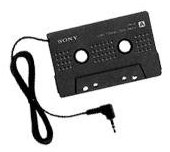
The cassette adapter I used for years

The first solution, as I’ve noted before, was an $11 Sony SPC-9C cassette adapter, which worked well for years, taking the iPod’s audio out and transmuting it for the car’s cassette player. There was occasional mechanical clicking from the adapter and high-band hiss in the speakers, but the sound quality was fine overall.

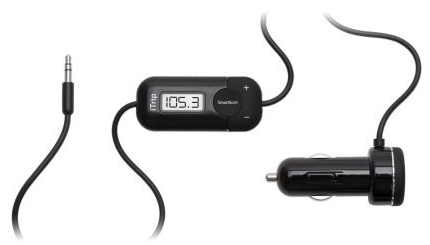
My FM transmitter/charger of choice was the Griffin iTrip Universal Plus

The Problems with FM Transmitters

But as noted in that April 2010 post, the cassette player in the car wore out and I had to switch to FM transmitters. I wasted money on three different models until I found the best compromise with my $30 Griffin iTrip Universal Plus. But it was still annoying. I had to max out the volume of the iPhone and set the car stereo to a very high volume to hear the output. Thankfully there wasn’t much hiss, but the sound was muffled and when I’d switch back to the radio my ears were blasted when I’d forget to adjust the volume beforehand.

Worse, with my frequent road trips to go on day hikes, I was always encountering interference from changing nearby radio stations. I’d have to press a button on the iTrip for it to scan for a clear frequency, then dial in the car stereo to the new frequency. If I was in traffic or listening to an audiobook this was a distracting pain and often the iTrip’s selection of a frequency still had considerable interference, forcing me to manually scan the radio frequencies to find one without a station’s broadcast.

So I’ve long dreamed of a car stereo with a line-in jack. But I’m both cheap and very dependent on my car. I haven’t bought an aftermarket car stereo in 30 years, and I didn’t want to pay for a new stereo when the existing one worked fine otherwise. Nor did I want to try and find a reputable installer and then have to make arrangements for transportation while the work was being done. Perhaps I could do this myself somehow?

Feeling Brave

I’d been emboldened by recent success repairing my home furnace and started scouring the internet for options. I quickly learned that my 2001 Camry could be easily retrofitted with an iPod/iPhone port if it had the factory CD changer in the trunk. Er, no.

So that meant I had to open up the dash a bit. I’d never want to take on a full dashboard removal, but my Camry just requires popping out a trim plate to get access to the stereo. I could handle that. So I could buy a new stereo and try to install it myself, but I wasn’t surprised to find there is no universal connection between a car stereo and the speakers and the like. There are all kinds of confusing harnesses and kits to make the needed changes and some folks mentioned still having to experiment with manual wire splices. I hate splicing and my soldering is terrible, so that did not appeal to me.

Modulators versus Transmitters

Then I found out that you can install an FM modulator in your car, rather than the simple transmitters, and get a line-in port that way with no interference and better sound quality. The modulator sits between the car’s antenna and the stereo, directly feeding its own FM signal into the car stereo on a specific frequency when you turn it on. The drawback it that it is much more complicated to install than a transmitter, which you just plug into a cigarette lighter port and hook to your iDevice.

You have to open up the dash, remove the car stereo, interrupt the antenna feed with the transmitter, mount a switch somewhere to turn the transmitter on or off, tap into a live circuit for power and make a connection to electrical ground, and have wires or a port to connect to the audio jack on your iDevice, hide the modulator all of this connects to inside the dash, and then reinstall the stereo.

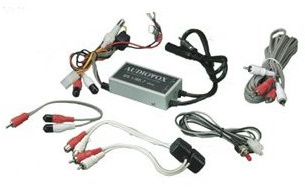
The Audiovox FMM-100 FM Modulator

It was a lot of hookup for a guy lacking great dexterity, but I spent considerable time reading about the different transmitters compatible with my car stereo, poring over blogs and forums where people wrote about their installation experience. I finally settled on the Audiovox FMM-100, which I ordered for $40 from Amazon.

Side Projects

I was also motivated to go ahead with this project because there were two issues I might also be able to fix if I opened up the dashboard a bit. First off was a second cigarette lighter-style power port, just under the main one, which had stopped working. Maybe I could fix that and have more flexibility in charging devices without using a cumbersome plug-in expander.

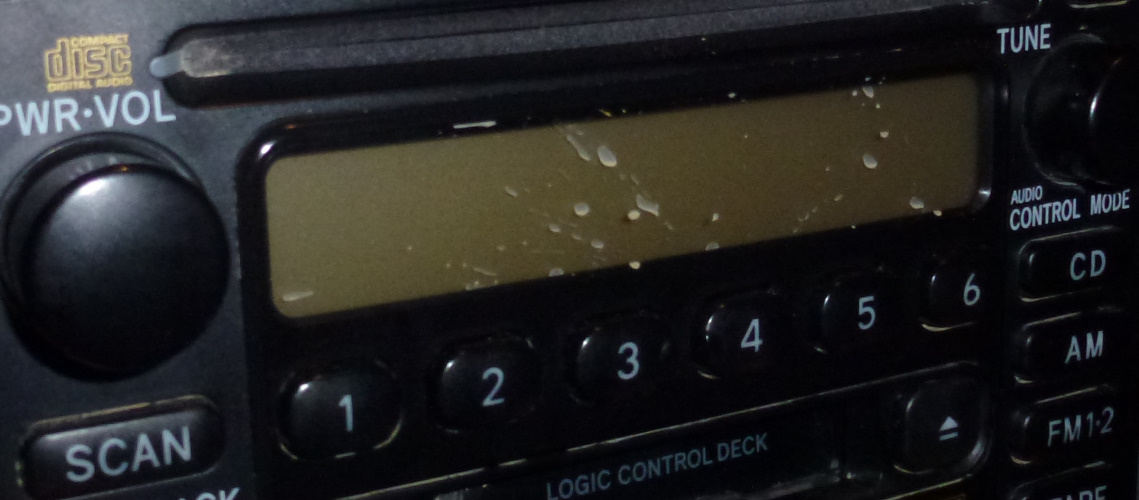
I had mud streaks on the inside of my stereo display from an incident last summer

The other problem was a cosmetic one. In July 2011 I tried to visit El Malpais National Monument in New Mexico, but the road was flooded and a police car unexpectedly roaring by sent a huge wave of muddy water all over the interior of the windshield and the dashboard. You can see the mud on the back window – imagine having a bucket of muddy water thrown in your passenger window toward the windshield while you’re driving and you’ll know how I felt. I spent a long time at an Albuquerque Wal-Mart lot cleaning up the mess that day, all except for some muddy streaks down the interior of the stereo display. No way to reach those without taking the sucker apart. Well, here was my chance.
THE PROJECT, STEP BY STEP

I’m including big photos of each step of the process since similar photos by other car owners for their own vehicles helped give me the courage to take on this project.

The Car Alarm

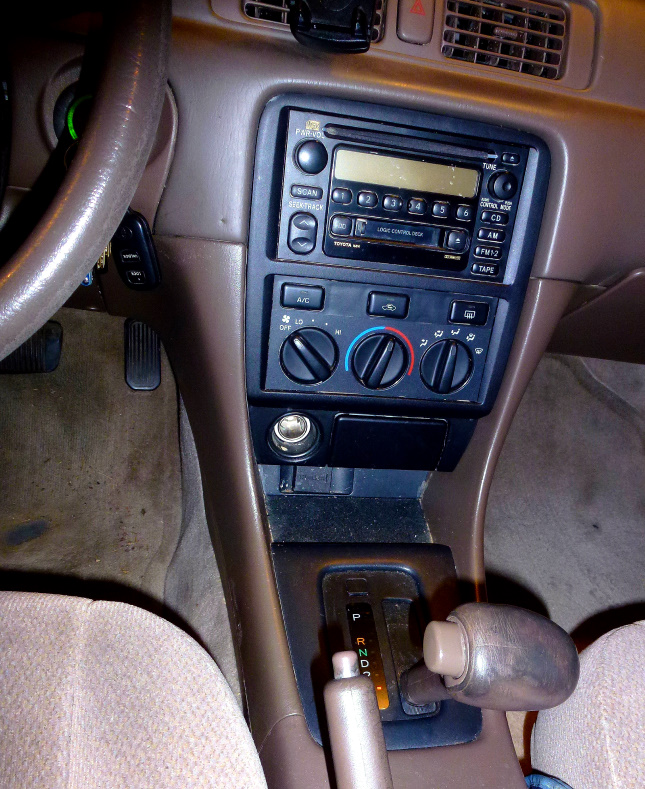
The first step in opening up the center dashboard console was to get the gearshift away from it. That’s a problem since the interlocks won’t let you put the car in gear without the ignition switch being in the on position, and I didn’t want power to the stereo while I was working. The best thing to do is to have the car off but the key in the on position, apply the emergency brake, put the car into 1st gear, and then disconnect the battery.
Moving the gearshift back

First attempt at moving the gearshift back

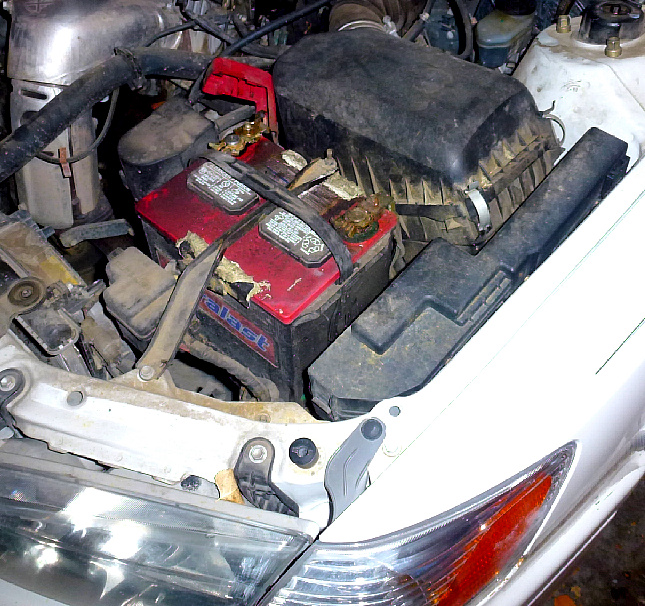
I tried that, but my car has a horrible built-in alarm system. I leave it disarmed in valet mode all of the time since I hate car alarms. I’ve even disabled the panic button on my keyless remote because occasionally I’d hit it and the horn would blare and lights flash and the whole miserable mess. I dread when the batteries in the remote or the car itself get old, because that too can cause the alarm system to fly off the handle.
I messed with the car battery to begin with

As I feared, messing with the battery connections set off the alarm, with it blaring away in my garage and annoying everyone on the cul-de-sac, no doubt. They were kind enough to ignore it, as I do all car alarms, but I was still embarrassed. So I opted to leave the battery connected and try a different tack, one which worked for me but which I’m not recommending to you for liability reasons. 😕

Opening Up the Dashboard

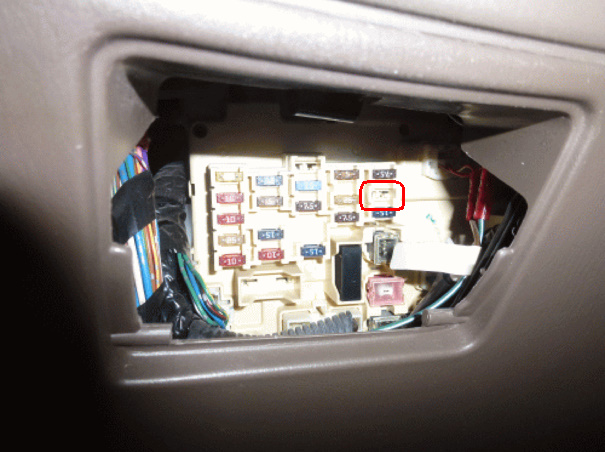
I pulled out the coin box to access the fuses and used needlenose pliers to pull out the tiny 7.5 amp one for the radio, checking that the stereo had truly lost power.

I removed the fuse for the car stereo

With the emergency brake on, I pried up the little plastic tab covering the gearshift interlock override. That revealed a button I could push to move the gearshift back without having the key in the ignition.

Moving the gearshift with the interlock override

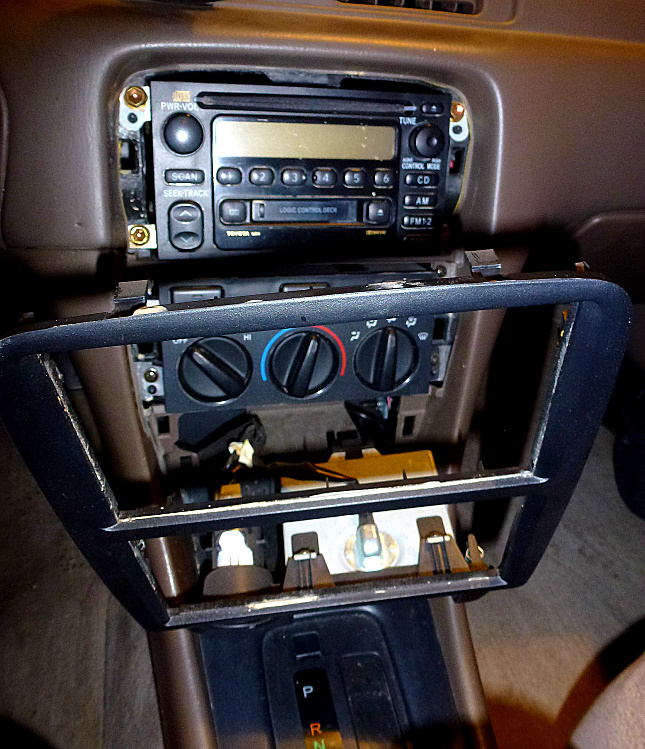
That gave me enough room to start prying away the trim around the center dash console. I removed the ashtray and then pulled gently but firmly on the bottom of the plastic trim to get it started. Then I used a palette knife to pry away around all of the edges of the plastic trim to release it.

Pry off the trim around the stereo

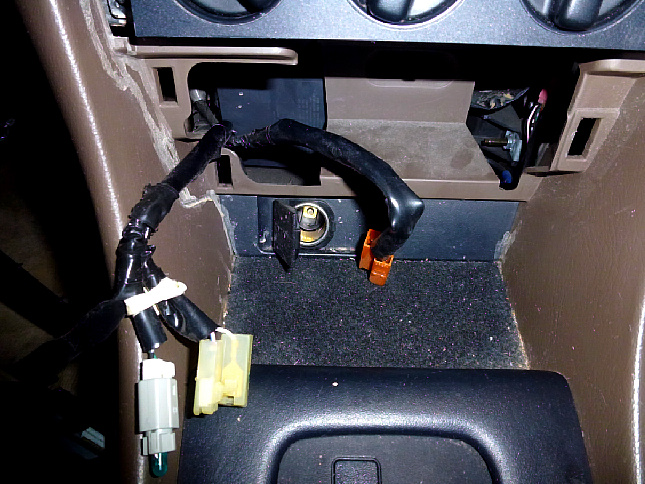
I then disconnected from the trim the bulb over the ashtray compartment, the bulb around the upper cigarette lighter, and pulled the wires off the lighter socket. I could then look down into the compartment at the lower cigarette lighter socket and, sure enough, the plug on its back had fallen off. That explains why it stopped working years ago. It was no surprise that there were muddy streaks exposed which I could clean up too. I cleaned things up and squeezed my thankfully small hand down into the dash and managed to reconnect the lower lighter socket.

The second lighter socket broke years ago – now I know the orange plug came off the back of it

Removing the Stereo and Inserting the Modulator

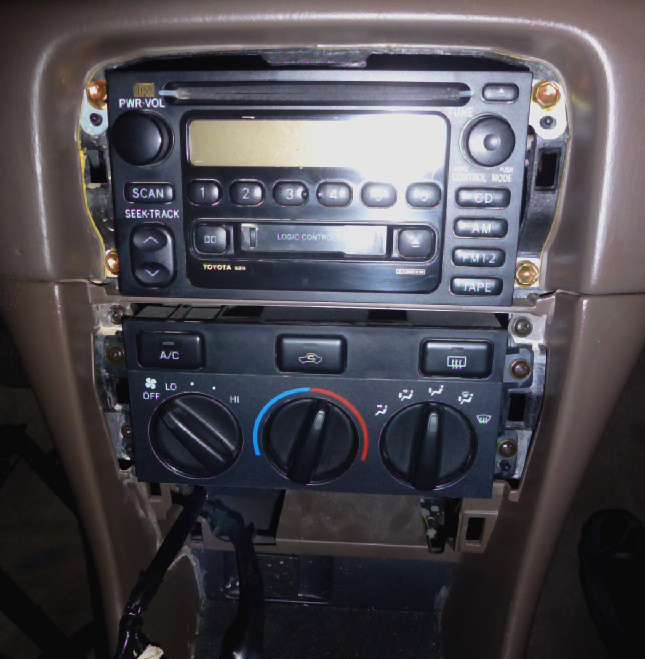
There are four bronze colored screws bolting the stereo in. I used a number 10 metric socket to take those out.

Use a number 10 socket to remove the four screws holding in the stereo

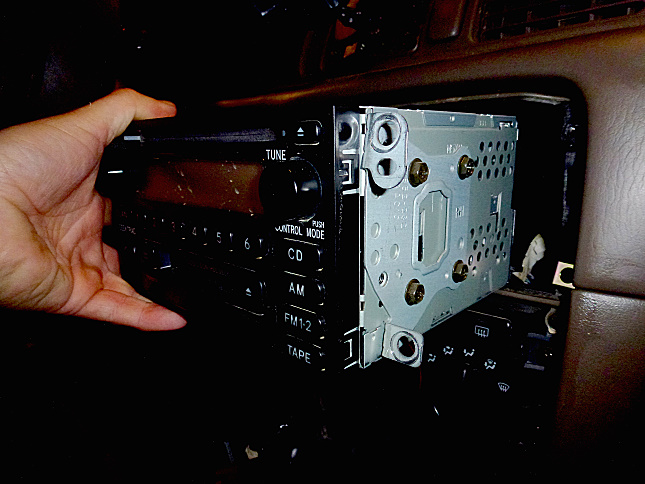
The stereo then slid right out.

Slide out the stereo

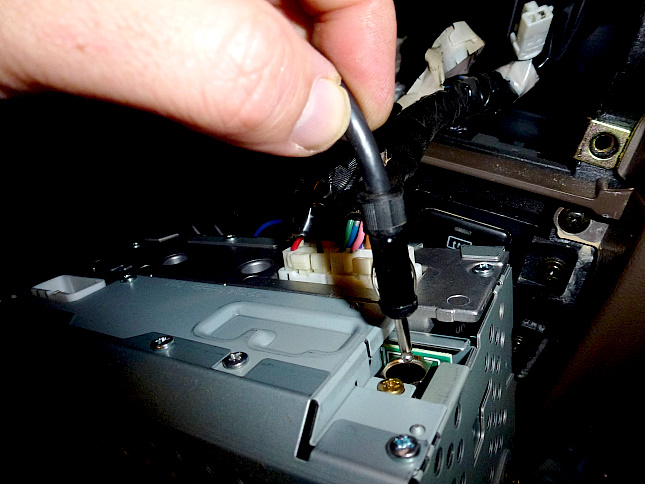
I disconnected the male antenna plug on the back.

Unplug the car’s antenna from the back of the stereo

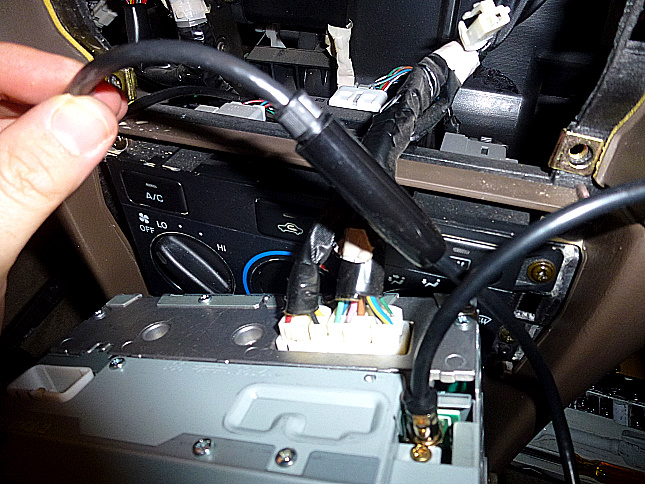
I plugged the car’s antenna wire into the FMM-100 modulator’s matching female cord, and plugged the FMM-100’s own male plug into the back of the stereo. This allows the antenna signal to feed on through but allows the modulator to send its own FM signal directly into the stereo rather than having to transmit a signal through the air to the car’s antenna. The interference from other signals also being received by the antenna is the downside of FM transmitters.

Insert the car antenna into the modulator’s female socket, and the modulator’s male plug into the back of the stereo

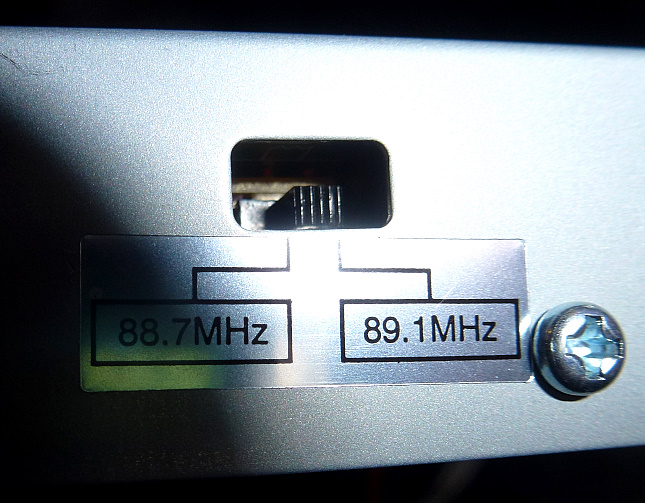
The FMM-100 can transmit its signal at either 88.7 or 89.1 MHz. The one-page instruction sheet said to pick the one with the least interference from area radio stations, which in my case was 89.1.

Set the modulator frequency to the one with less local interference

Connecting the Power

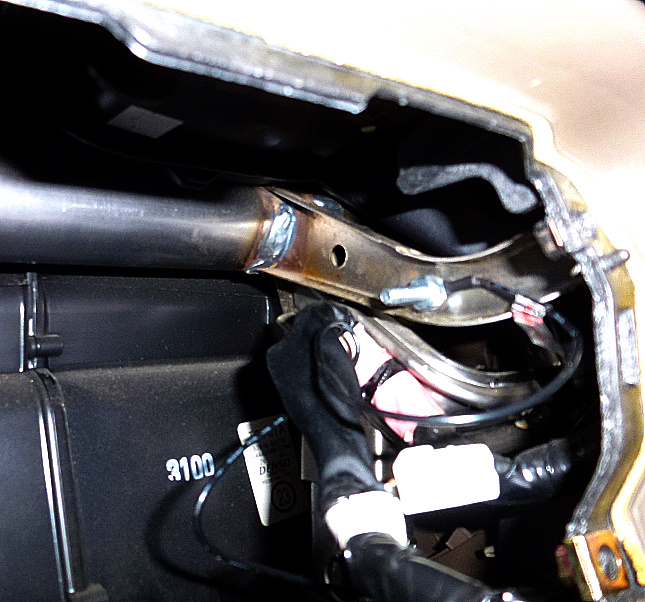
Now it was time to attach the modulator’s grounding wire. One “live” wire on the modulator has to tap into an existing circuit and to complete that circuit you need to attach another wire to ground – that is, to the car’s chassis. I scanned the interior of the dashboard and found a large pipe running the width of the car high up in the dashboard with braces welded to it which had a few convenient holes. So I stuck a bolt through one hole, connected the grounding wire to it, and used a nut to screw it down tight.

Connect the ground wire to the vehicle chassis

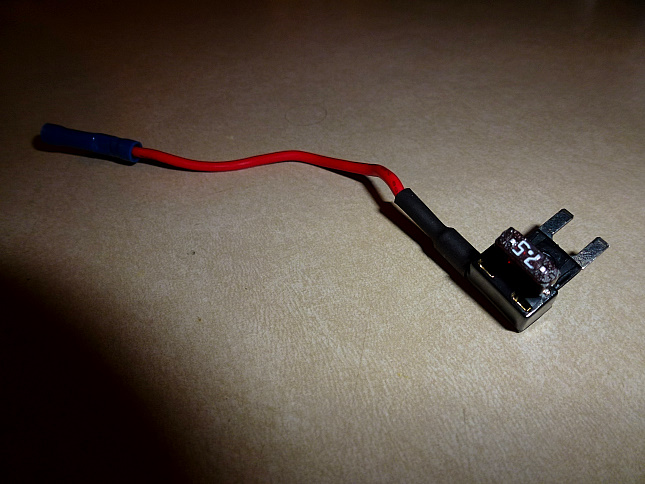
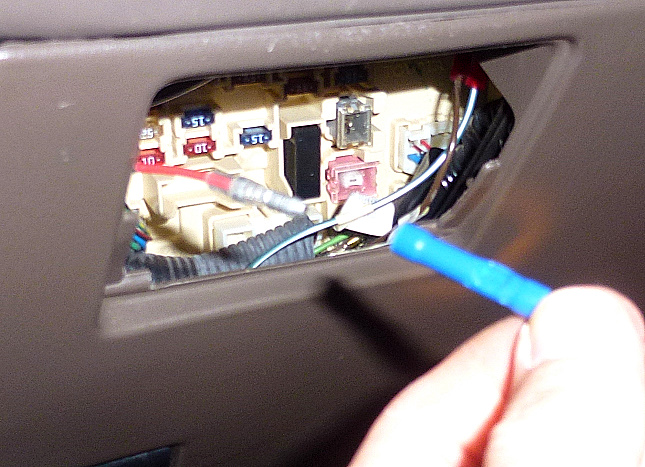
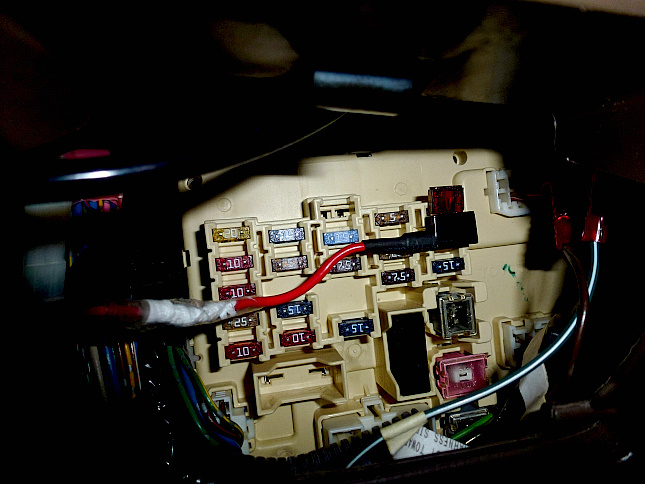
Next I threaded the live wire from the Audiovox box through the dash over to the fuse box where I’d later make the live power connection with the radio fuse connection using a fuse tap I picked up at the local Autozone. It takes the place of the fuse and gives you a live wire for power. I plugged the radio fuse into the tap, but wasn’t paying attention to how I would need to insert a second new fuse for the tap’s live wire. That would cause me some consternation later on.

I used a fuse tap to make it easy to power the modulator with the car’s stereo circuit

Some people like to splice into the nearby cigarette lighter sockets for power, but I wanted to have the box power down like the radio rather than having to manually switch it off to prevent battery drain, and wasn’t sure about the cigarette lighters.

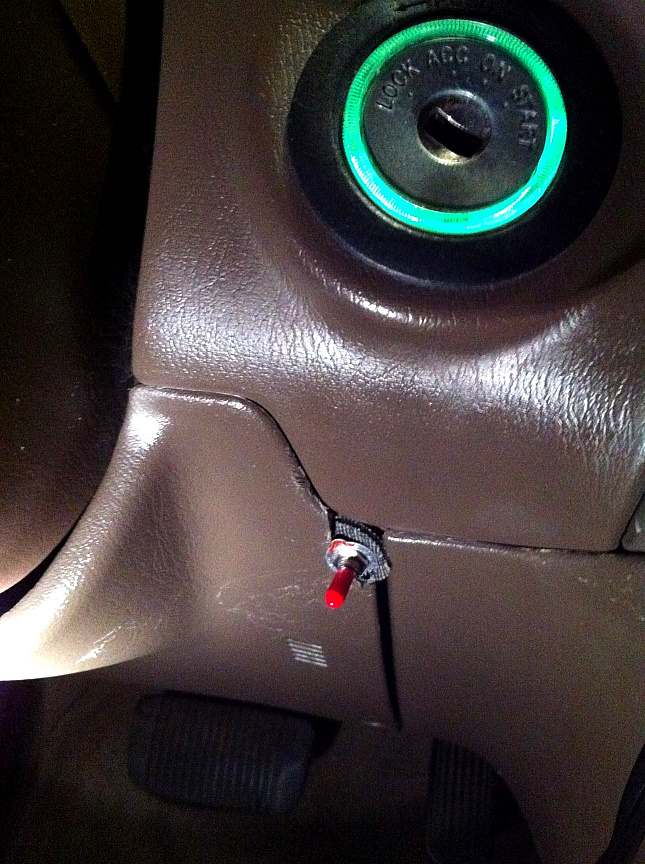
I still needed to install the power switch that came with the Audiovox because to listen to a radio station at 89.1 MHz I’d need to power down the modulator. I threaded the switch on its wire over to the lower dash in the driver well.

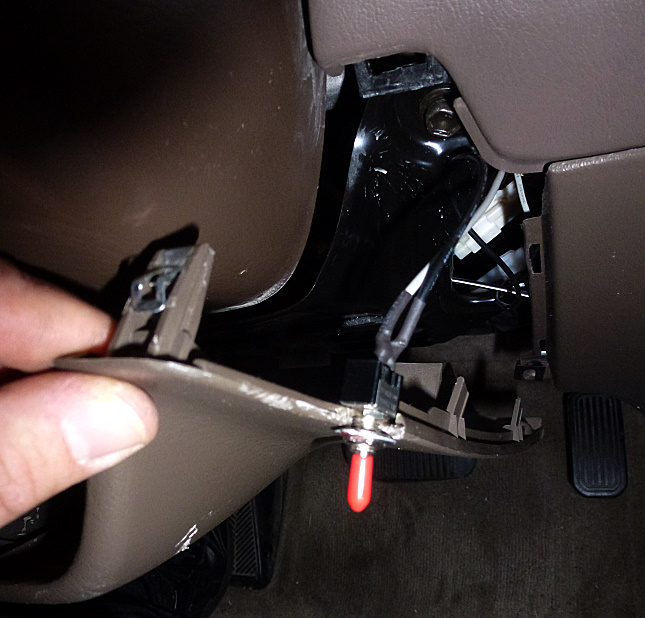
Mount the power switch somewhere on the dashboard; I am not good at drilling, so I used a corner of the driver side lower panel

More skilled workers would drill through the plastic for a nice clean mount, but I knew I’d struggle not to muck that up. So I opted to unscrew the lower panel of the dashboard in the driver well, which had one visible screw near the center console, another hidden behind the hood latch, and a final big screw hidden by a plate just above the floor near the door hinge. I then pried loose the top of the panel and cut off a bit near its top right corner so I could have a gap for the switch.  I then used a rubber washer as a backer to help hold everything in place at the junction of several dashboard panels.It doesn’t look great, but it is in an inconspicuous spot yet easy to reach.

Mount the power switch somewhere on the dashboard

That seemingly simple task took me forever, with me fumbling around repeatedly with the big rubber washer, a tiny lock washer, the on/off label plate, outer ring, and dash panel. I finally got it all put together, but I’d exhausted most of my expletives doing so.

As for the live wire, I had hoped that the end of the wire on the Audiovox unit would simply plug into the fuse tap wire, but they were not compatible.

I’d hoped the fuse tap wire would plug into the Audiovox live wire, but they were incompatible

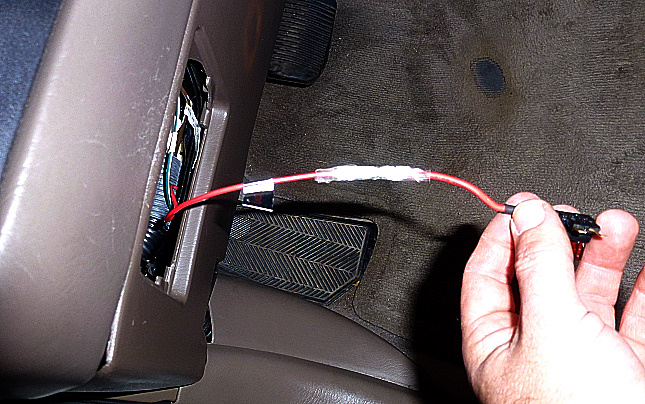
So I cut off the connector on the modulator’s wire, stripped it, and wrapped it around the metal plug on the fuse tap. I left my electrical tape at school, so I used thread seal tape and packing tape. Egad! Many would solder this connection, but my soldering jobs often go astray.

I spliced together the fuse tap wire and modulator’s live wire

I wasn’t ready to plug in for power yet, though. I still had other connections to complete.

The Audio Connection

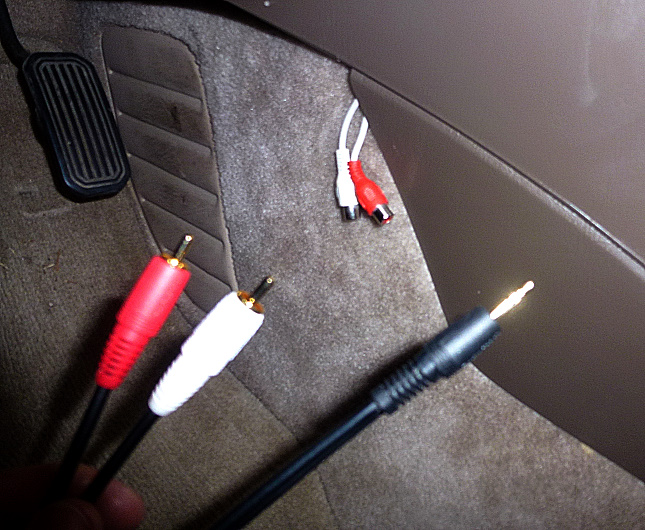
I threaded the modulator’s audio line in cables down through the dash so they would stick out down below. Unfortunately the FMM-100 uses standard RCA stereo audio plugs, so I need an adapter cable to connect it to my iPhone. Radio Shack sells such a cable but it is rather thick and so is the similar but far cheaper cable from monoprice.com, the best online source for low-cost cables. Whenever you need a cable and can wait for it to be shipped, I recommend you use monoprice.com. The above cable is a case in point: 76 cents plus shipping versus $8.99 at the shack.

The FMM-100 uses RCA plugs, so you probably need an adapter cable

I made the connections, but want a thinner cable leading into my iPhone, which I mount on the dash with an Amzer Universal Vent Mount. So I’ll be switching to a short adapter cable and patch cable. I own all of these cables already, having been a technology enthusiast for decades, but the ones I need are at school since I sometimes need them for school-related projects and technology support.

Cleaning Up

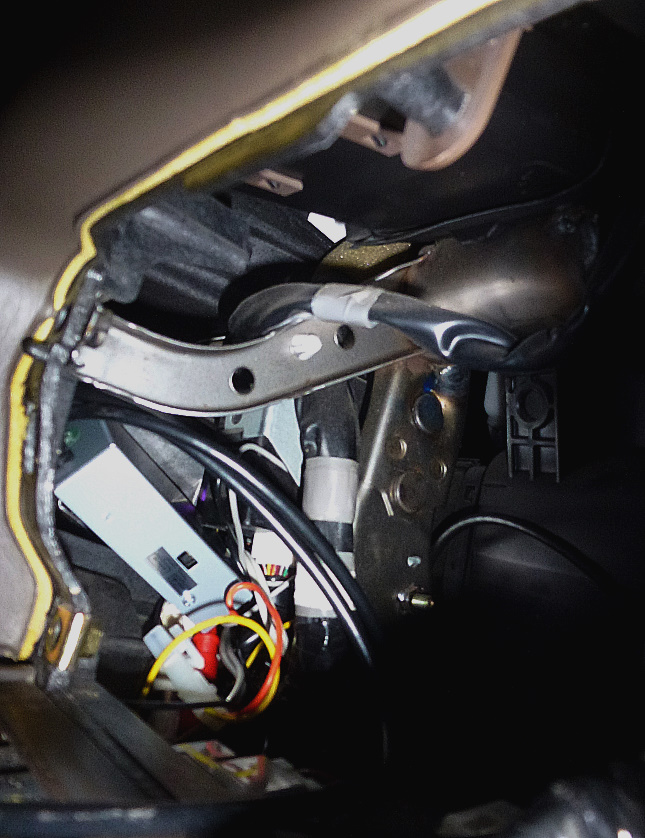
I nestled the Audiovox modulator box down in the crowded dashboard. There are so many wire harnesses that it was stable and wouldn’t rattle about.

Find a spot for the modulator to stay inside the dashboard

I reinstalled the stereo, but I really wanted to get those muddy streaks off the inside of the display. I debated whether or not to risk ruining the stereo by trying to take it apart. I decided to go slow and take a chance.

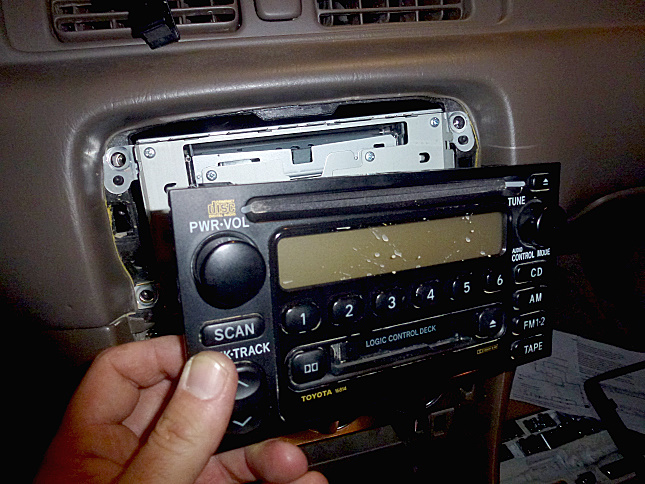
Eager to clean out some muddy streaks, I removed the stereo’s faceplate

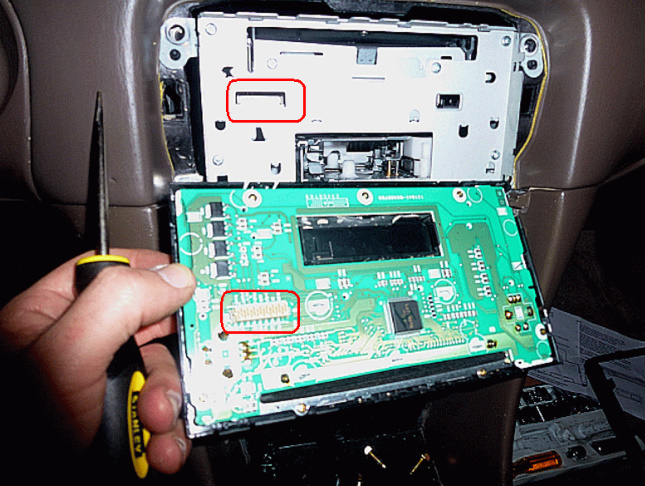
So I used a screwdriver to slowly pry off the faceplate, finding to my relief that it had a single large plug connecting it to the stereo cabinet. The front fascia was connected to the display and main circuit board.

A single plug connects the back side of the faceplate to the stereo box

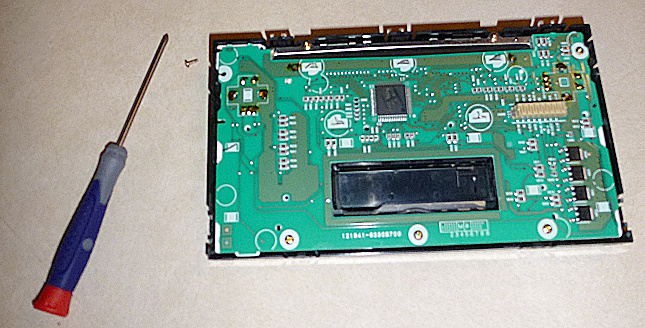
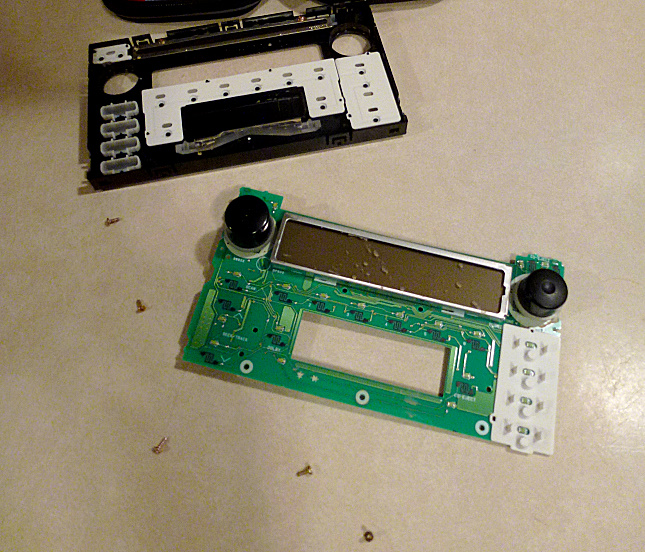
I carried the faceplate into the house for disassembly. A precision screwdriver allowed me to remove five screws holding the circuit board and display to the front fascia.

Five screws connect the circuit board and display to the stereo’s front fascia

I pulled up the circuit board and could then clean the muddy streaks off both the display and the plastic window on the fascia. For seven months I’d had to peer through the mud to see the display; I delighted in introducing the streaks to my friend Windex.

I could finally rid myself of those muddy streaks

I reassembled the stereo, screwed it back into place, reconnected the cigarette lighter socket power and light and the ashtray light, and popped the dashboard trim back into place. Now it was time to apply the power.

Powering Up…Or Not

I slid the fuse tap into place, and those of you who are familiar with the devices will see an error here.

I didn’t realize I needed two fuses in the tap

Unaware of my mistake, I powered on the stereo, hooked up my iPhone, dialed in 89.1, and…heard a distant radio station instead of my phone playing a favorite song. Curses!

I tried the other frequency, hoping I’d just forgotten to switch the modulator, but that made no difference. What could be wrong? Since the stereo worked, I knew the antenna and ground connections were good and the fuse tap was feeding power to the stereo. Maybe the modulator wasn’t receiving any power? The switch was in the ON position, and the label plate is threaded so you can’t accidentally mount it backwards.

So I pulled the fuse tap and examined it, finally noticing that there were holes for a second fuse. Oh, that would make sense. The original fuse should protect the original load and the new load should have its own fuse. I swapped the fuse and reinserted the tap, and sure enough the stereo no longer worked.

Did I have any of those tiny fuses on hand? Of course not, and a survey of the fuse functions on the back of the coin box didn’t show any I could easily sacrifice. So I cleaned everything up and drove to Wal-Mart to get a fuse.

Success!

When I returned home I popped in the fuse, inserted the tap, and voilà, crystal clear sound came booming out of the stereo from my iPhone. Good volume, no interference. This project had worked! I tested the power switch and confirmed that it shut down the modulator so I could listen to radio stations at 89.1 MHz if I wanted to.

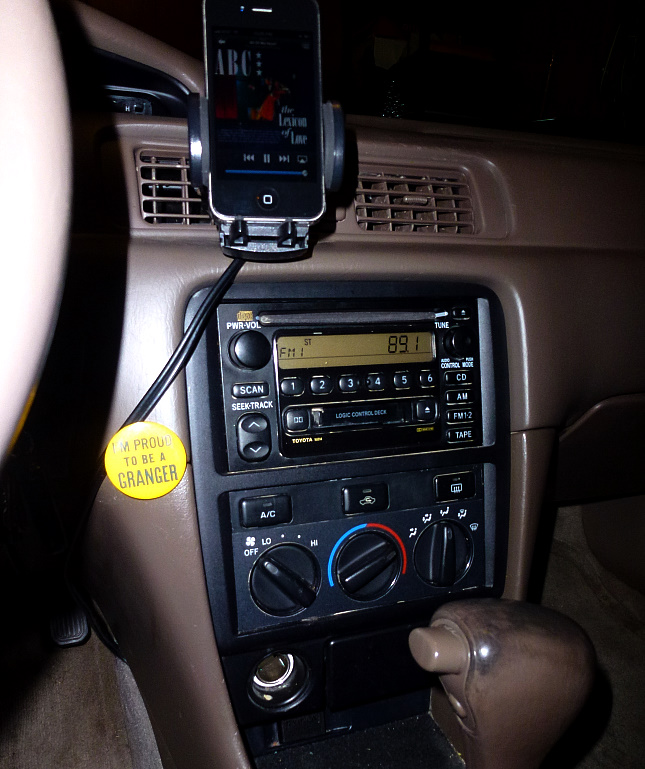
Now my iPhone plays crystal clear on FM 89.1 whenever I want it to

This was a fun project and I know I will enjoy its benefits for years to come. Not only will I be less distracted and annoyed on my road trips, but I have a cleaner stereo and center console and two working power sockets. Total cost in parts: $40 for the modulator, $8 for the fuse tap, $5 to $10 for adapter cables, $4 for a set of small fuses, a few bucks at most for some tape, a nut and bolt, and a rubber washer. I won’t throw in the $10 for the two lithium batteries I drained in my super-bright flashlight. 😯

$62

Plus labor, but I’m so unskilled that I work for free. That’s much cheaper than a new stereo and I learned some things by doing it all myself. But I had plenty of help from internet posts. The world wide web is pretty wonderful. That’s enough for this post. I’m going to go modulate Mercy, using my iPhone to blast that fantastic song in my car. Crank it up!


UPDATE: I finally traded in my 2001 Camry in August 2014; I had driven it over 236,000 miles. My new 2014.5 Camry XLE has a sound system that automatically connects to my phone using the Bluetooth radio communication protocol. I made sure to leave instructions in my old car on how to use the FM modulator so that the next owner can conveniently connect a smartphone or other music player to the stereo system.

Posted in home repair, music, technology | 2 Comments