Our district’s multiple personalities on the web

July 31, 2014

In a previous post I outlined how the visitors to one of our high school websites showed a dramatic shift away from large screen PCs to small-screen mobile devices. That led me to build a new mobile site for the school district. With that ready to go by mid-July, I still had time before the start of the new school year to create another mobile site, one for the high school.

I knew right off that I’d want the high school mobile site to be similar to the district one, so that the modal transition between the two would not be too jarring. I knew this was crucial because, for well over a decade, our district has suffered from multiple-personality-disorder amongst its various websites. I explore that problem in this post.

Our websites’ multiple-personality-disorder

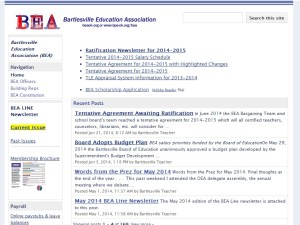
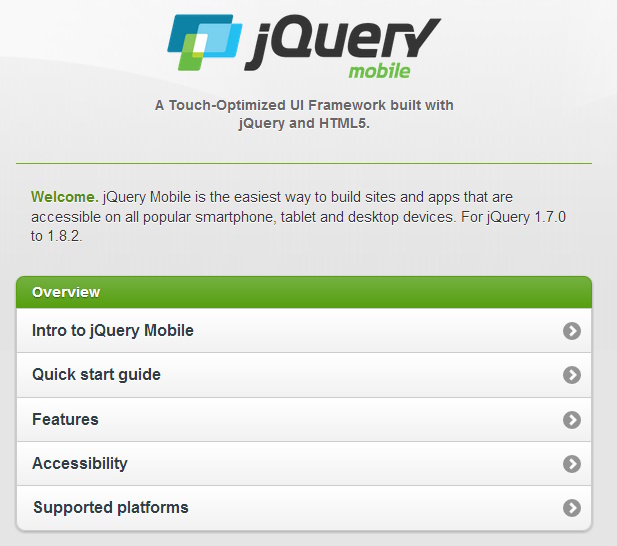
For many years none of the district’s websites were alike. Each had its own layout and structure, navigation system, colors and theme – the whole works. There was no sense of continuity for parents who might have children at multiple school sites, nor for the public accessing different district websites for information. Some sites had very outdated code, leading to malformed pages. Overall it was an idiosyncratic mess.

Until 2014, every website had a distinct design

Until 2014, every website had a distinct design

Those failings were due to the homegrown nature of the various websites. Each was initially built by a volunteer webmaster without any direction from the district. Eventually the site principals at the uppermost grade levels began paying a staff member to act as that site’s webmaster, but the elementary and middle school sites are still run by altruistic staff volunteers. To my knowledge, the district didn’t even earmark any funds for the district-level webmaster until it began paying me a small stipend in August 2012.

Using iframes to create a district border

I now embed school websites in a district-level iframe

I now embed school websites in a district-level iframe

In 2013 I took the first step to bring some order to this chaos. I reformed the district site’s link to each individual school site so that the school website displayed in an iframe. That let me keep a simple header navigation bar for the district site at the top to indicate that a viewer was still in the district’s website system.

However, using a basic iframe created a kludge. It forced the school’s website into a restricted window and was annoying, especially for scrolling content in the separate iframe window. So I made sure to include an obvious link just above the iframe that would open the school’s website in a full window, eliminating the frame.

Finally this summer I discovered how to use Javascript to automatically size the iframe to a school’s website if the school website’s files were located on the local server. So for those sites I now customize the iframe’s height and eliminate the frame’s scroll bars. Unfortunately that trick doesn’t work with sites hosted elsewhere (which is what is done for most of our sites now, as you’ll see below).  So for them I had to just set an arbitrarily large height for the iframe. This still simplifies the appearance to one window with one set of scroll bars, but it causes many pages to have immense blank footers. I found some of our websites have pages running over 10,000 pixels high, which isn’t good design, but you get what you pay for. I left the option above the iframe to escape it and reload the site in the full window.

UPDATE: At the start of the school year I kept running into link issues with the different school websites when embedded in an iframe. If links did not include target=”_top” they often did not work in some browsers. Since most of the websites are now more unified in their look and feel, as described below, I decided to stop using the iframe banner approach.

A new unified look-and-feel across most of the school websites

In 2013-2014 the district’s Teacher Specialist for Instructional Technology worked with the various volunteer webmasters for grades PreK-8 to migrate their websites to the MyBigCampus service the district has as part of its Lightspeed internet services agreement. At this point seven of the eight sites have moved to that service, with a consistent use of a header with a photo of the school and a horizontal menu bar. The body of the pages all use a white background. This has considerably unified their look and feel.

Six sites now use MyBigCampus, providing a more consistent look and feel

Seven of our district websites now use MyBigCampus, providing a more consistent look and feel

The remaining website design outliers are one elementary school, the Will Rogers Complex, the mid-high, and the high school. I presume that MyBigCampus could provide what is needed for the remaining elementary school and the Will Rogers Complex, so hopefully we’ll get those into the design fold. The mid-high site will be eliminated in August 2015 when grades 9-10 become part of the expanded 9-12 high school. That leaves the high school website to consider.

But what about the complex high school website?
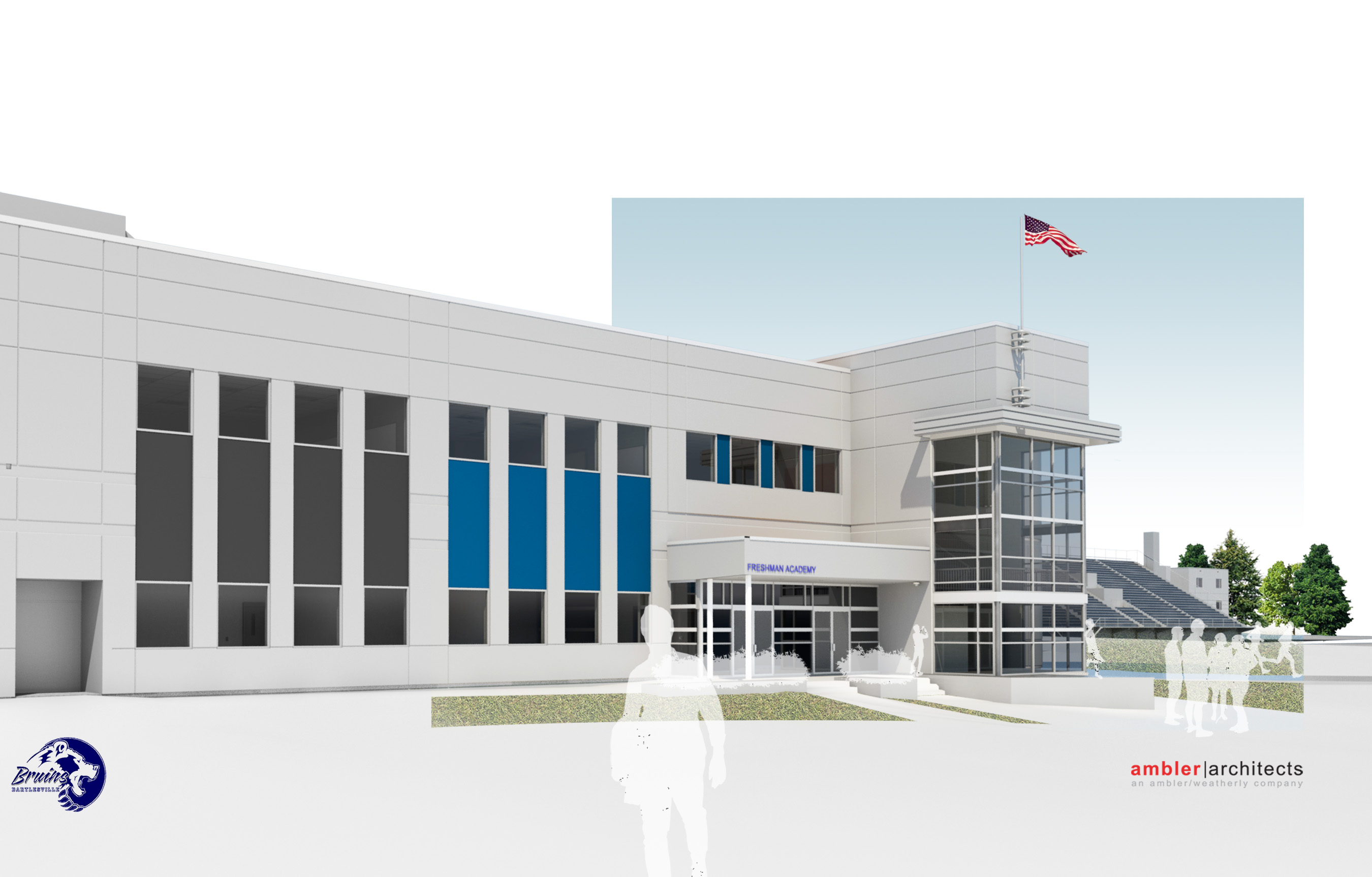
The Freshman Academy poses a website design challenge

The Freshman Academy poses a website design challenge

The site for grades 11-12 at the high school is already far too complex for the MyBigCampus service, and it will only grow more complex when the school expands to grades 9-12 in August 2015. I will either need to expand the existing design or re-think it entirely.

I’ve put a lot of work into the existing site, so I’d hate to start over from scratch, but the Freshman Academy creates a website issue that needs to be resolved. 9th graders will have most of their classes in a distinct area of the campus. They’ll have their own bell schedule, cafeteria period, administration, counselor, office, and library. So I’m leaning toward them having their own distinct website.

A potential way forward

I’m hoping that the Mid-High’s current webmaster, who is slated to be in the new Freshman Academy, will still be paid to run a new Freshman Academy website. It could link over to the 10-12 website as needed for shared content on news, services, campus information, and the like. We could stick with hand-coded websites or try to move one or both sites to a cloud-based web service for easier development and maintenance. If we went to a cloud service, it would need to have mobile-friendly responsive design.

Thankfully we still have a full year to work all of that out. Meanwhile, in July I had a mobile version of the high school website to build, and I wanted it to work very much like the district’s mobile site, but with just enough differences to orient a visitor as to which mobile site was being displayed. Addressing that problem, and how to deal with the more complex structure of the high school website in the mobile environment, is the focus of the next post.

Posted in technology, web design | 1 Comment

Fixing an out-of-touch district website

July 30, 2014

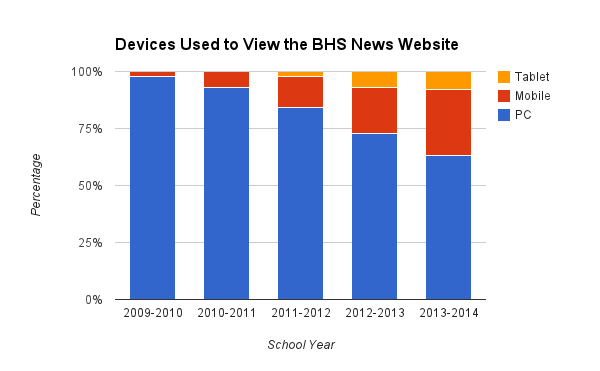
My previous posts outlined how I host and develop my various websites and why my two main sites for the district and the high school needed updating. Since 2009, when the current version of the high school site was designed, the number of visitors using mobile devices and tablets jumped from 2% to 37%. About 1/3 of visitors appear to be using small touch-screens instead of the traditional computer monitor and mouse. Those small screens make it harder to use the densely linked, multi-column layout of the websites, with horizontal header navigation menus or buttons plus additional vertical sidebars on the high school site.

Responsive design or a separate mobile site?

There are two basic ways to respond to this issue. You can devise a separate website tailored to small screens and touch control, with large header/footer navigation buttons, scrolling and collapsible screen-width menus, etc. Or you can re-structure your existing site for “responsive web design.” That means it has graphics which are scaled as percentages of a column rather than in pixels, and fluid columns and page elements which elegantly re-arrange themselves depending on the width of the viewing screen. Designmodo posted a bunch of examples.

Responsive Design is one way to be mobile-friendly

Responsive Design is one way to be mobile-friendly

Responsive web design is becoming more prevalent, since it has some distinct advantages over a separate mobile site:

  • Only one code base to support instead of two separate ones for large vs. small screens requiring replication of changes
  • Similar appearance and navigation for visitors using large (PC), medium-size (tablet), and small-screen (smartphone) devices
  • Simpler for web analytics and search indexing

The downside to this approach is that you have to re-think the structure of every page of an existing site. You need to think about columns and how they might best be re-ordered, or nested, and whether the navigation elements need to switch to a different style once the screen width narrows beyond a certain point. This requires some fancy footwork in the Cascading Style Sheets (CSS) which structure the page.

Separate mobile sites discard all of that complexity and re-coding of existing pages in favor of a separate site with a simplified interface. Mobile sites can be built which work with a wide variety of browsers on different operating systems of varying capability and ages. Mobile sites use larger interface elements to solve the “fat finger” problem. Consider the difference shown between Olive Garden’s regular and mobile sites.

Olive garden's mobile site differences

Olive garden’s mobile site differences

Until July 2014 I had no experience coding mobile-friendly websites and I knew there was no money in the district budget to go out and pay for one. So I first checked out what my existing 2012 version of the Adobe Dreamweaver CS6 web development software had to offer. It included both responsive-design and mobile-specific options.

Fooling around with fluid flow

Fluid layout options in Dreamweaver CS6

Fluid layout options in Dreamweaver CS6

My first attempt, back on July 11, was to try to re-create the district homepage using Dreamweaver’s “Fluid Layout”; this was clearly their take back in 2012 on responsive design. I have no Dreamweaver training, so I found an online 35-minute video from Patrick Lowenthal which stepped me through creating a page with a fluid layout. I fleshed out a page with the sort of menu layout I preferred and then tried viewing it at various screen widths.

The results were unimpressive. I didn’t like how the site looked at the narrowest setting or the widest. Goldilocks wouldn’t want the porridge on offer from my Baby Bear layout or my Papa Bear layout. With enough thought and care I could reach a better compromise, but I feared it would feel like a compromise, reducing the usability and efficiency of the current site on large screens.

Nor did I relish having to re-think every page of the website in terms of what would flow well. I wanted to complete an initial draft in a few days before I had a conference out of town, not get bogged down in a full rebuild. And I wanted the entire thing, with all of the polishing and debugging, wrapped up by the end of the month. Bartlesville teachers report back on 8/8 this year, and classes start on 8/12, and I have plenty of advance work still to do on teacher appraisals, a technology training manual, etc.

A separate but equal mobile site?

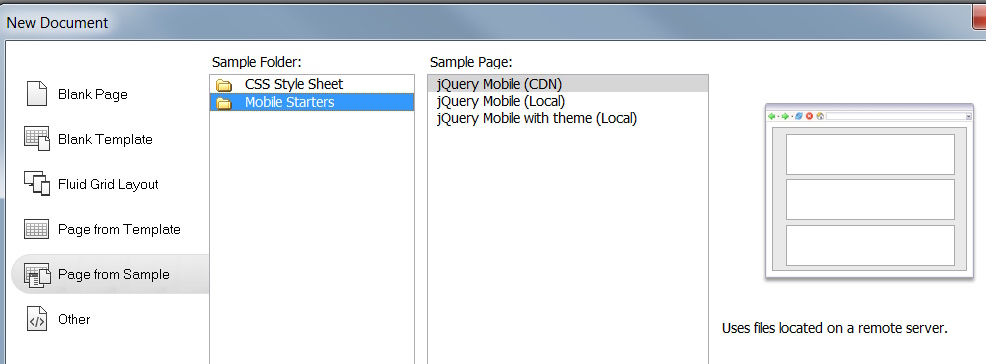
Dreamweaver's Sample jQuery Pages

Dreamweaver’s Sample jQuery Pages

So I shifted my attention to devising a separate mobile-only site. It could concentrate on easy navigation, while still offering full access. A pet peeve of mine is how many mobile sites only encompass a fraction of the options of the regular site, offering no clue of what has been omitted. I wanted our sites to provide access to everything on the regular site, even if that meant sometimes giving up on trying to convert content that was too much for tiny screens; if things got hairy, I still wanted links that would pop back into the full website.

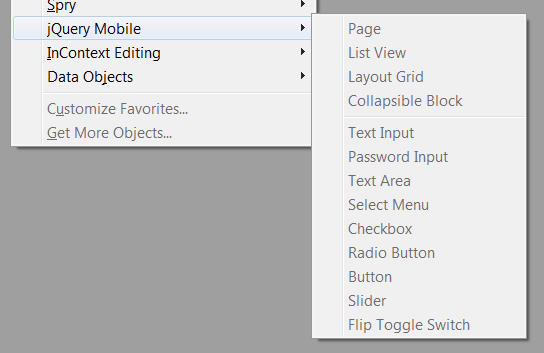
jQuery inserts in Dreamweaver

jQuery inserts in Dreamweaver

Browsing through Dreamweaver’s New Document dialog box, I came across some sample “Mobile Starter” pages written using something called jQuery Mobile. I started messing around with those and liked what I saw. Clean, simple boxes with big buttons and a variety of options for displaying links and information. Clearly the resulting site would look silly on a big screen, but it would be quite easy to navigate on a small smartphone.

So I re-created the district homepage contents and links using the jQuery Mobile commands on Dreamweaver’s insert menu, without any fancy touches. The result reminded me of something I’d seen before…what was it?

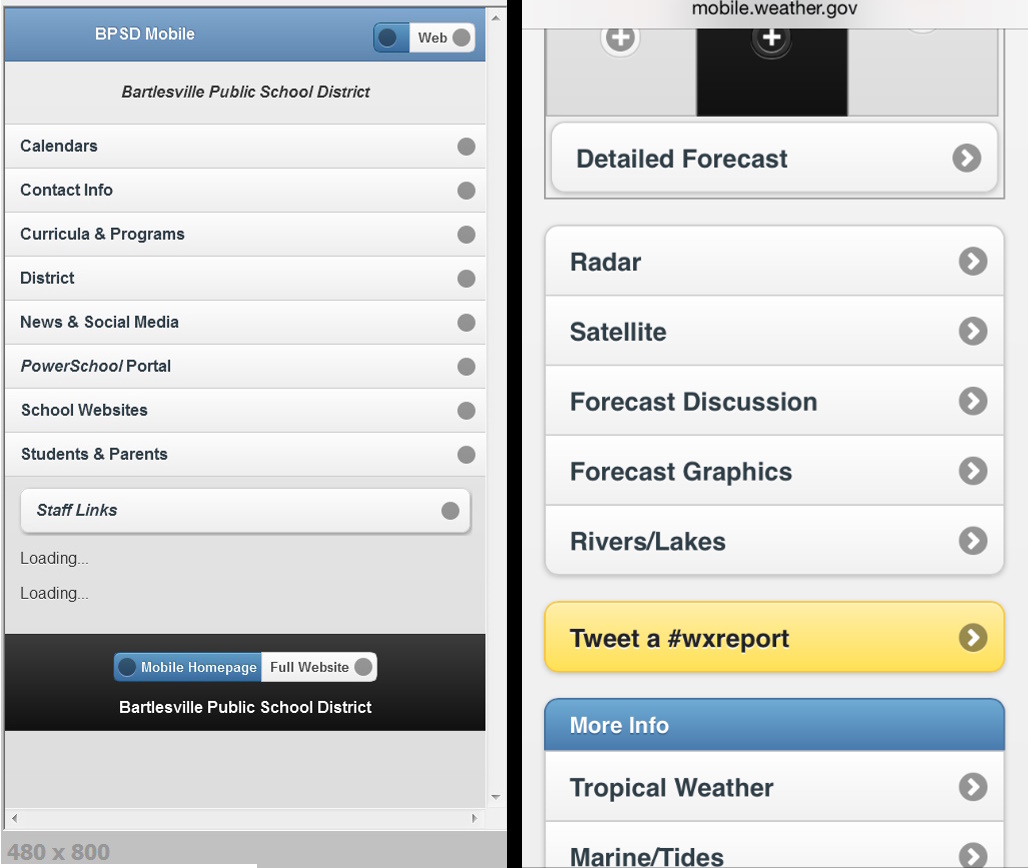
I eventually figured it out; my sample page looked like the National Weather Service’s pages do when you use a mobile device. They must have coded them in this jQuery Mobile thing.

My first jQuery page and a NWS mobile page

My first jQuery page and a NWS mobile page

That meant I could visit mobile.weather.gov in my desktop web browser, do a “View page source” and study the underlying HTML and CSS files, and see what Javascripts they used, even though I don’t know Java. I suppose the traditional approach would be to go look up jQuery Mobile on the web and review the documentation, but that isn’t my default mode. I like to find something I like and try to peer at the code to see how it works so that I can steal and adapt from it.

I downloaded the various CSS and Javascript support files the weather service’s pages were using and starting building out my own pages to mimic the structure of the regular district website. There were the usual oddities that result from this sort of tinkering, with absent or mismatched graphics, flakey controls, and the like. But I knew I could eventually sort that out once I got the basic structures built to ensure this approach would satisfy my goal of a mobile-friendly site with full functionality, including fall-backs to the regular website as needed.

Internet tools evolve quickly

jQuery Mobile has some great demo sites

jQuery Mobile has some great demo sites

While debugging my code, I stumbled across a very well done website with online documentation and example code for jQuery Mobile version 1.2. I really liked the jQuery Mobile 1.2 demo site and made extensive use of it to learn various tricks. But I was seeing formatting glitches. Hmmm…my 2012-vintage Dreamweaver created version 1.0 files, while the weather service site I’d selected as a model used version 1.3 files. Evidently jQuery Mobile had put out several major new versions beyond what my copy of Dreamweaver knew. Since I’d been using some files via the NWS code, a mismatch of downloaded icon files, stylesheets, and Javascript was no doubt causing the formatting glitches I was seeing in my new site.

Eventually, when I couldn’t get something to format the way I wanted, I discovered at jQuery Mobile’s main site that they’re now up to version 1.4.3. But I couldn’t simply download and install the latest version: back in the transition from 1.3 to 1.4 they dumped several default themes I was using in my code and the demo site for 1.4.3 showed they’d reworked a lot of the styling codes.

Two buttons, one created in jQuery 1.2.0 and the other in 1.4.3

Two buttons, one created in jQuery 1.2.0 and the other in 1.4.3

For example, to create small button with a delete icon above the text, I’d grown used to coding:
<a href=”#” data-role=”button” data-icon=”delete” data-iconpos=”top” data-mini=”true” data-inline=”true”>Delete</a>
while the new version created a similar button with:
<a href=”#” class=”ui-btn ui-btn-inline ui-icon-delete ui-btn-icon-top”>Top</a>

I could see that they were trying to be more compact for faster code loading, but the new API (application programming interface) was also harder to remember with all of those ui- bits after growing used to more obvious codes. While the later version offered some snazzier options and special features, I had whipped up my own workarounds for what I needed with some inline CSS code.  So I didn’t have to jump to the newer version. I knew that if I did go to the latest version, I would want to re-work all of the code I’d written over several long days into the new style, since I hate mixing old and new styles in a page. I may not look at a particular page again for months, and I wouldn’t want to have to wrap my head back around two different coding methods.

So I gave up on using a more modern version of jQuery and standardized my site on version 1.2. I gave up some speed and efficiency and would be left without a few new features, but what I had coded was working well and I knew I’d be spending plenty of time polishing it before it could go public. Perfect is the enemy of good; I needed to stick with what I had already started to master. I had a fully operational version completed by July 14 and sent the link out to some administrators for their review. A bit more polishing and then I’d be headed down to Norman for a couple of days.

Homepage of my completed district mobile site

Homepage of my completed district mobile site

When I had some free time in Norman, I toured the vastly improved museum of art (a post on that with photos is still pending). But it was gnawing at me that, while I had checked repeatedly how my mobile site code behaved on my iPhone and iPad, I hadn’t checked it on any Android devices. That operating system is very popular, but I’ve never used Android more than a minute or two, and the only Android device I had easy access to would be Wendy’s Kindle Fire. That unit is older and uses its own fork of Android which is different from the versions on the popular Samsung phones. So while in Norman I popped into their Target store. I found an Android tablet demo unit there and pulled up my initial mobile site. It ran pretty well, with few glitches, and no fatal flaws I could find. That let me relax a bit.

After my conference, with only positive feedback about the new site, I polished it some more and then submitted it to the superintendent for consideration. But I still had almost two weeks before the end of the month, when back-to-school activities really would start to intrude; why not go ahead and use my new district site to help me build a mobile version of the high school site?

As I built another mobile website within the district, I needed to bear in mind a lesson from our district’s experience with multiple regular websites. That lesson will be delivered in the next post.

Posted in technology, web design | Leave a comment

The shift to mobile browsing means other shift happens

July 30, 2014
Mobile browsing was once impractical

Mobile browsing was once impractical

Yesterday I posted about how my various websites are a mix of hand-coded HTML and hosted free services. Google Sites offers an option to “Automatically adjust site to mobile phones” which will try to sort things into a single column and scale the graphics accordingly. That works fine on a simple site like the news sites for the high school and district as well as the district technology support site. But the more complex BruinBond.com I created for bond projects looks terrible on a phone screen when I enable that setting.

This MEADOR.ORG site is mobile-friendly, with the menus and sidebars tucked away and posts converted into a stream of text interrupted by same-size embedded images. But the complex sites I coded for the high school and the school district are NOT mobile-friendly. The high school site’s design dates back to 2009 and the district’s to mid-2012. The way folks are accessing those sites have shifted considerably over those time frames, as we’ll see below.

Zooming in on the district site makes navigation difficult

Zooming in on the district site makes navigation difficult

You can zoom, but can you navigate?

Granted, both of those multi-column sites with headers and footers are coded with Cascading Style Sheets (CSS), which means they have a logical structure (created by DIV tags) which mobile browsers can interpret for smart zooming. I can tap on those sites and my iPhone knows which column or graphic to zoom in on. But zooming in means you can no longer operate the navigation menus without a lot of scrolling or going back to the tiny un-zoomed view. That is a real pain on a tiny phone screen.

Now most people are mobile when surfing the net

The shift toward mobile web browsing

The rapidly expanding use of smartphones for web browsing means that websites designed only for use on personal computers and large tablets are no longer serving the public well. At the start of this year, mobile apps overtook PCs in U.S. internet traffic. Nielsen supports that finding, with its data that U.S. adults now spend an average of 34 hours per month using the internet via smartphones, while spending only 27 hours per month using the internet with a PC.

We don’t have good analytics on our main sites, which are hosted locally. But I have run Google Analytics for years on the high school’s separate news site. A review of that data shows a dramatic migration to mobile devices. Four years ago, only 2% of visits were made using a mobile device. Last year 29% were on what Google terms a mobile device, plus another 8% were on tablets. So our existing websites are probably not easily navigated by 29% to 37% of the viewers.

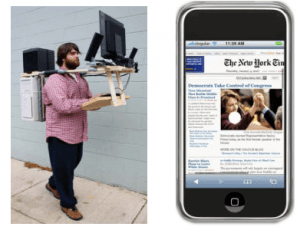
People are switching to mobile devices

Our audience is shifting to mobile devices

Schools are hardly speed demons when it comes to technology, but eventually we do react. The ever-increasing prevalence of students with smart phones is an indicator every teacher is aware of, but the web statistics show just how much things have shifted in the past few years. That convinced me we had to change our sites to be more mobile-friendly. The challenge was how to accomplish that despite a non-existent budget and my own unfamiliarity with mobile-friendly site design. My next post is about my search for a solution.

Posted in technology, web design | Leave a comment

To HTML or not to HTML?

July 29, 2014
I like to code...do you?

I like to code…do you?

This post is a long history of my website development efforts in the school district where I work. I provide a thorough overview of the websites I maintain and how they are hosted and coded. This nerdy navel-gazing retrospective was triggered by the several weeks I spent this summer coding mobile versions of the websites for our school district and high school. This the first of five consecutive blog posts in which I elaborate on that coding adventure.

Frankly, while this history is of interest to me, it really might not interest you. So if you don’t relish reading about every website I run and how it is hosted and some background on why I use various services and software, please feel free to click away from this post. If you’re into visuals, you could pick out a set of my travel photos to peruse. Or check out the big multi-post summer trip travelogue about the trip Wendy and I took along Route 66 this summer, which is chock full of scenery and art.

Okay, that pared things down to the truly nerdy, right? Here we go!

My old bulletin board machine

My 1989 bulletin board machine

It Started as a Hobby

I have been hand-coding HTML websites for almost two decades, and before that ran a couple of primitive dial-up bulletin boards dating back to the early 1980s.  The only computer courses I ever took were a high school course in BASIC in the early 1980s and a college course in FORTRAN in the mid-1980s. So I acquired my knowledge of HTML from trial-and-error coding based on the source code at various websites, various web tutorials, and good tips back in 1998 from Vincent Flanders’ books based on his venerable Web Pages That Suck website.

I learned HTML by doing, not studying. But learning how to improve and update my code with CSS (cascading style sheets) was another matter. Its nesting and different cascades of styles was bewildering until I picked up and carefully read David Sawyer McFarland’s CSS: The Missing Manual back in 2006. I was using the first edition of that book; I see he’s up to the 3rd edition now and I’ll bet it is just as invaluable.

I recommend this book for learning CSS

I recommend this book for learning CSS

I’m hardly a CSS expert, but I can figure out what is going on eventually. It became much easier to cope with when I shifted from an old web editor to Adobe DreamWeaver CS6. I’ve only tapped part of the power of that program, which has many tools to help you figure out what to do and, perhaps more important, what has gone wrong in your code.

But for some websites coding everything by hand is not necessary, or even the wise thing to do. I have written before about my evolving personal websites, with me eventually switching from a hand-coded website, hosted by my cable provider, to the Blogger service and then finally to WordPress.com in 2008. Using the blog services makes creating posts far easier than hand-coding, and I don’t need fancy layouts for blog posts. So long as I can plop in and scale to my liking some linked photos with the text, I’m set for blog posts. I’m still quite happy with the existing design of MEADOR.ORG and the editing capabilities and free hosting at WordPress.com, but I know that someday this site will need another overhaul. But hopefully that is far in the future.

Now It’s More Than a Hobby…A Bit More

I’ve created many websites over the years; some were for my personal hobbies like local history, and several were pro bono public services for local foundations and the like.  But I am actually paid to code and update only two websites: the ones for the Bartlesville Public School District and also for Bartlesville High School. Mind you, I’m not paid much for those duties at less than $7 per day for them both, but something is better than nothing for us woefully underpaid classroom teachers in Oklahoma.

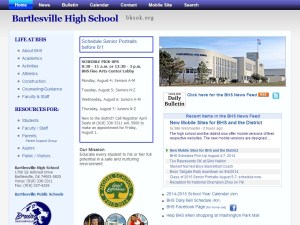
The high school's homepage

The high school’s homepage

I took over the high school website back in 2004 and have fully re-vamped its look a couple of times, with the last major overhaul back at the start of 2009. Back then I thought I might shift the site to a free hosted service, such as Google Sites, but in the end I only used Google Sites for the news items at the school, since several have to be posted each week. I like the ability to have a scrolling feed of posts on the homepage which visitors can select from.

In February 2012 I did set up a full website via Google Sites, one devoted to instructional technology support for the district’s teachers. That superceded a long series of hand-coded help pages I’d created over the years on the high school site.

A Coder, A Coder, My Website for a Coder

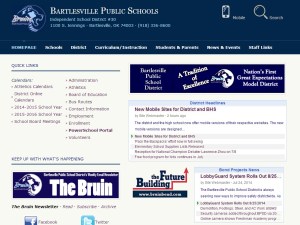
BPSD Homepage

The district’s homepage

Back in 2011-2012, the district’s volunteer webmaster left; yes, the district website was being done pro bono by a helpful district technician. The district’s continuous budget woes meant that it still did not want to invest in a managed content website from a provider like SOCS; we still leave that to richer and bigger districts like Jenks. So the district’s website stagnated and by the end of that school year I was desperate for an update – desperate enough to roll my own version in HTML.

Without anyone’s prompting, I coded a new version of the district website and presented it to the administration. They adopted my replacement version and the very sweet school board members bought me a sizable gift card out of their own pockets. Remember, school board members in Oklahoma do a lot of work for zero pay; most are as altruistic as the teachers they employ.

To its credit, the district then managed to start paying me a stipend for maintaining the district site. That goes along with the stipend my principal pays out of her site budget for me to run the separate high school website. Those stipends have enabled me to keep making steady refinements to the sites and keep up with the many changes in documents and links which everyone needs done.

Out-of-Pocket if not Out of My Mind

Wouldn’t you rather code on this?

Mind you, the district is so underfunded and Oklahoma school finance so restricted that I still am out-of-pocket some expenses. State school finance laws meant that I could only use a district-provided copy of the Adobe Dreamweaver website development software at home if I restricted myself to using it on a years-old school laptop. That’s hardly appealing when I am used to coding on my decent home desktop machine using a 24″ main monitor for coding and a smaller adjacent monitor for previewing. So in September 2012 I spent $179 out of my own pocket to purchase a home copy of Adobe Dreamweaver CS6. I’m still relying on it because Adobe has gone to a subscription model and no longer sells stand-alone copies of DreamWeaver. I’d need their Creative Cloud bundle to get DreamWeaver updates, and that carries a regular price of $30/month. Even with my educator’s discount, it would cost $20/month, meaning I’d have to shell out over 10% of my annual webmaster pay to have the Creative Cloud on my home machine. My webmaster pay is too little to take that kind of hit, given that I’m already shelling out $90/year for my personal subscription to Microsoft 365 for use on my Windows desktop, Macbook Air laptop, and iPad tablet computers.

Why Not Use Cloud Services?

mybigcampus

Most of our district sites have switched to MyBigCampus

So the extremely limited budget means that I’m sticking with my old DreamWeaver and free cloud services to keep our sites running. This summer, tired of hand-coding the homepage’s news items, I set up a district headlines site via Google Sites as I had done previously for the high school. And our district’s Instructional Technology Teacher Specialist has been training the elementary and middle schools’ volunteer webmasters to migrate their school websites to the MyBigCampus service our district gets with its LightSpeed internet services contract.

MyBigCampus is far too limited to be used to replace my existing high school and district websites, and while I could try to approximate them in Google Sites, the design limitations and storage restrictions would be onerous. So I’m still hand-coding the suckers. Eventually I suppose the district will pay for a managed-content system that not only makes building and maintaining the district and school websites easier, but more importantly provides teachers with easy ways to build their own course websites and calendars. But until then we’ll be using Google Sites and Weebly and MyBigCampus and the like.

I use Google Sites for the local teachers' union website

I use Google Sites for the local teachers’ union website

I use several free cloud services for website hosting and development. Google Sites not only handles the district news and technology support sites, but also the site for the local teachers union. Facing a slew of curriculum revisions, I’m thinking of shifting the old hand-coded Science Department website over to Google Sites as well.

I also use Weebly to sell my physics curriculum, and found the very-cumbersome-but-free AwardSpace to host my site on local history after my local cable company stopped providing web hosting.

There are also more advanced for-pay services out there, such as SquareSpace with its mobile-responsive design and drag-and-drop interface. The catch there is the for-pay part.

Do It Yourself If You Want It Done Your Way

The truth is that if you really want to control every aspect of a website, nothing beats coding it yourself by hand. And if you can’t spend any money, there are decent free services, but they all have significant design limitations. So I still hand-code the district and high school websites, my pro bono site for the local school foundation, a site about the history of our school district facilities, and the sites for our science department and my own physics classes. Those sites are pretty stable, and until July 2014 I hadn’t really learned much new in HTML for several years.

Learning to code for mobile devices

Learning to code for mobile devices

BUT…I did learn a lot of new HTML over the past few weeks. Why and how? Because I decided to bite the bullet and tackle a shortcoming of my district and high school websites, one which was becoming very problematic in this age of smartphones. I needed to create mobile-friendly, touch-friendly versions of each site. And I did not know how to do it. So I learned how to do it the way I acquired most of my knowledge of HTML…by playing around with the editor software, scouring the internet for ideas and examples, and doing a heck of a lot of trial…and error.

My next post addresses WHY I needed to tackle this issue; later we’ll get to HOW.

Posted in technology, web design | Leave a comment

Kicks on 66, Days 9-11: Relaxation and Return

July 6-8, 2014
The Blue Hole in Santa Rosa
Beautiful Blooms

The day after our climactic day hike and flamenco performance, Wendy and I took it easy in Santa Fe. We had an unappealing breakfast at the Flying Star Cafe in the Railyard and walked to the plaza. A stop along the way at the Hilton let me shoot a nice piece of corridor artwork. At the plaza we indulged in cookies and a shake at the Häagen-Dazs. Then we found a place to sit at the plaza amidst beautiful blooms. Wendy tipped a beautiful busker who was playing “Yesterday” and “Blackbird” on a guitar.

I’d considered finally walking along the famous Canyon Road and its galleries, which I’ve never seen, but it was a Sunday, and I figured they might be shut. So I saved that for a future trip and instead walked with Wendy along the northeastern part of the Paseo de Peralta, an old street which encircles downtown. I liked seeing some of the old buildings. It was a sign of the times that the grand old Scottish Rite Temple was up for sale; its 1901 Moorish Revival look doesn’t blend too well with its surroundings, but it is a striking building. Declining membership means the local chapter lacks the cash flow to maintain it.

Santa Fe Masonic Center for sale

Across the street from the temple are the beautiful grounds of the Santiago E. Campos U.S. Courthouse. The building was started in 1850 and intended as the territorial capitol, but insufficient funding meant it would not be completed until 1886, by which time a new capitol was under construction. It has beautiful stone walls, and the grounds have lovely tall trees and a nice grass lawn.

Grounds of the US Courthouse

Out in front of City Hall we passed the statue of St. Francis and his often-petted prairie dog. The saint appears in various places about the city, which was originally called La Villa Real de la Santa Fé de San Francisco de Asís (The Royal City of the Holy Faith of St. Francis of Assisi).

We passed a VW Westfalia camper, something my father would appreciate, on our way back to our casita. My head ached, so I went out for a stroll around the block, finding a statue at the adjacent hotel of a Hopi maiden sporting immense squashblossom whorls. Princess Leia had nothing on her!

Dinner was a delicious pizza at the adjacent Café Café, followed by us relaxing on our patio for our final evening in Santa Fe.

Day 10 Map

The tenth day began with a wonderful early lunch at Tia Sophia’s downtown. I had beef tacos with Spanish rice, and Wendy loved the tender chicken in her green chile chicken enchiladas. She reported the tamales were good and spicy, if a bit grainy. We enjoyed sopaipillas and honey, bemoaning the fact that we would be leaving behind the wonderful food of New Mexico. Wendy posed for me in a downtown walkway, our last shot in Santa Fe.

Princess the Camry took us southeast to the old Cline’s Corners tourist stop off I-40. The most notable thing was a tremendous collection of horns on a wall. After refreshing ourselves, we headed due east on I-40 back to Amarillo. We pulled off in Santa Rosa to see its famous Blue Hole, an 80-foot-deep pool of 61-degree water which had attracted a number of swimmers. Wendy noted how clear the outflow was.

The Blue Hole in Santa Rosa

Just past Santa Rosa, the interstate divides the ghost town of Cuervo; Wendy thought it must be a fake ghost town or movie set, considering the oddity of driving through it on an interstate. But Cuervo is quite real, as are other ghost towns like Endee, Bard, and San Jon. We were puzzled by the names, but they made sense when we found out Endee got its name from the old ND ranch and Bard was probably a ranch name as well: the Bar-D, which reminds me of the chuckwagon show I saw in Durango back in 2011.

We had dinner at the yummy Blue Sky Burgers in Amarillo. Our evening entertainment was Errol Morris’s memorable documentary The Thin Blue Linewhich saved a man from death row.

Day 11 Map

The final day of our trip was a long drive back to Oklahoma City to have dinner with my folks and then onward back home to Bartlesville.

We began with a great breakfast near our hotel in Amarillo at Ye Olde Pancake Station. Before we left Texas, we pulled off I-40 to take old Route 66 through Shamrock to drive by the restored U Drop Inn, which frankly is the best-looking thing in town. Shamrock, like so many other towns along old Route 66, has been bypassed by the interstate and suffered mightily for it.

U Drop Inn in Shamrock

The sun was setting as we drove up US 75 to Bartlesville, glad to be returning home, but also wishing that we could spend more time having Kicks on Route 66.

Click here for a slideshow from these days

< Day 8 of Kicks on 66

Posted in photos, travel | Leave a comment